If you have multiple email accounts linked to the same domain name (e.g., hello@domain.tld, support@domain.tld, contact@domain.tld) and want to upgrade your email service, the upgrade applies to all the email accounts of a particular domain.
In other words, it is not possible to upgrade only a specific email account (if there are more of them linked to the same domain) 💡
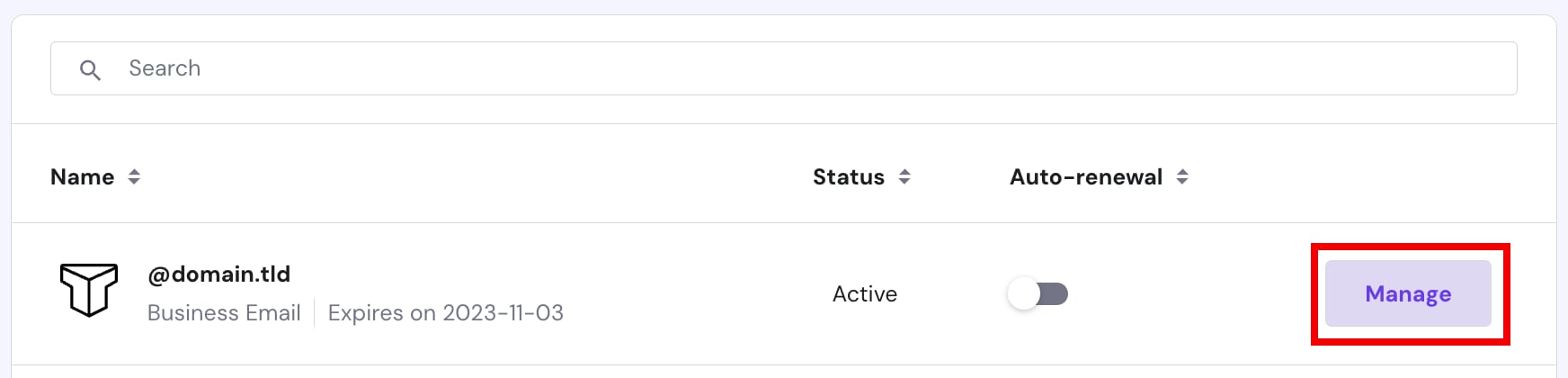
To upgrade your Titan Email plan, open the Emails section and click on Manage next to your domain name:
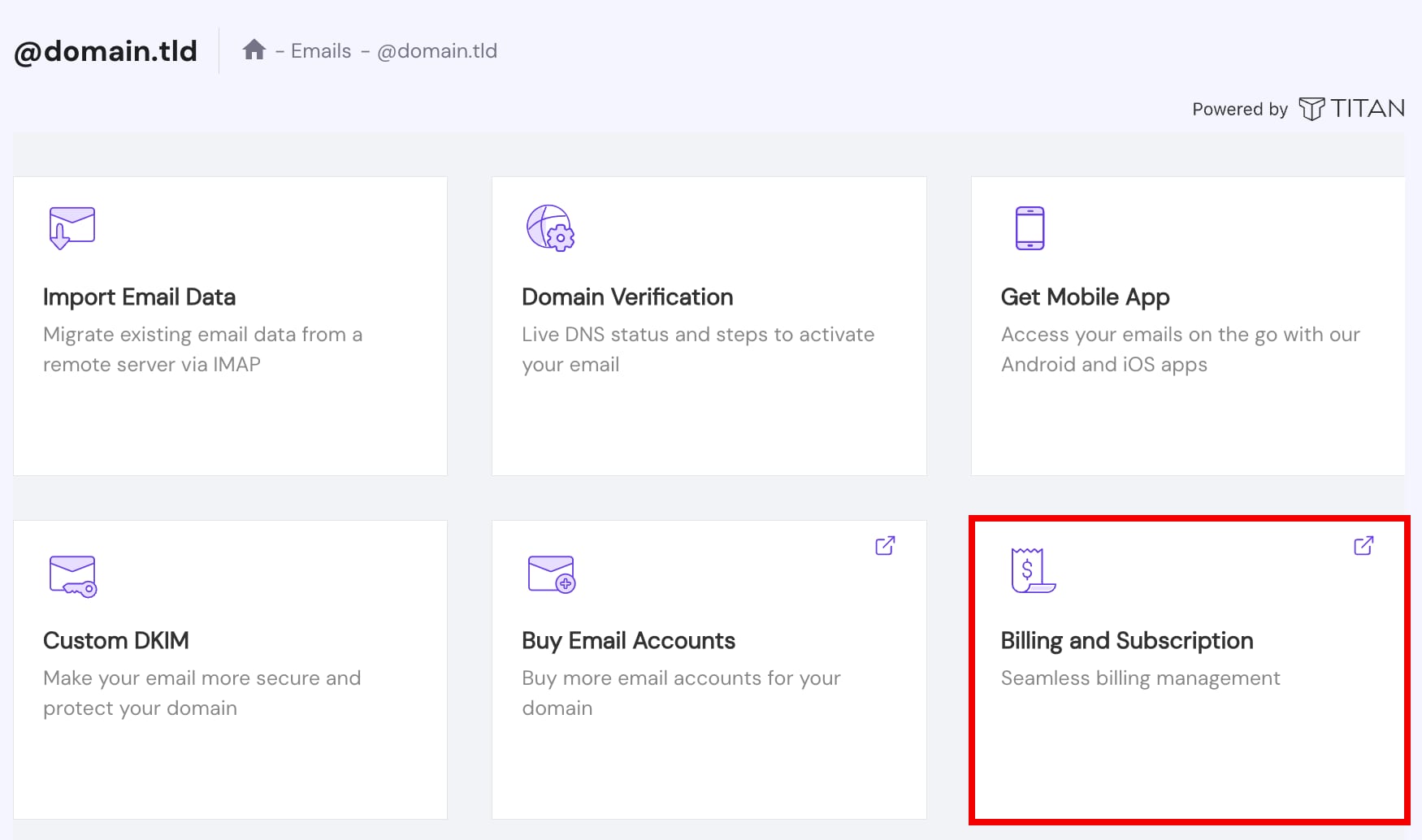
Then, click on Billing and Subscription:
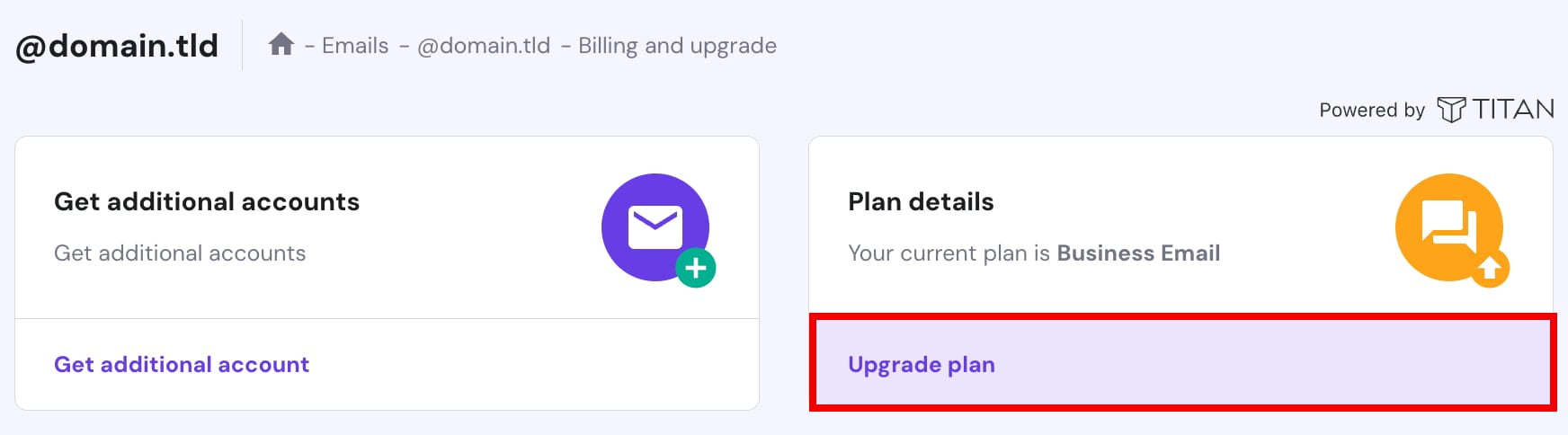
Now, select Upgrade plan:
You will be presented with a pop-up window to upgrade your Titan Email plan with just one click on Complete Payment.
How to Upgrade a Free Titan Email Plan
In case you received Titan Email along with your hosting plan, you can upgrade it to either Business or Enterprise plans with just a few clicks.
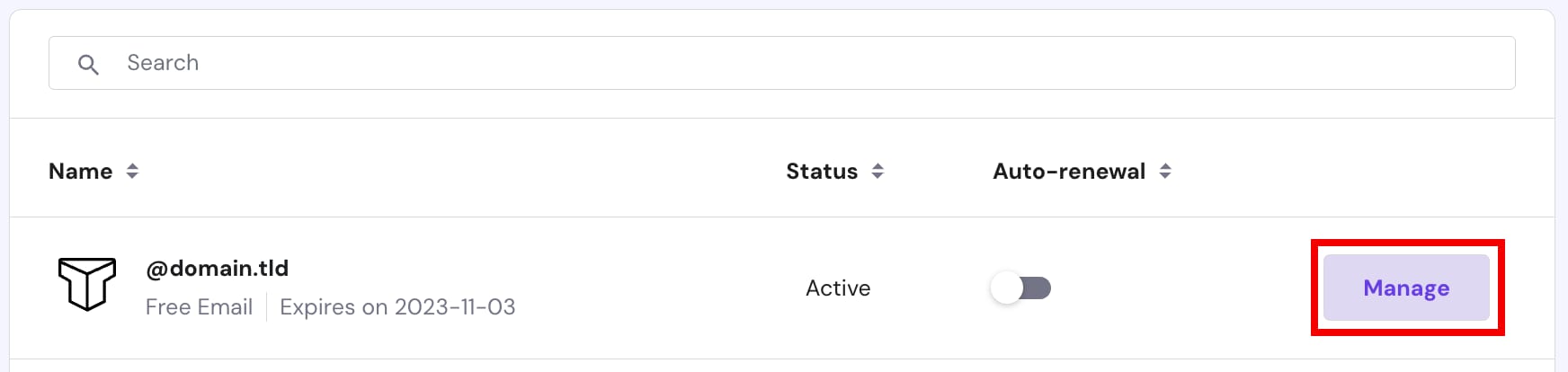
To do so, open the Emails section and click on Manage next to your domain name:
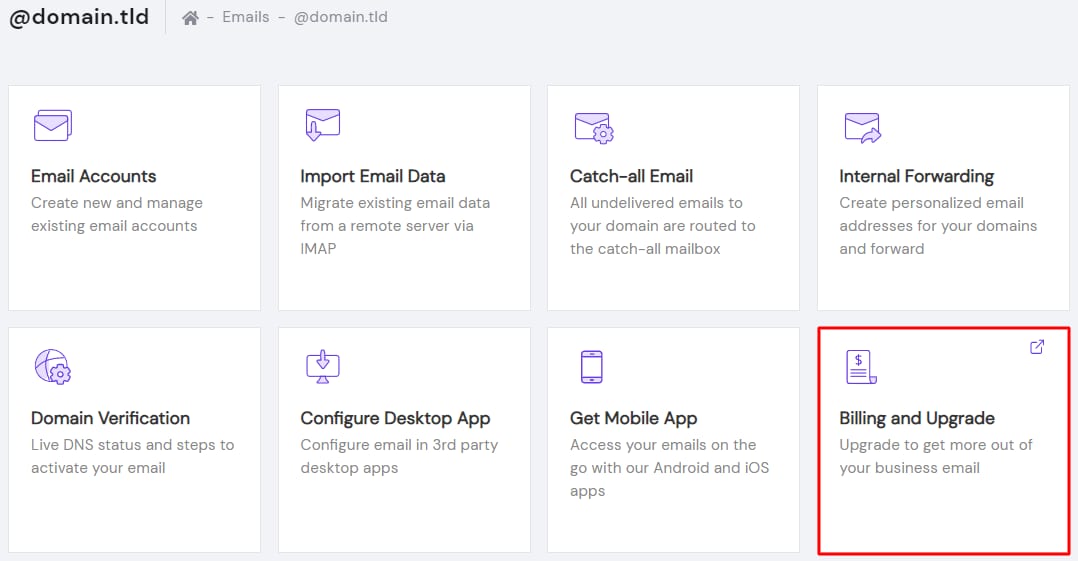
Then, click on Billing and Upgrade:
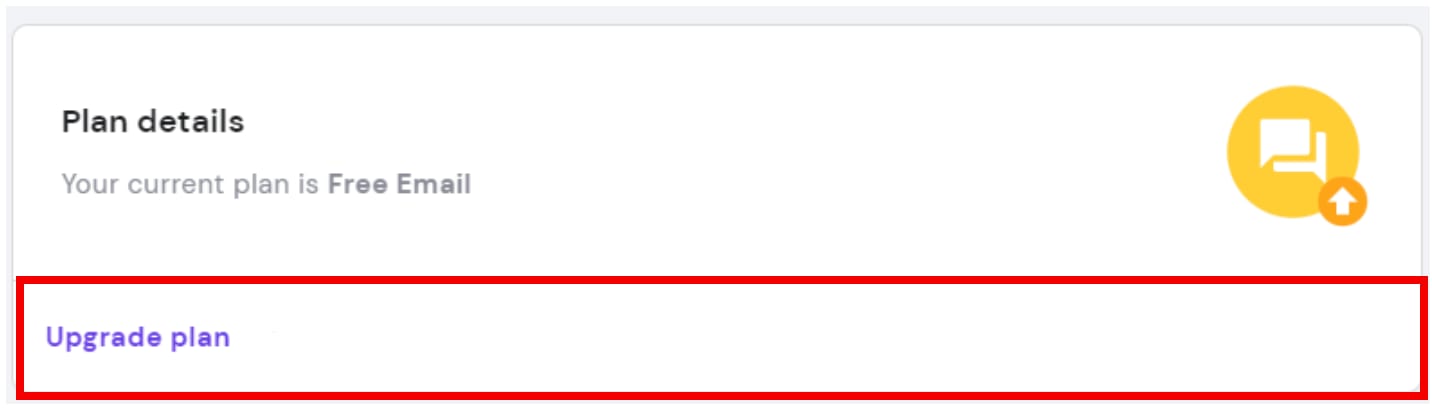
And select Upgrade plan:
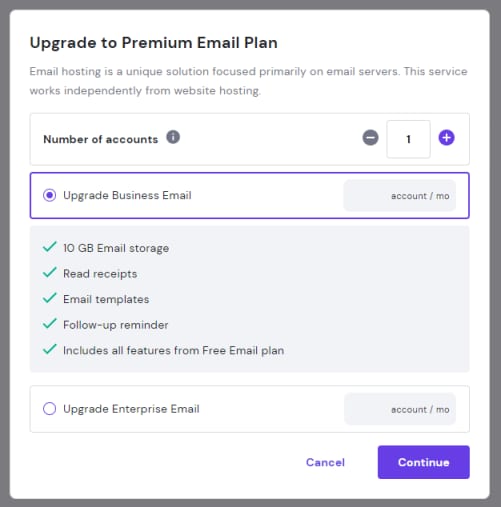
You’ll be presented with a pop-up to upgrade your free Titan Email plan to Business or Enterprise:
That’s how your upgrade your Titan Email plan 😊