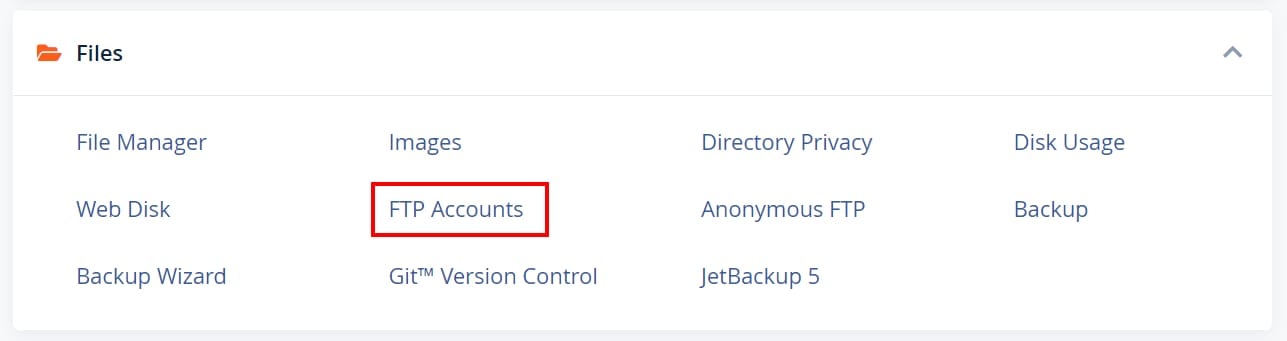
You can easily find your FTP details by opening your cPanel and clicking on FTP Accounts:
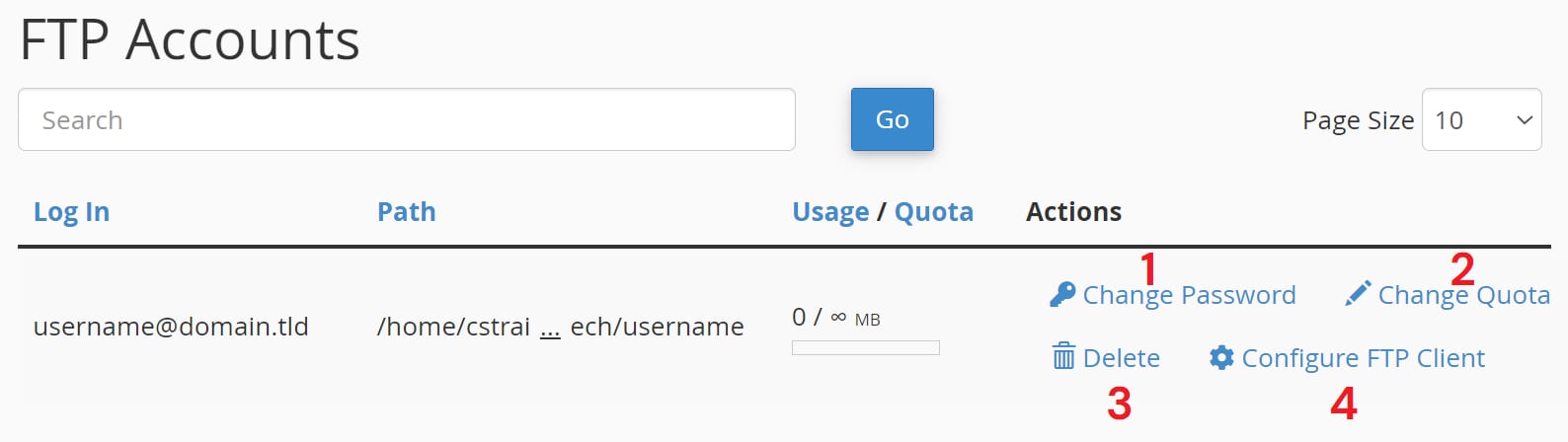
If you created an FTP account before (it can be done on the same page above), in the FTP Accounts section you will see presented with these buttons:
-
Button to change FTP account password
-
Button to change FTP account quota
-
Button for deleting your FTP account completely
-
Button for checking your FTP details
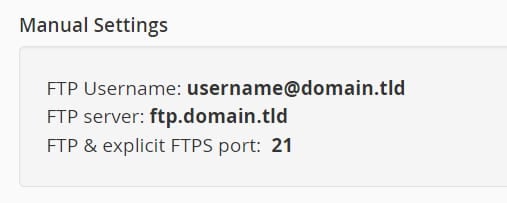
Your FTP details should look similar to these:
NOTES
-
If your domain is not pointing to Hostinger by nameservers, the FTP server address will not work as a host for an FTP connection. Replace it with your account’s IP address
-
FTP is not available for websites created with Hostinger Website Builder