You can easily install applications automatically with the help of our Softaculous Apps Installer. This feature allows you to install any of the available CMS on your cPanel account automatically, for example, WordPress, Joomla, Drupal, and many others 😊
STEP 1 – Open Softaculous Apps Installer
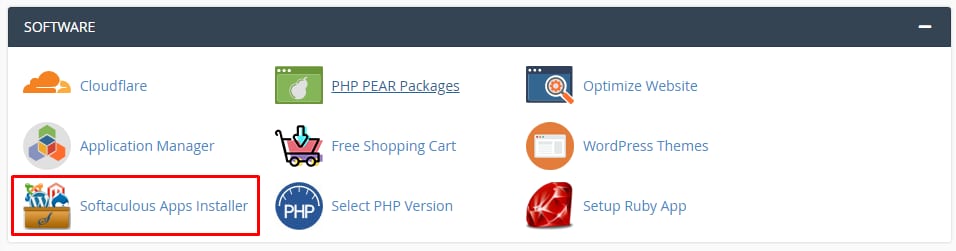
Installing applications automatically is as easy as opening your cPanel account and clicking on Softaculous Apps Installer section:
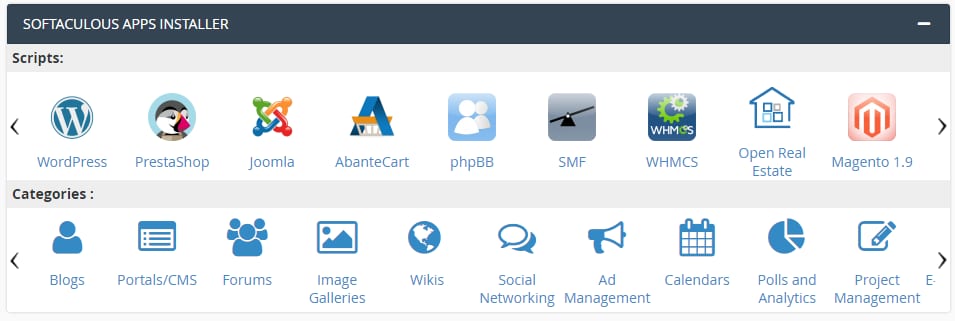
Alternatively, you can scroll down to the bottom of your panel and you will see a list of most popular applications and choose the one that suits you the best:
STEP 2 – Choose an Application to Install
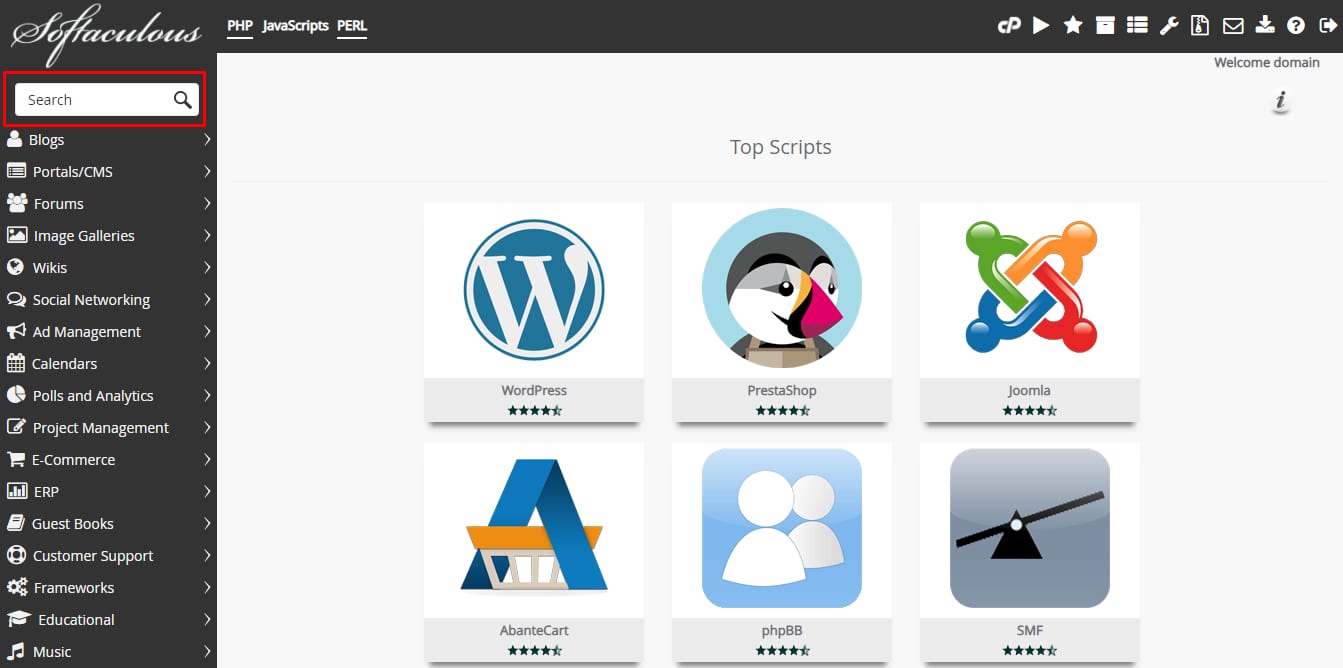
Once you are in Softaculous you can choose from a variety of applications by choosing different categories as well find your desired ones in Search section:
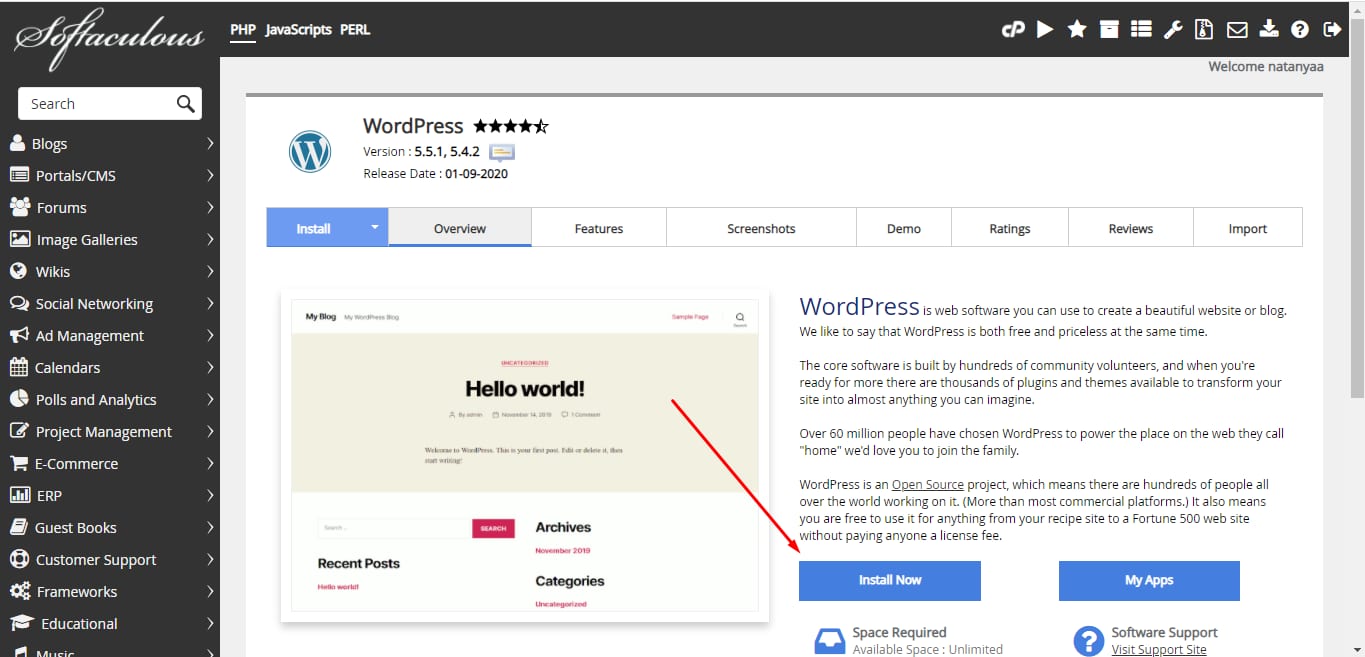
After choosing the application, click on Install now:
STEP 3 – Insert the Installation Details
Fill all the required details:
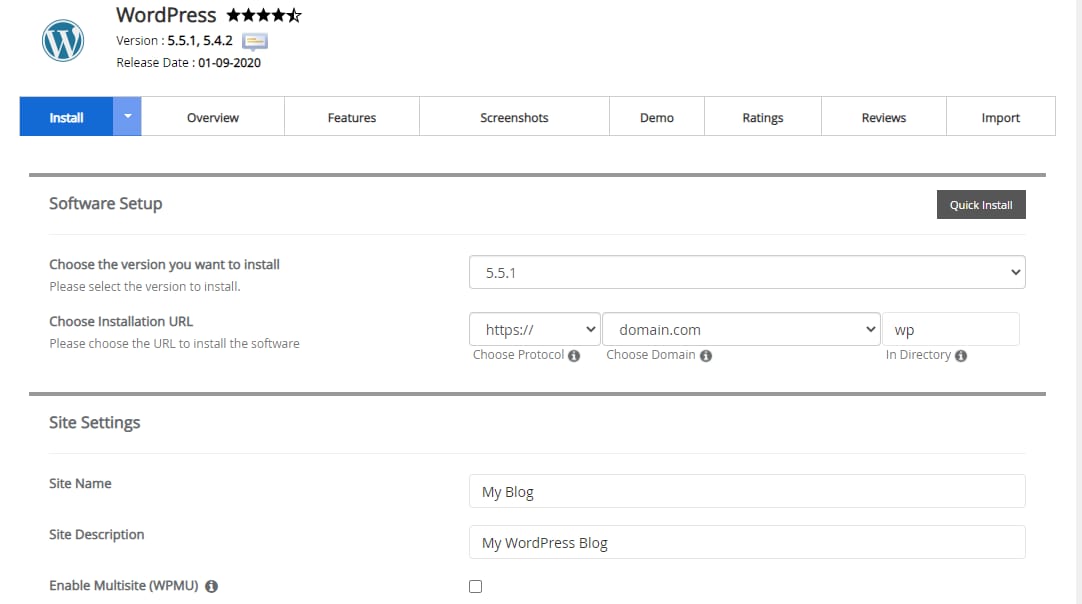
Once the required information and all details are filled out, click on Install at the bottom of the page. Softaculous will do the rest for you! You will see a success message as soon as the installation is complete:
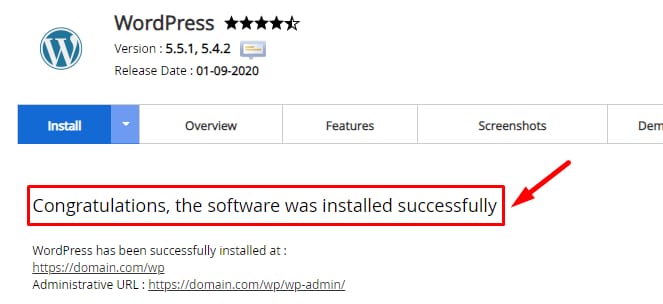
Any required databases for your applications will also be automatically created.
NOTES:
-
In case you don’t see your preferred application and you are sure that Softaculous supports it – contact our Customer Success team and we will help you out 😊