If you don’t have access to the WordPress administrator page and wish to change your website’s theme, just follow these steps:
Step 1 – Identify your WordPress database
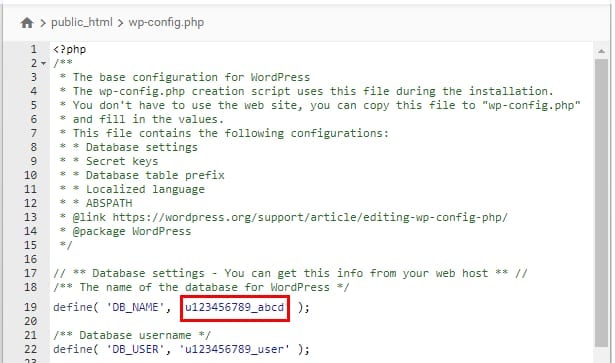
Navigate to File Manager, and open the wp-config.php file inside your public_html directory. The name of the database for your website is shown in the DB_NAME line:
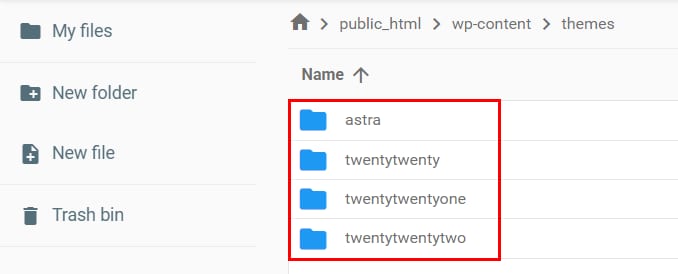
While you are at File Manager, be sure to check all the available themes you currently have on the /wp-content/themes directory:
Step 2 – Open phpMyAdmin
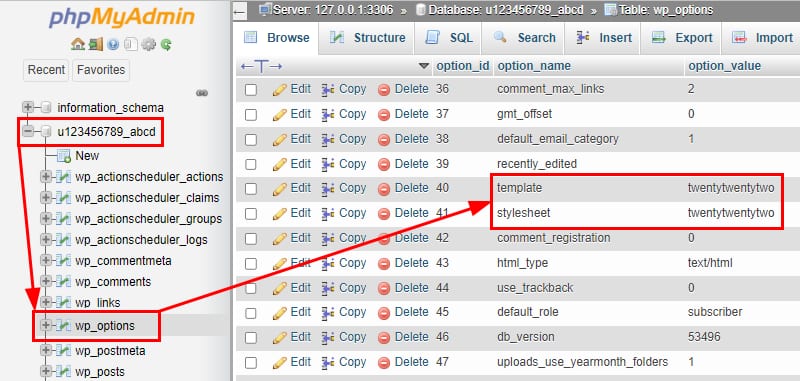
Go to the Databases → MySQL databases section on your hPanel and locate the database with the name you found in wp-config.php file and open it via phpMyAdmin
In phpMyAdmin, open the wp_options table and find the template and stylesheet rows – you may need to scroll down or move to the next page. These rows will contain your current theme name:
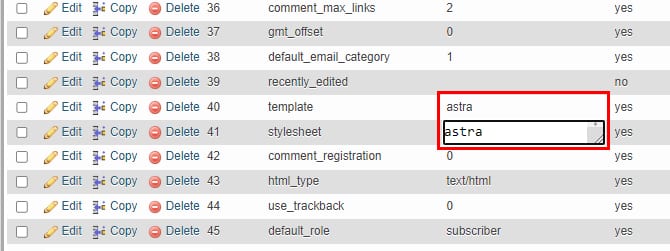
Next, double-click on both of the rows to edit the theme name. You can change it to any of the themes you have already installed. The name should fully match the name of the theme’s folder:
That’s it! your WordPress theme has been changed successfully. You can corroborate it by visiting your website after clearing your cache or using an incognito window 😊
NOTE: