You can create an email signature for your cPanel email account via the Roundcube mail client.
Navigate to the Email Accounts section in your cPanel account, and click on Manage next to the email account:
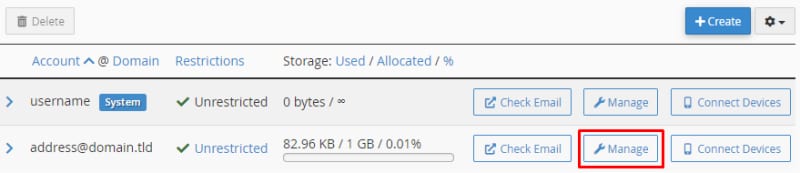
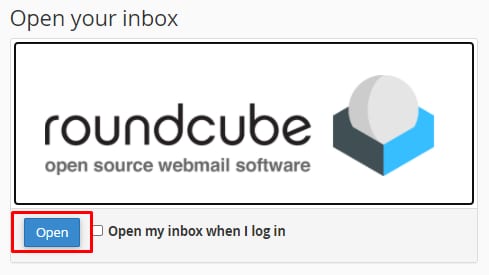
Select Check Email, and from there, you will be able to access Roundcube:
On the Roundcube webmail interface, navigate to the Settings → Identities section and scroll down to find the email signature:
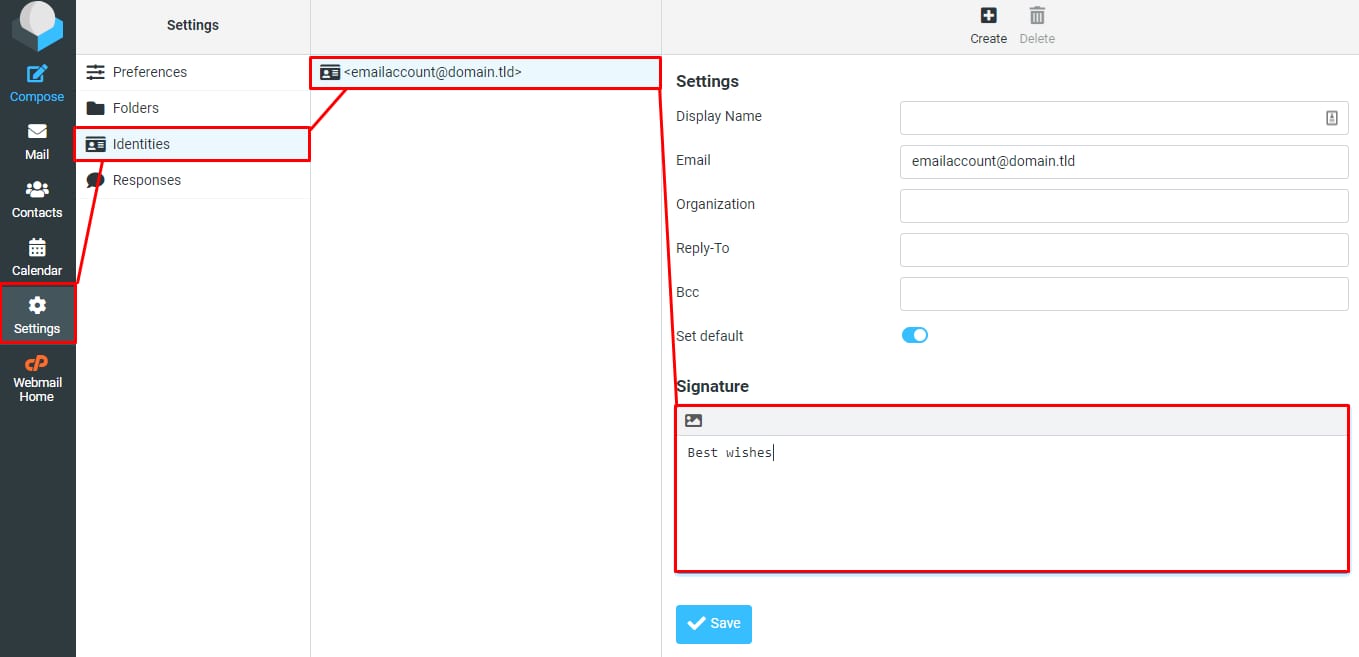
Enter your desired signature in plain text. Alternatively, you can enable HTML signature by clicking on the image icon:
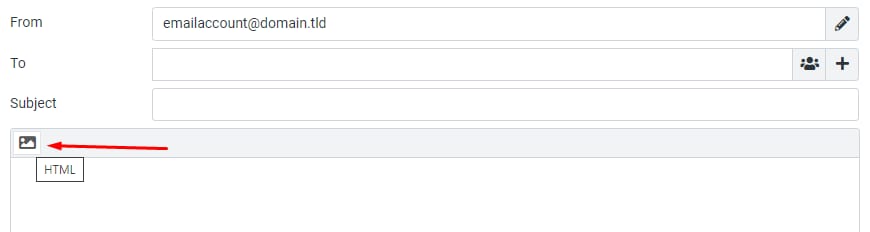
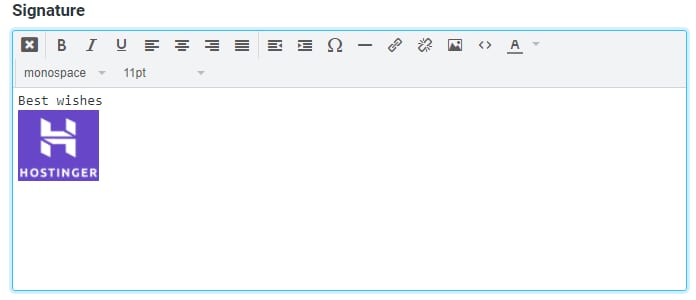
Now you can add formatted text and pictures to your signature:
When all is good to go, click on Save to apply the signature to all your new outgoing messages.