To manage all billing aspects of your account, head to the Billing section of your hPanel. You will find the following options on the sidebar:
Subscriptions
The Subscriptions page (hPanel → Billing → Subscriptions) now displays the renewal price directly on the subscription row — no need to expand a secondary modal to find it. A note next to the price indicates whether the amount excludes taxes.
Auto-renewal is now managed via a toggle switch on the subscription row. Click the toggle to enable or disable auto-renewal for each service individually. When auto-renewal is enabled, Hostinger charges the saved payment method before the expiration date (27 days for domains, 14 days for yearly plans, 1 day for monthly plans).
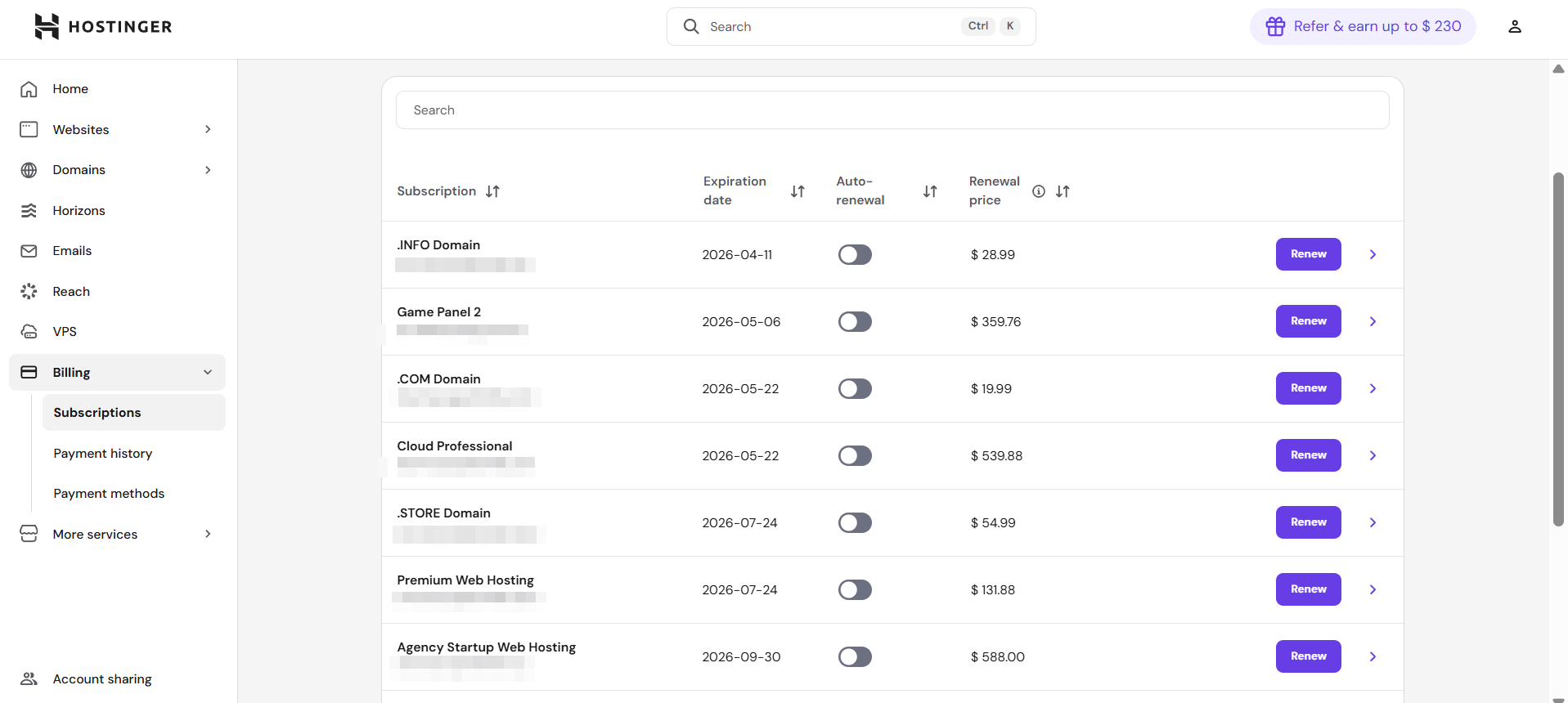
Clicking on the arrow (❯) will provide the options to update your billing cycle (if auto-renewal is enabled) and change the auto-renewal status.
Payment History
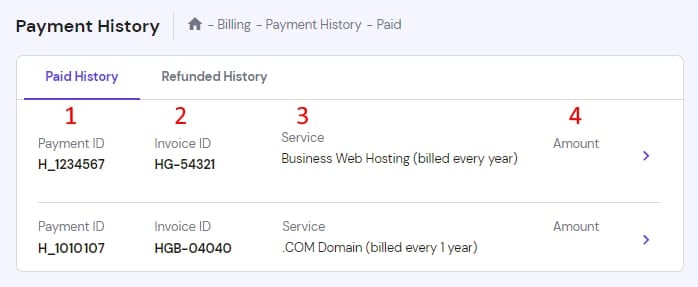
On the Payment History, you will be presented with the list of all of your past payments. You will also be able to check your refunded invoices by clicking on the Refunded History tab.
-
Payment ID – identification of the payment, required to locate the payment or to create a refund request
-
Invoice ID – identification of the invoice, that corresponds to that in the PDF version of your invoice
-
Description of the service and billing period covered by the payment
-
Amount paid
Clicking on the arrow (❯) will provide the payment details, amount breakdown, as well as the option to download your invoice as PDF.
Payment Methods
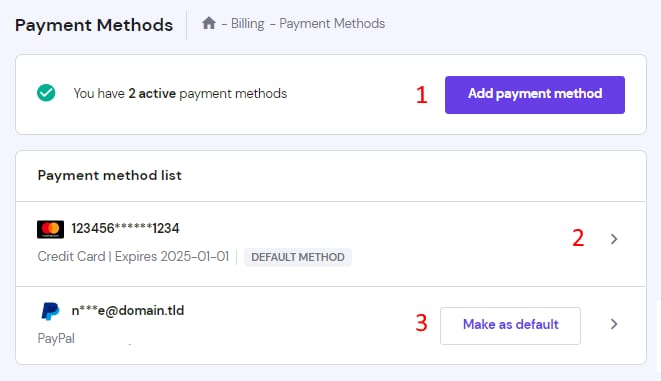
In the Payment Methods area, you can manage your payment methods. You can use saved payment methods to purchase any of our services with just one click. Additionally, you can enable auto-renewal for your services if you have an active payment method added:
-
Add a new payment method
-
Check the payment method details – from here, you can also remove it from your account
-
Change the default payment method – this option is available if you have more than one method