If you have a WordPress website and wish to roll it back to a previous date, you can easily do it with Restore Website! It will restore both the files and database to a date of your choosing.
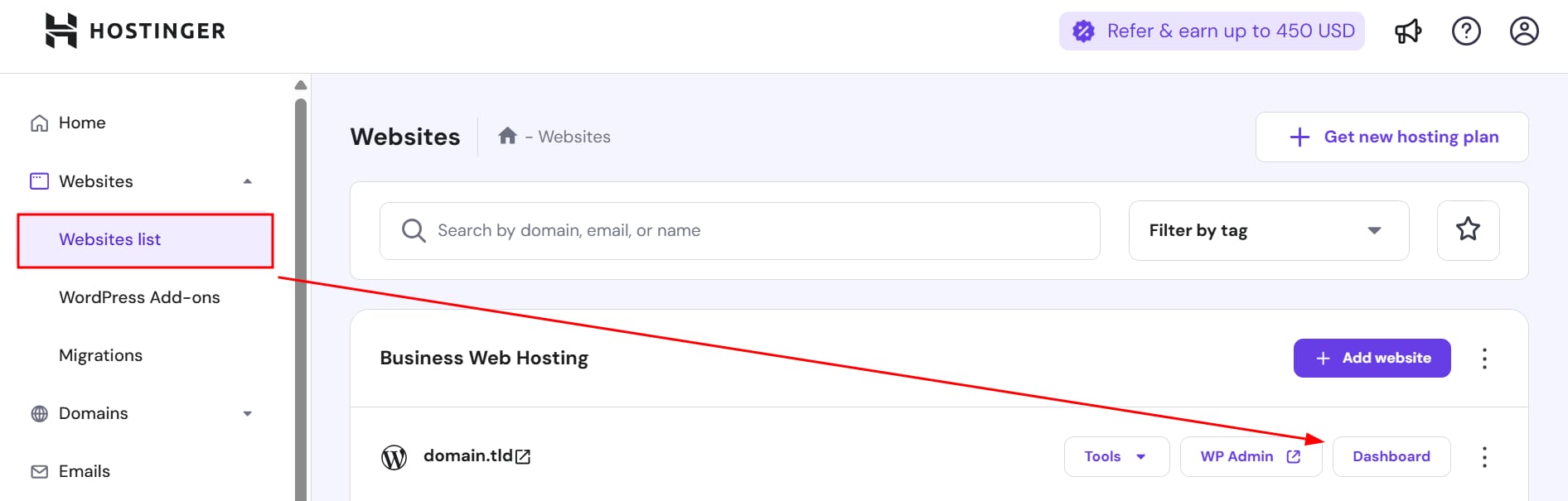
To start the process, go to Websites → Websites list → Dashboard.
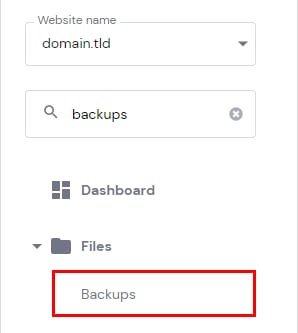
Then search for Backups on the sidebar and click on it:
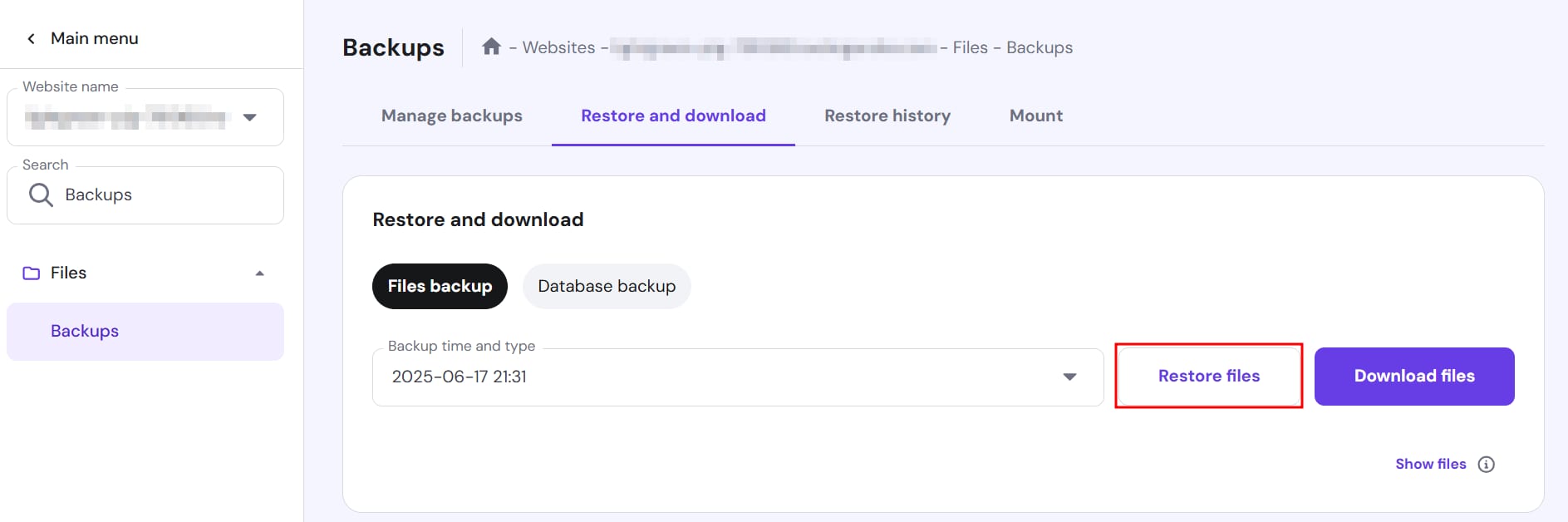
Once on the Backups sections of your panel, select Restore and Download tab. Under Files backup, select your preferred date and click Restore Files:
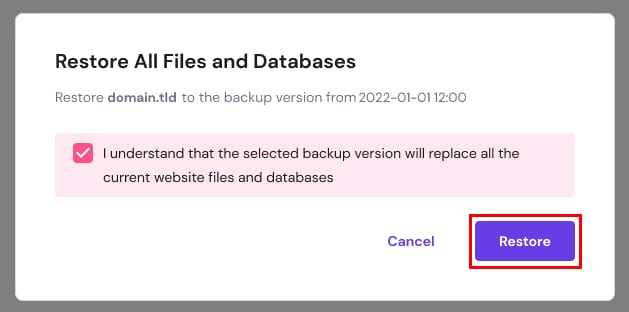
Once you’re good to go, a pop-up will emerge with a message regarding data overwrite. If you’re ready to replace the current website, check the box and click Restore:
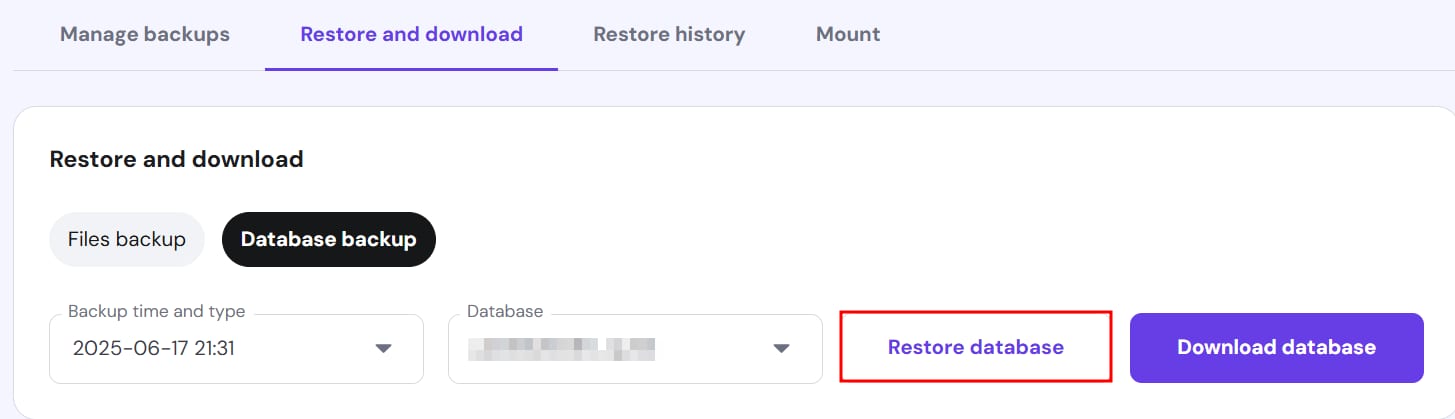
Once the files restoration is complete, repeat the same steps under Database backup. You’ll be shown a dropdown to enter your database name. If you’re unsure about your database name, check out our guide How to Find Your WordPress Database.
After a few minutes -depending on the size of your website- the files and database will be restored to the selected date. The restoration will continue in the background even if the browser tab is minimized or closed. Check the status in the Restore History tab to view progress.
NOTE
-
If your website is created using a different CMS, you will get a “No backups found” message. Also, if your WordPress website is on a subdomain, the Restore button might display a “Restore website is coming soon” message.
In these cases, you can restore the files and database separately by following these steps: Restore Specific Websites or Subdomains from Backups at Hostinger