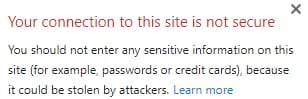
After installing an SSL certificate and forcing the HTTPS protocol, your website may display a “Not secure” warning next to the domain in the URL bar:
In addition, certain elements on your website may not function properly or fail to load. This is usually due to a mixed content issue, meaning that some images or other content on your website are loading with HTTP instead of HTTPS.
To fix it, update all the links on your page to HTTPS. If you use the Elementor plugin, go to Elementor → Tools → Replace URL, and insert your domain address with HTTP and HTTPS:
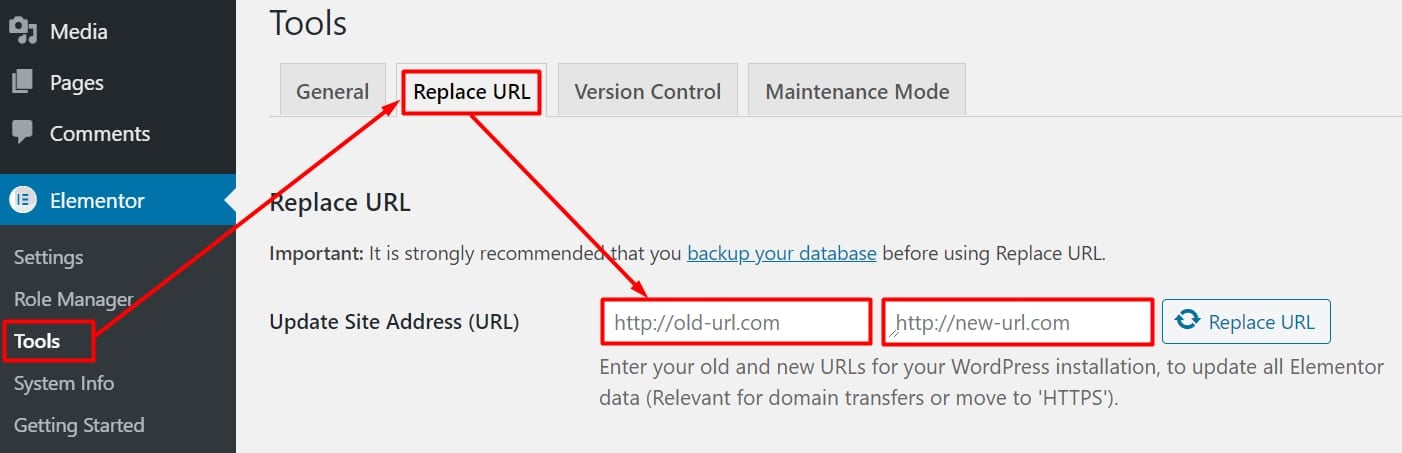
Next, save the changes and reload your website — the mixed content issue should be resolved.
For WordPress websites not using Elementor, check the options below 👇
Option 1 — Use the Really Simple SSL Plugin
Log in to your WordPress admin area and click on Plugins → Add New:
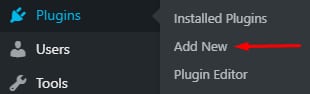
Install and activate the Really Simple SSL plugin. Next, go to Settings → General:
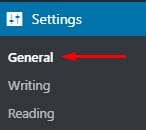
Make sure your website URLs include https://

Option 2 — Use the Better Search & Replace Plugin
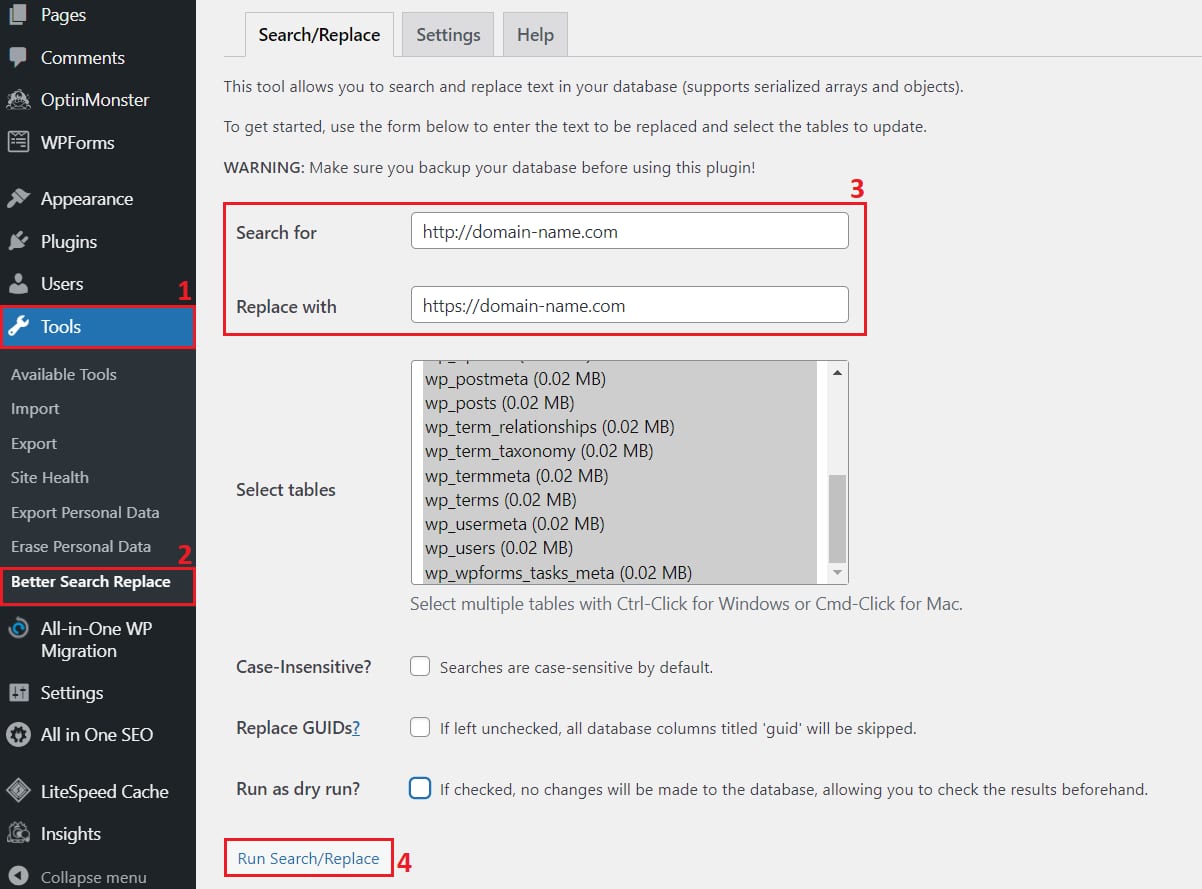
Install the Better Search & Replace plugin, then go to Tools → Better Search Replace.
-
In the Search for field, enter the domain name starting with http://
-
In the Replace with field, enter the domain name starting with https://
-
Select all the tables, remove the checkmark next to Run as dry run? (if any), and click on Run Search/Replace:
Option 3 — Add Code to the .htaccess File
This option is not recommended if your website uses symlinks 💡
If the mixed content issue persists after trying the previous methods, open your public_html/.htaccess file (or create it if non-existent) and insert the code below:
Header always set Content-Security-Policy: upgrade-insecure-requestsSave the changes and reload your site — it should be loading properly with HTTPS. If you’re still having the same issues, try following this more detailed guide.