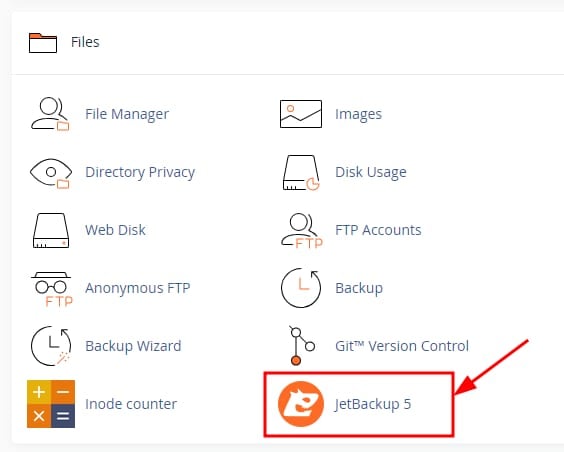
At Hostinger, you can restore a backup by logging into your cPanel account and navigating to Files → JetBackup 5 section:
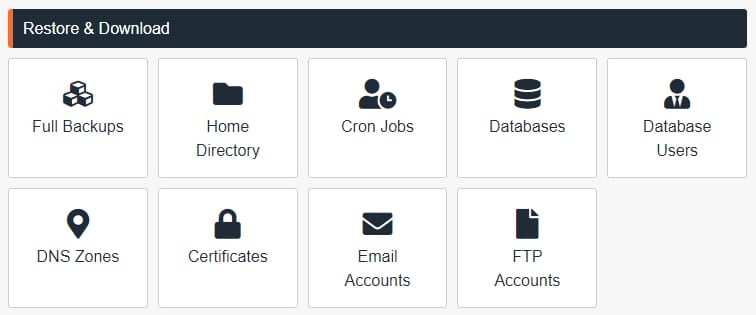
Once there, click on the desired option:
-
Full Backups
-
Files
-
Cron Jobs
-
Database
-
Database Users
-
DNS Zone
-
Certificates
-
Email
-
FTP Accounts
Select the available backup and click on Restore:
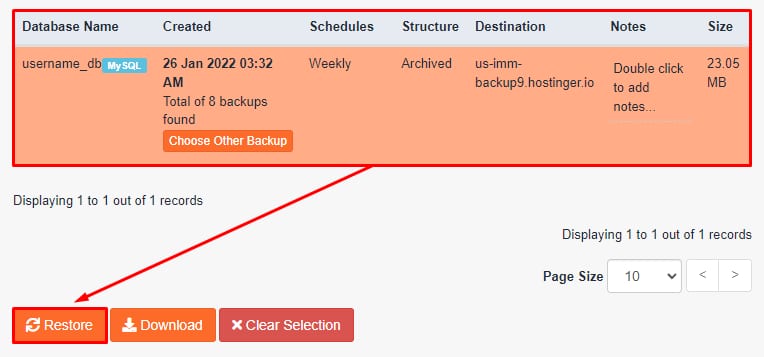
After a few minutes, depending on the size of the selected backup, the restoration will be completed.
For cPanel reseller plans, you can also use this feature to restore backups for your cPanel customers.