All of our cPanel hosting servers are powered by LiteSpeed Web Server. This means that WordPress users can easily enable LiteSpeed Cache Plugin. LiteSpeed Web Cache Manager is integrated within cPanel and helps to:
-
dramatically reduce page load times;
-
provide an exceptional user experience;
-
handle traffic spikes with ease;
-
manage cache with minimal fuss and powerful Smart Purge technology.
Firstly, you need to locate LiteSpeed Web Cache Manager icon in your cPanel:

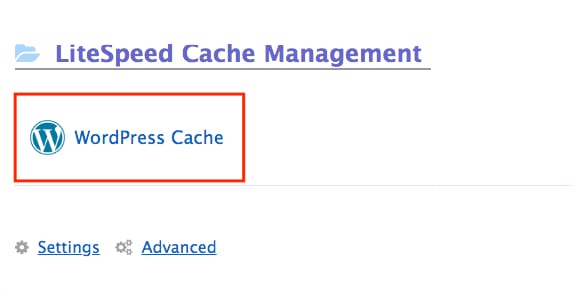
Once you get inside, you should click on WordPress Cache icon:
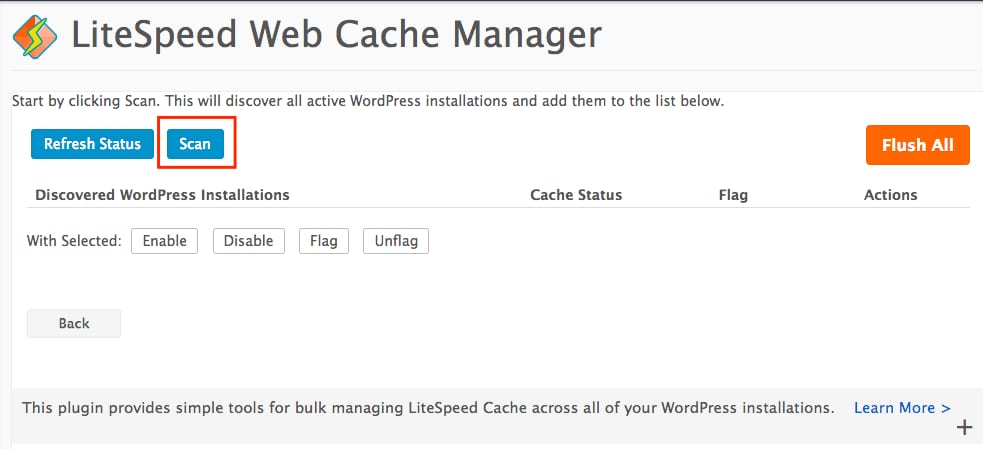
The next steps are pretty simple! Start by clicking Scan button, this will discover all active WordPress installations:
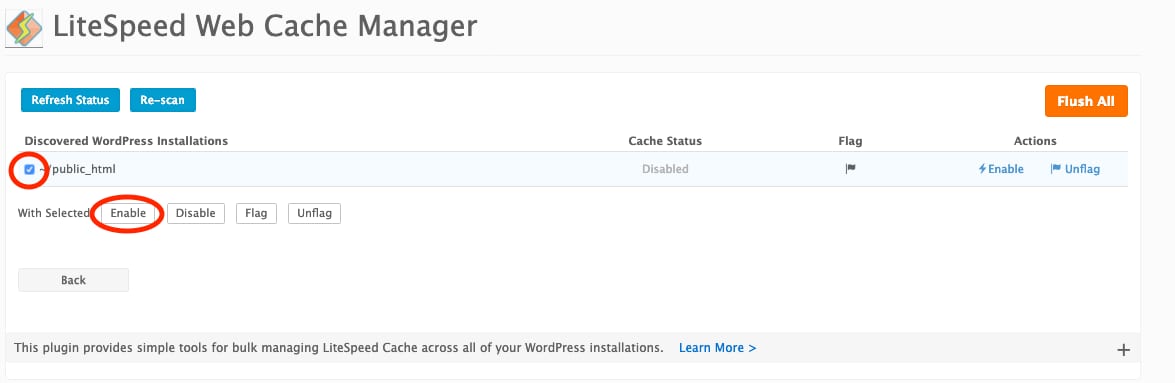
Lastly, once WordPress installations are discovered make sure to select the ones that you want to activate and click Enable: