Newly registered domains or domains for which the nameservers have been recently updated may take up to 24 hours to start working globally. This is a normal part of the propagation process; while the domain is fully activated and pointing to Hostinger, most features such as the website, email, and FTP will not work.
During this time, you may get a notification that “Your domain is connecting“. Fortunately, you can start building or migrating your website and review the changes right away, by using any of the methods described below.
Using a preview domain
You can use preview domain if your domain is not pointing to Hostinger’s nameservers yet. To check your preview domain, you can go to Websites, click the ellipsis besides the domain you want to see the preview, then click Website Details:
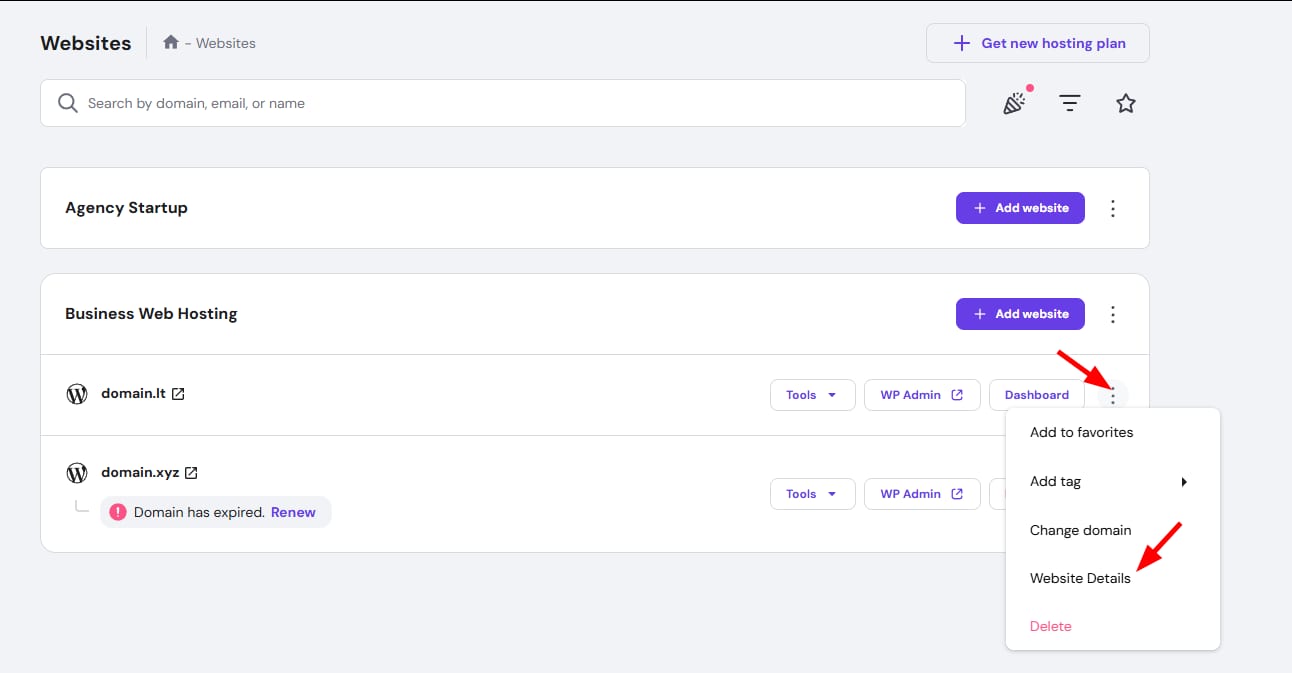
There you will find the preview domain you can use!
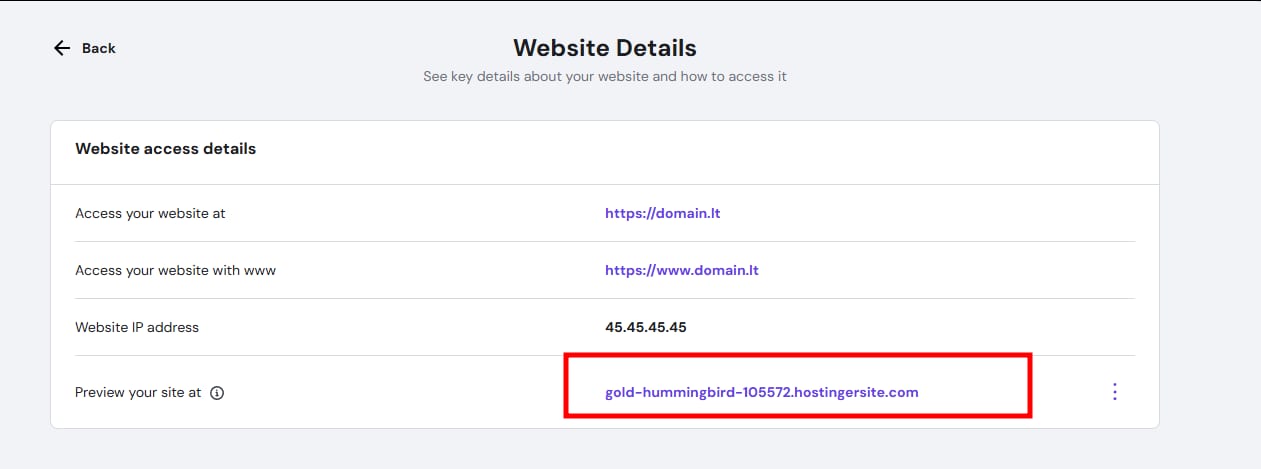
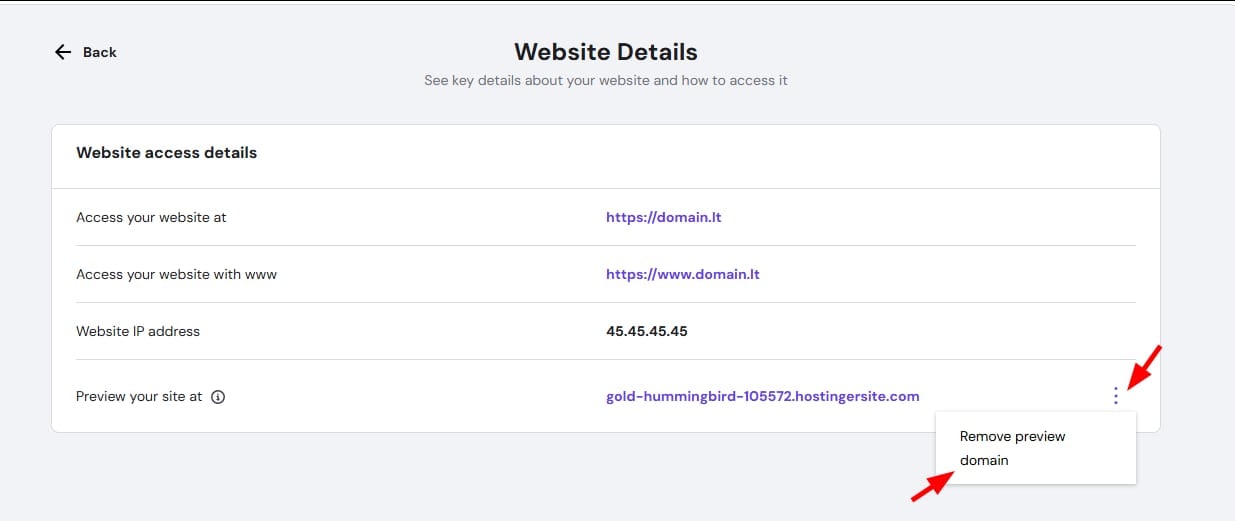
In case you want to remove the preview domain, you can click ellipsis then Remove preview domain:
Using a temporary domain
During the process of adding a website to your hosting plan, you will have the option to use a custom domain or subdomain you already own, or use a randomly generated temporary domain.
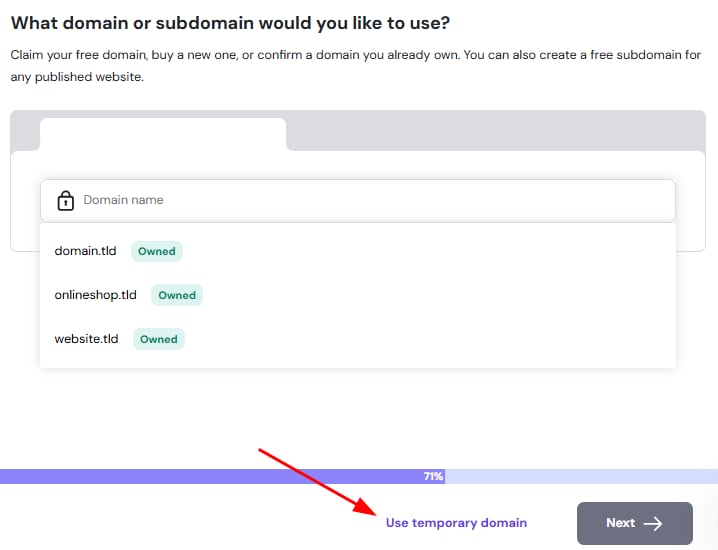
Temporary domains will work as long as your hosting plan is active, and you can connect your website to a custom domain at any later time.
The temporary domain URL is fixed and cannot be changed.
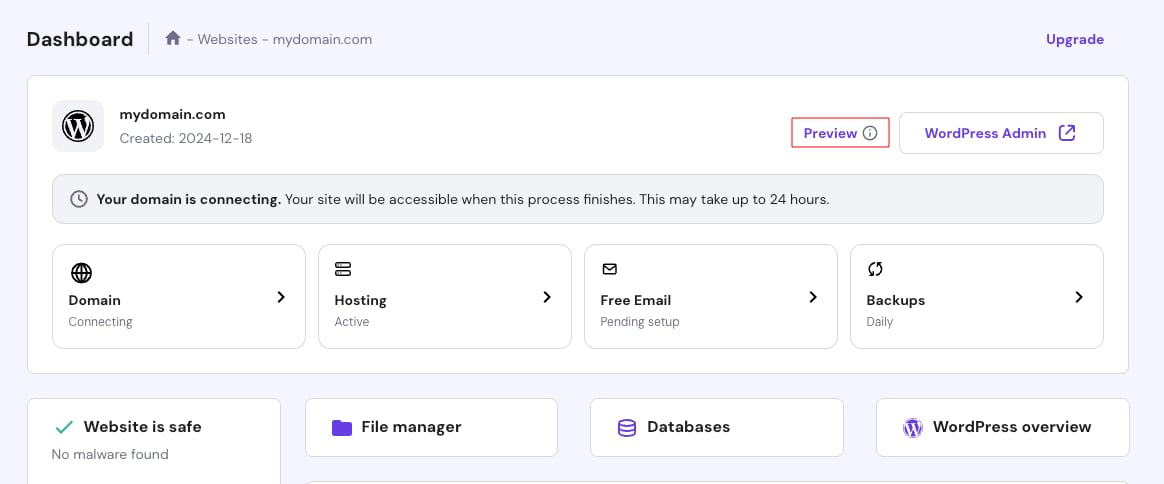
If you have already added your website using a custom domain, you can access the temporary domain by going to Websites → Dashboard and clicking on Preview:
Editing the hosts file
Another option is to edit your device’s hosts file by adding the following lines:
185.185.185.185 www.domain.tld
185.185.185.185 domain.tld
Make sure to replace 185.185.185.185 with your hosting account’s IP address and domain.tld with your domain name.
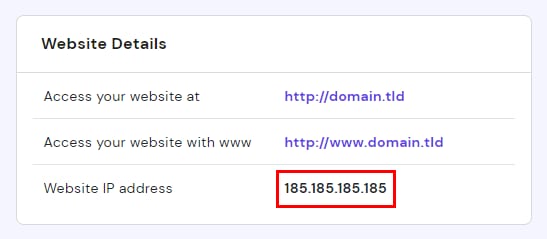
To find the IP address of your hosting plan, go to the Websites section, click on Dashboard next to your site, and go to Plan Details. The IP is shown in the Website Details section:
Make sure to revert the changes to your hosts file once you no longer need them.
Using a temporary URL
You may generate a preview URL using the SkipDNS tool.
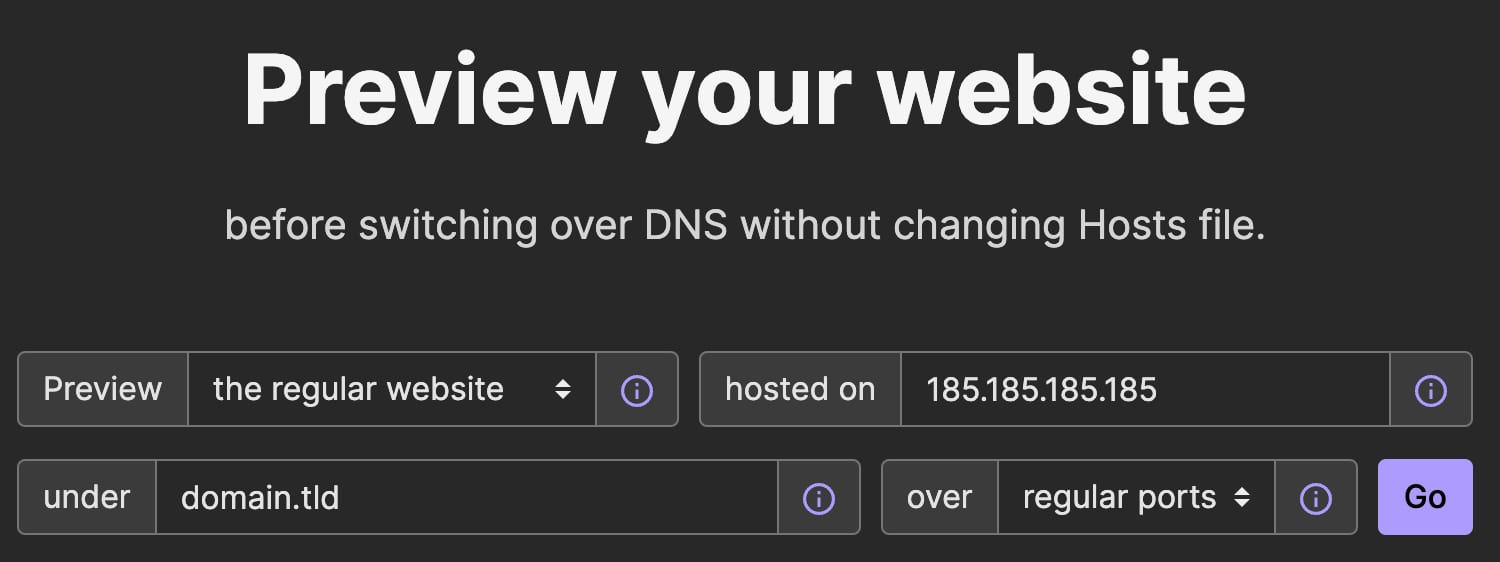
To preview your website’s content, specify the following information in the tool:
-
Preview: select the regular website.
-
Hosted on: insert the IP address of your hosting plan.
-
Under: insert your website’s domain or URL.
-
Over: select regular ports.
And click on Go:
Preview links created with a free SkipDNS account work for about 5 minutes 💡