If you have a backup of your website in a compressed archive such as .zip, .tar, .tar.gz, .tar.bz2, .tar.xz, .tar.lz4, or .tar.sz and it’s less than 100GB, you can easily upload it using the File Manager.
NOTE
-
The file manager is not available for websites created with Hostinger Website Builder
In your Hostinger account, go to Websites, find the website in question, and click on Dashboard. Then, search for File Manager on the left sidebar, and click on it:
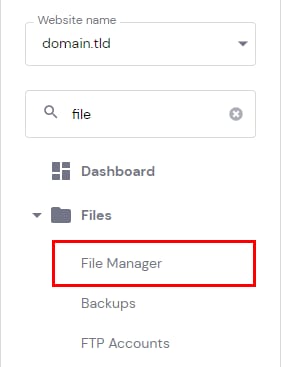
Then, select the option to access files of the particular website:

Open the public_html folder, and click on the upload icon in the top-right:

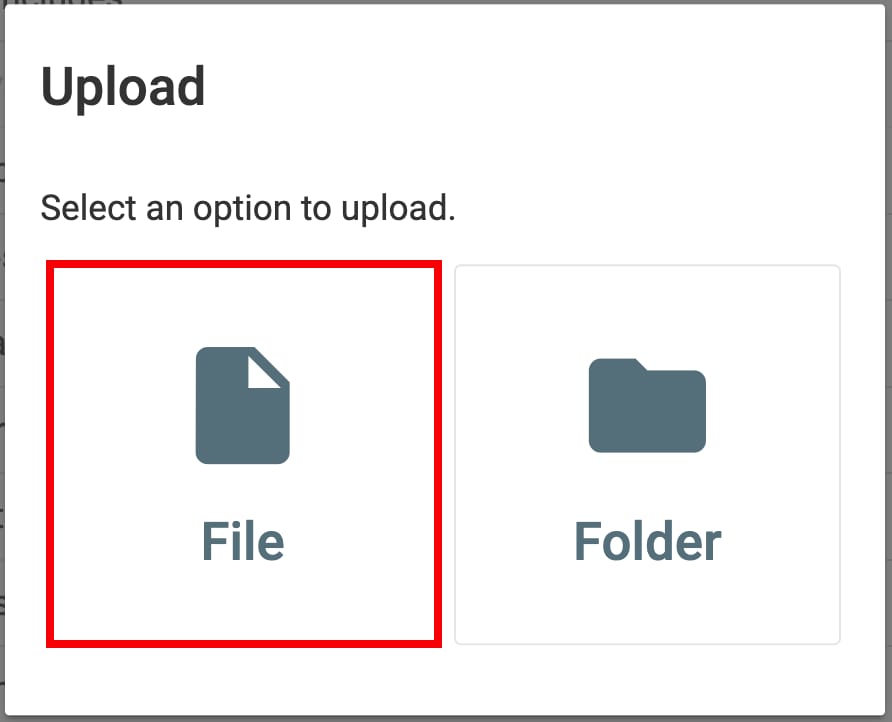
Now, upload your backup file:
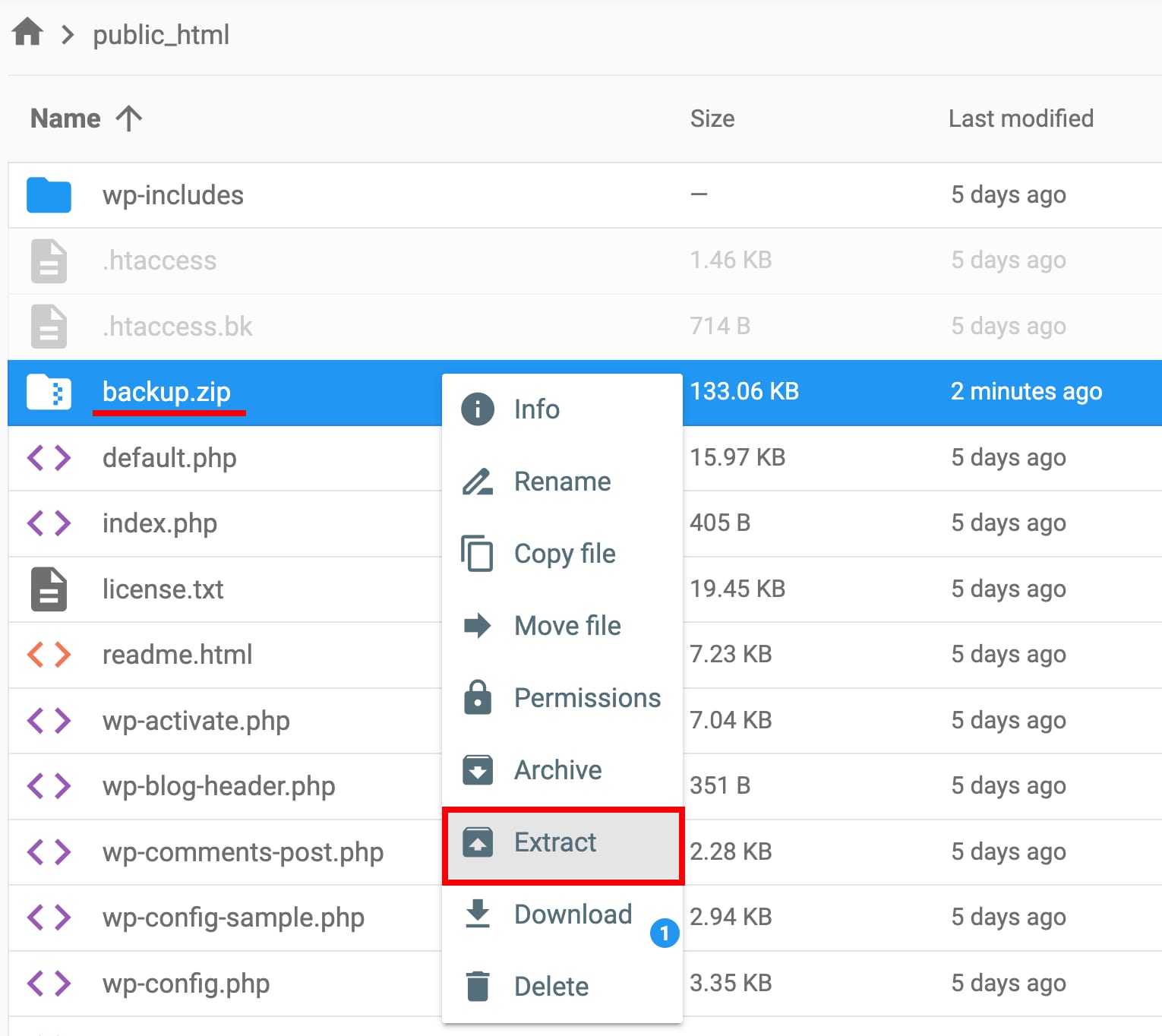
Once you do that, right-click on the uploaded backup file, and select Extract:
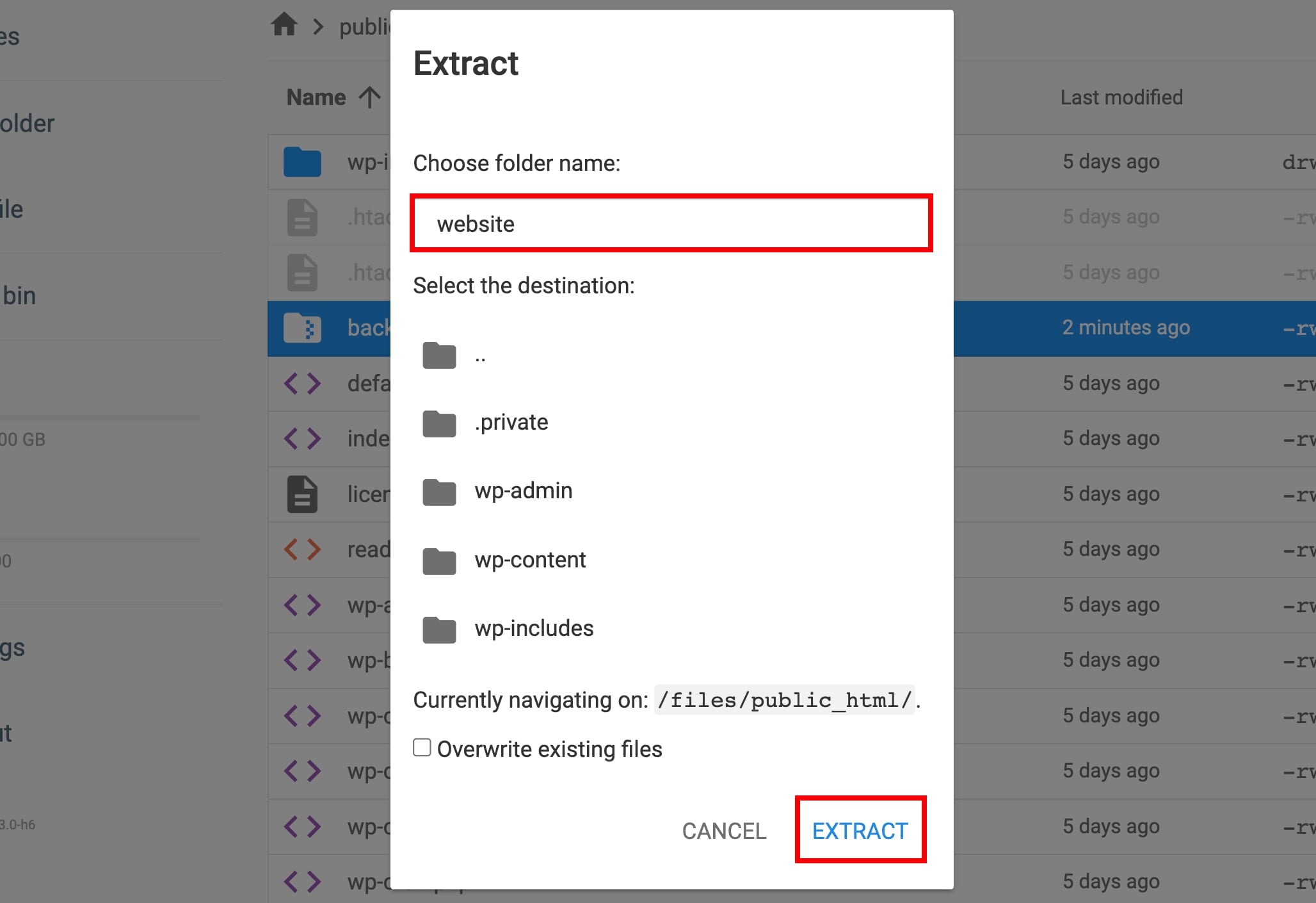
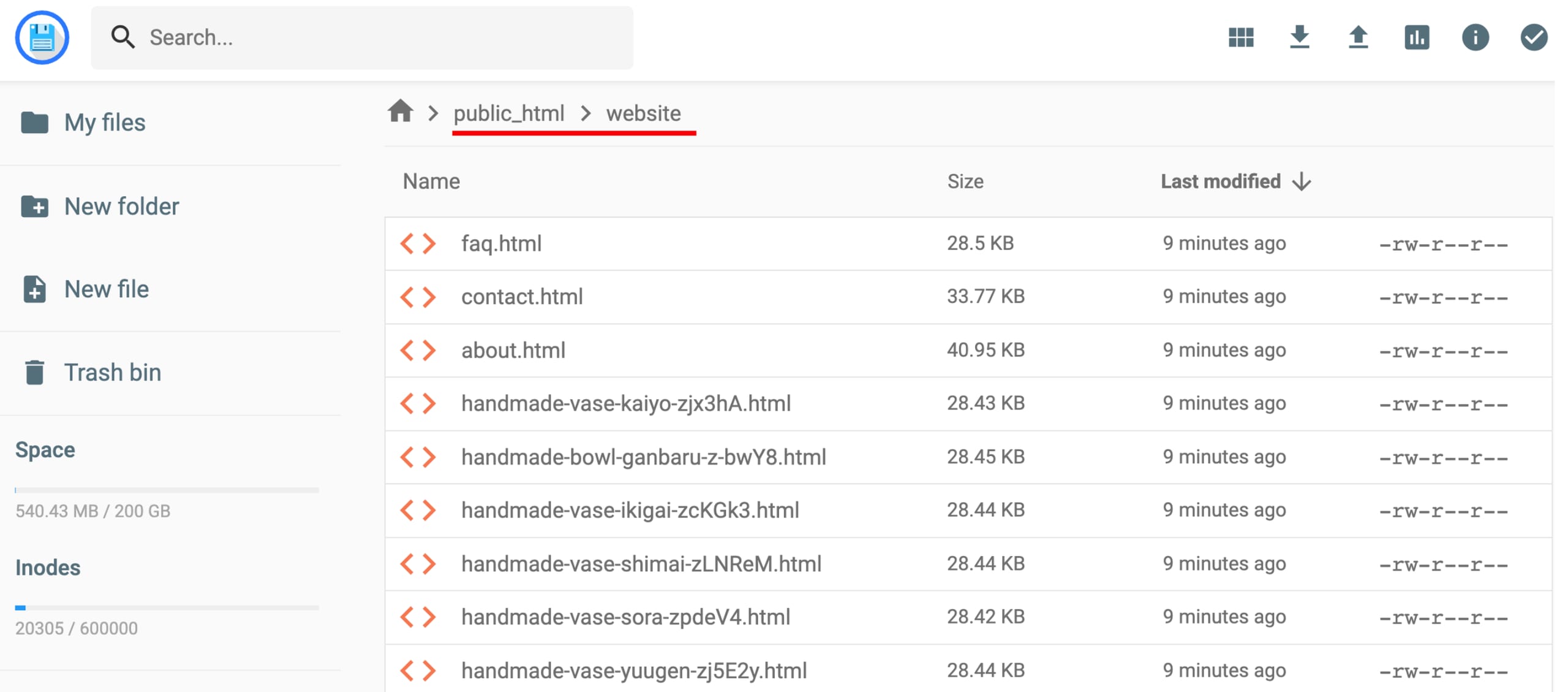
Insert the name of the folder into which you want to unarchive the backup files, and click on Extract:
And that’s it:
Now you know how to upload a backup using the file manager 😊