A File Transfer Protocol (FTP) account is automatically created after you add a custom PHP or HTML website to your web or cloud hosting plan. This guide helps you quickly locate your FTP details within the hPanel to establish a connection between your local computer and your hosting plan.
Before you start
- This guide applies to custom PHP/HTML websites hosted on web and cloud hosting plans. Agency hosting plans do not support plain FTP, only SFTP. For agency plans, refer to the dedicated guide on how to use remote access.
- Hostinger Horizons and Hostinger Website Builder are not file-based platforms. For this reason, FTP access is not supported for websites created using Hostinger Horizons or Hostinger Website Builder.
Locate the FTP details on hPanel
Follow these steps:
- Log in to hPanel and navigate to the Websites page
- Select Dashboard next to the PHP/HTML website.
- On the sidebar, select Files → FTP Accounts.
You will find the FTP connection details for the main user under the FTP Access card, containing all the core parameters required by your client software to establish a successful remote connection.
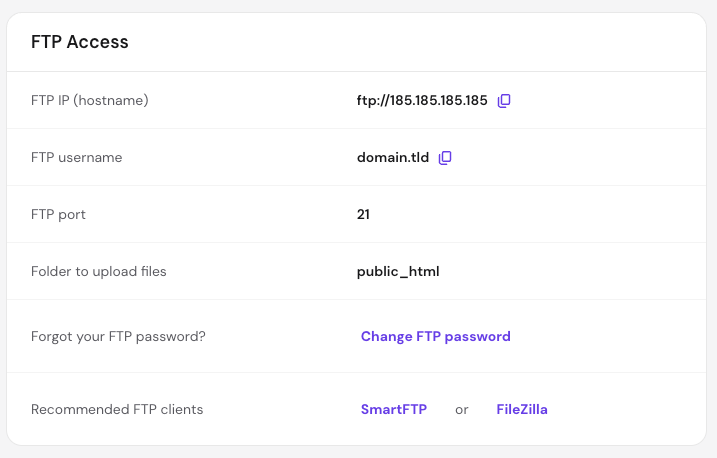
The main FTP hostname, username and upload path are also displayed on the Plan Details page of hPanel.
If you have created additional FTP accounts, scroll down to find the specific hostname, directory and username, as well as to change the password if needed.
Understand your configuration parameters
- FTP IP (hostname): The IP address of your hosting server. This serves as the hostname or server address in your client application configuration.
- FTP Username: The username for the main user, it’s a unique value for each website on your hosting plan, as well as for any additional FPT accounts you may create later.
- FTP Port: The standard port configuration for plain, unencrypted FTP connections. This value is always set to 21.
- Folder to upload files: The absolute server path assigned to your website. For your primary root domain, this directory is designated as
public_html. Files placed outside this folder will fail to load in web browsers. - Forgot your FTP password? The option to set a new FTP password for the selected website.
- Recommended FTP clients – Direct access to download the SmartFTP or FileZilla FTP clients on your local device.
Change the FTP password
For security reasons, your account password is hidden at all times within the hPanel interface. If you are configuring a new connection or cannot recall your current credentials, you can update your password on this page.
- Click on Change FTP Password.
- Enter a strong, unique password that combines uppercase letters, lowercase letters, numbers, and special characters.
- Click the Change Password button to save the configuration.
Your credentials are now ready to be entered into your chosen application to start managing your website’s data using FTP.
NOTE
- For a browser-based solution to access your website files, use the Hostinger File Manager.