At Hostinger, all our Web and Cloud hosting plans include free SSL certificates for all of your websites. Lifetime SSL is automatically installed as soon as you add a website, create a subdomain, or park a domain.
If you have purchased an SSL certificate from another provider, you can easily use it by following the steps below.
The below-given instructions don’t apply to sites created with Hostinger Website Builder because it doesn’t support custom SSL 💡
Step 1 — Uninstall the Current SSL
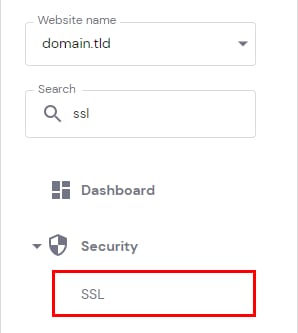
First, make sure that the domain or subdomain currently doesn’t have an SSL installed. To do so, go to Websites, find the site in question, and click Manage next to it. Then, search for SSL on the sidebar:
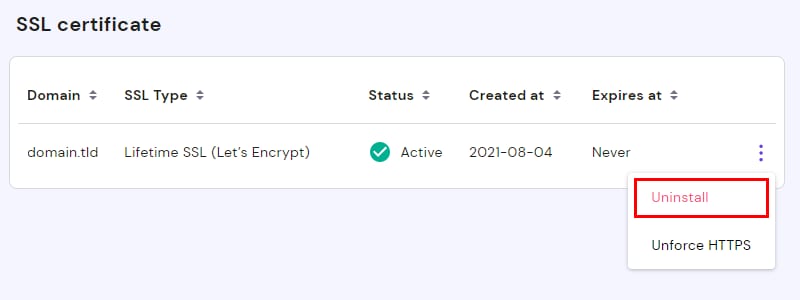
Locate the SSL for the domain (or subdomain). If there is one, click on the ellipsis ⋮ button and select Uninstall:
Step 2 — Import Your Custom SSL
Click on Import SSL. Select the domain or subdomain from the dropdown list and insert the values of the keys provided by the SSL issuer:
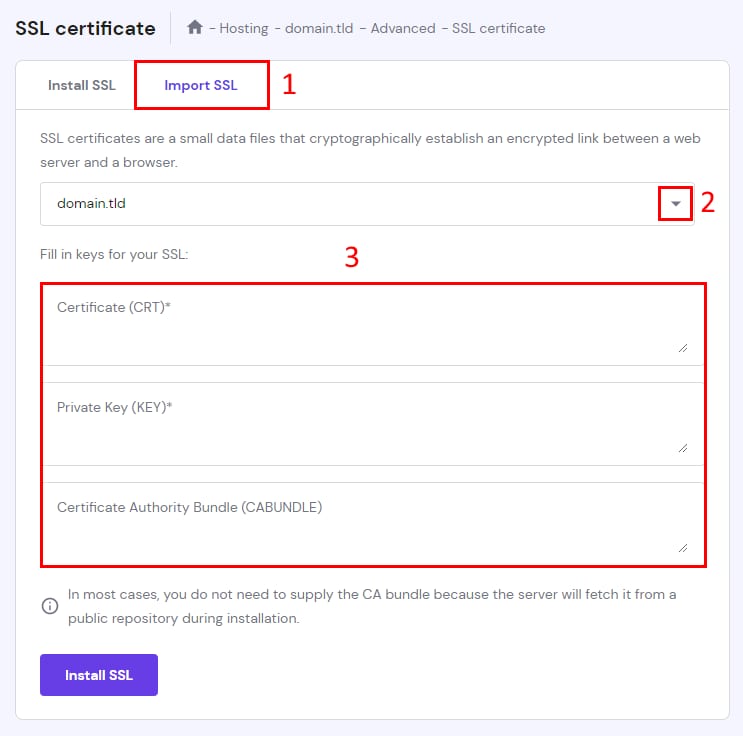
A custom certificate is usually a compressed folder (e.g., a .zip) of the following files:
-
Certificate — the certificate’s public key, usually a file named domain.crt
where the domain is your actual domain -
Private Key — the certificate’s private key, usually the only file with the ending .key
-
Certificate authority bundle (CABUNDLE) — the file that contains root and intermediate certificates
Open each one in a text editor such as Notepad, copy the content, and paste it into its corresponding section. Next, click on Install SSL, and your certificate will be installed.
NOTES
-
If your SSL is still not valid after installation, try to reinstall it. If the issue persists, reach out to your SSL issuer for assistance.
-
If you’re having trouble finding the files for your SSL certificate or figuring out which ones to use, please get in touch with the support team of your SSL issuer.