Hostinger’s file manager allows extracting archives in just a few clicks!
The supported formats for archive extraction using this feature are zip, tar, tar.gz, tar.bz2, tar.xz, tar.lz4, and tar.sz
NOTE
-
The file manager is not available for websites created with Hostinger Website Builder
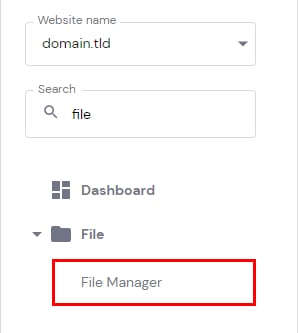
To extract an archive, go to go to Websites → Dashboard, search for File Manager on the sidebar, and click on it:
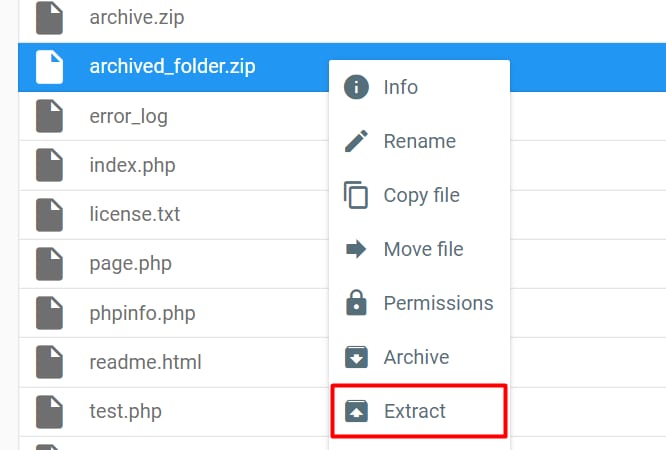
Find the archive file, right-click on it, and choose Extract:
You will be presented with the following options:

-
Choose folder name – if the entered folder does not exist, it will be created
-
Select the destination – you can use these options to pick a different location for your unarchived files. Double-click on .. to go to the parent directory
-
Currently navigating on – shows the path for folders on the Select the destination area
-
Overwrite existing files – mark the checkbox to overwrite existing files
Once all is good to go, click on Extract to start the process.
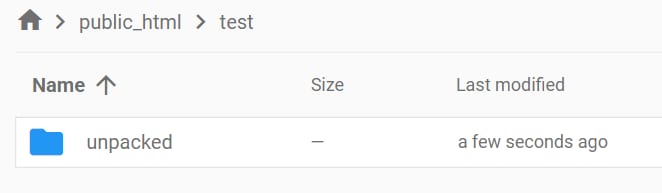
After the extraction is completed, the File Manager will reload – you can now navigate to the folder you specified to see the content:
Additional resources: