Every file and folder within your hosting plan has a set of permissions. If these permissions are misconfigured, your website might experience access issues or display errors. You can quickly reset these settings to their default values directly through hPanel.
Before you start
- This feature is not available for websites built using Hostinger Website Builder or Hostinger Horizons.
- The hPanel method is available only for custom PHP or HTML websites hosted on web and cloud hosting plans.
- If your website is hosted on an agency hosting plan, you can only edit file permissions using the File Manager. Permissions on certain files, such as WordPress system files are fixed and cannot be customized.
Resetting file permissions via hPanel
- Go to hPanel → Websites.
- Click Dashboard next to the website you want to manage.
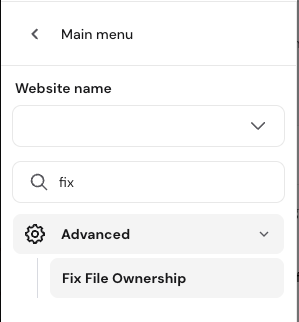
- On the left sidebar, select Advanced → Fix File Ownership.

- On the left sidebar, select Advanced → Fix File Ownership.
- Mark the checkbox to confirm that you want to set the files and folders to default permissions.

- Click Execute.
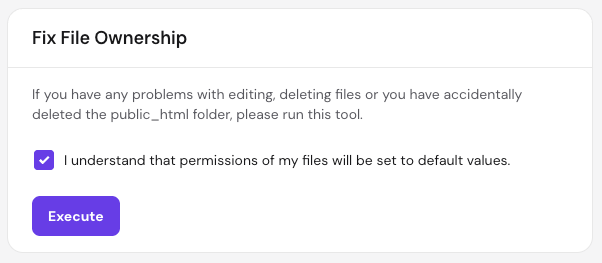
The process automatically applies the following standard values.
- For files, the default setting is
644. - For folders, the default setting is
755.
Changing file permissions via File Manager
If you need to configure custom permission settings for specific individual files, or if you have a an agency hosting plan, use the Hostinger File manager.
- Go to hPanel → Websites.
- Click Dashboard next to the website you want to manage.
- On the left sidebar, go to Files → File manager.
- To open the file manager.
- On web and cloud hosting, click Access files of the website.
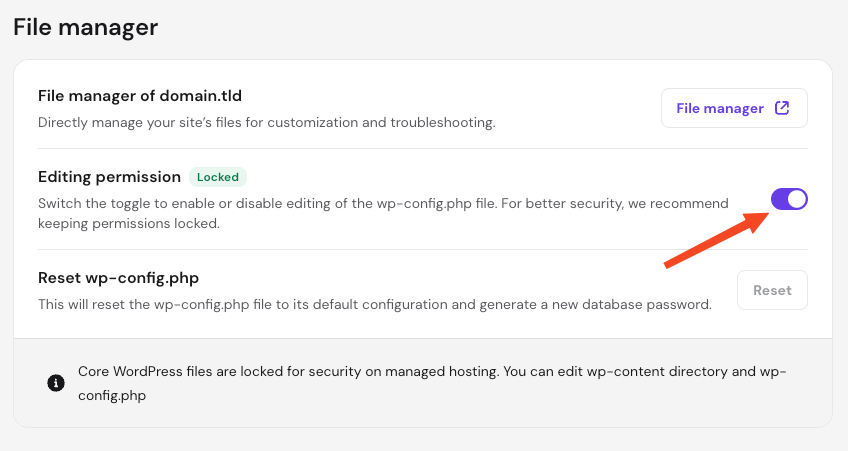
- On agency hosting, if you have a WordPress website and need to change permissions for the
wp-config.phpfile, locate the Editing permission section and switch the toggle to unlock editing before opening the File manager.

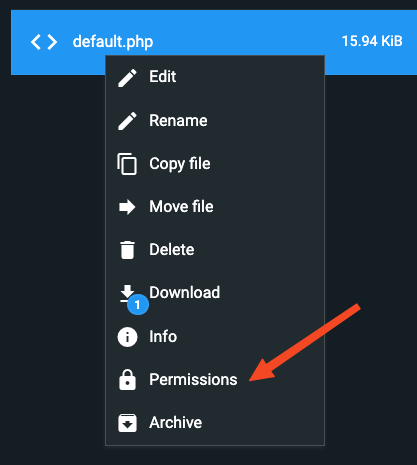
- Inside the file manager, locate your desired file or folder, right-click it, and select Permissions.

- Update the permission values according to your needs and save the changes.
Your file permissions are now restored or customized to your preference, ensuring your website files remain secure and properly accessible.