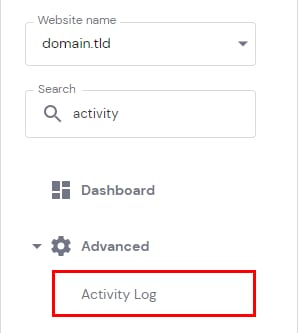
The Activity Log is a useful feature to verify the actions taken place in your hosting plan. To access it, navigate to Websites → Manage, search for Activity Log on the left sidebar, and click on it:
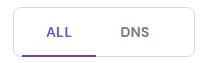
There, you will be able to choose from All logs and DNS-specific logs:
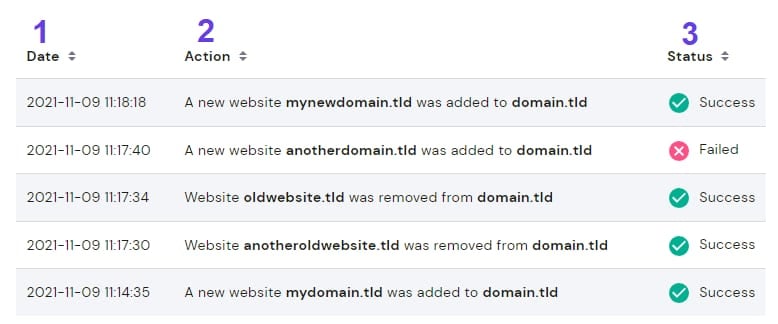
On either tab, you will find the following information:
-
Date – exact time when an action was performed
-
Action – the type of action
-
Status – the action status, if it succeeded or failed
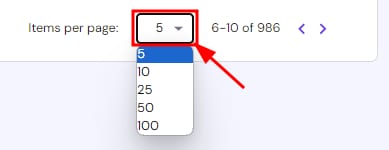
You can also select more items to display per page on the dropdown list at the bottom:
That’s it, now you know how to check the registered actions on your hosting plan.