If you use Hostinger Website Builder, refer to this article instead: Website Builder: How to Password-Protect a Page 💡
The Password Protect Directories feature allows you to set a password to limit access to your website (or parts of it).
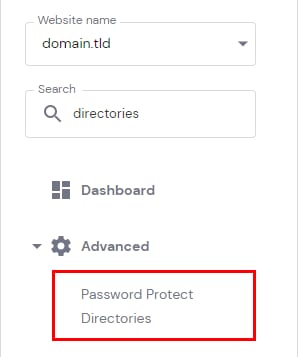
To access this feature, go to Websites → Manage, search for Password Protect Directories on the left sidebar, and click on it:
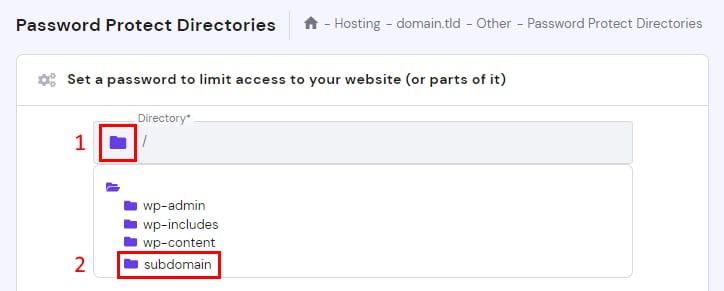
Once in there, select which directory you would like to protect:
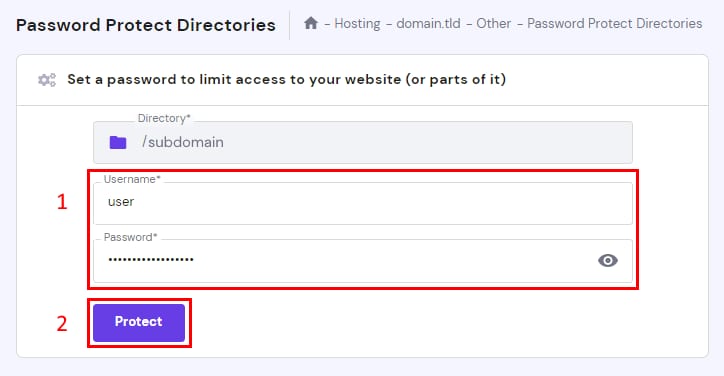
Assign a username and a password for it, and click on Protect:
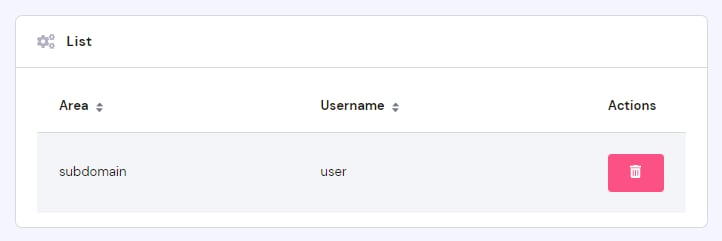
All the password-protected directories will be listed on the same page below, where you will have the option to remove the protection by clicking on the bin icon:
That’s it! Now you know how to password-protect your website or a part of it 😊
NOTE
-
In case of a forgotten password, remove the password protection on the directory and create it again