If you accidentally purchased the wrong domain name or decided to use a different one, the registered domain name itself cannot be directly edited or renamed. Instead or changing the domain name directly, you can replace it by registering a new domain name. Depending on your domain’s extension, payment method and registration date, you may be eligible to cancel the domain for a refund or receive Hostinger balance to apply toward your new registration.
Before you start
- Regional domains and certain top-level domains (TLDs) have strict registry regulations and are not eligible for cancellation or refunds.
- Free domains included with hosting plans cannot be changed or swapped once registered.
- Domains purchased with cryptocurrencies are non-refundable.
- For most eligible domains, you must initiate the refund within 96 hours of purchase.
Step 1 – Check refund eligibility and process the refund
To check if your domain qualifies for a refund under the Hostinger Refund Policy and to process the cancellation:
- Log in to hPanel and navigate to the Paid Invoices page.
- Locate the invoice associated with the domain registration.
- Check the available actions:
- If the Refund button is available, click it to continue.
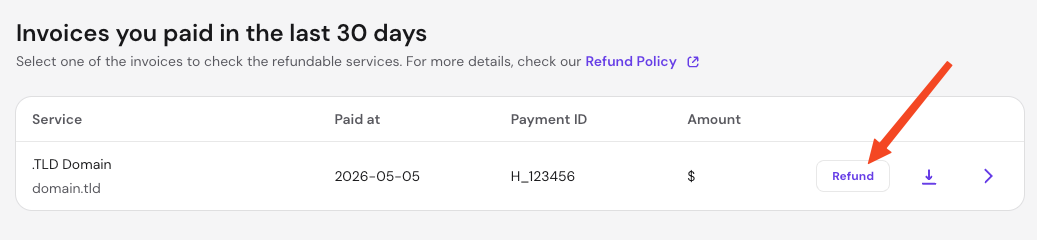
- If the invoice is not listed or the button is labeled Non-refundable, the domain is not eligible for a refund.
- If the Refund button is available, click it to continue.
- Follow the on-screen instructions, select your preferred refund method and submit the request. If you plan to register a new domain right away, it is recommended to select Hostinger balance as your refund method, so the refunded amount is applied instantly to your next purchase.
In case your current domain is non-refundable, you can still register another name by paying the regular price. Simply disable auto-renewal for the incorrect domain, and it will remain active until its expiration date for you to use, transfer or sell.
NOTES
- Refunding a domain releases it back into the public pool of available domains, making it available for anyone else to register.
- You can verify the refund status in the Refund history page.
Step 2 – Register the new domain
Once you’ve checked your refund options, register a new domain:
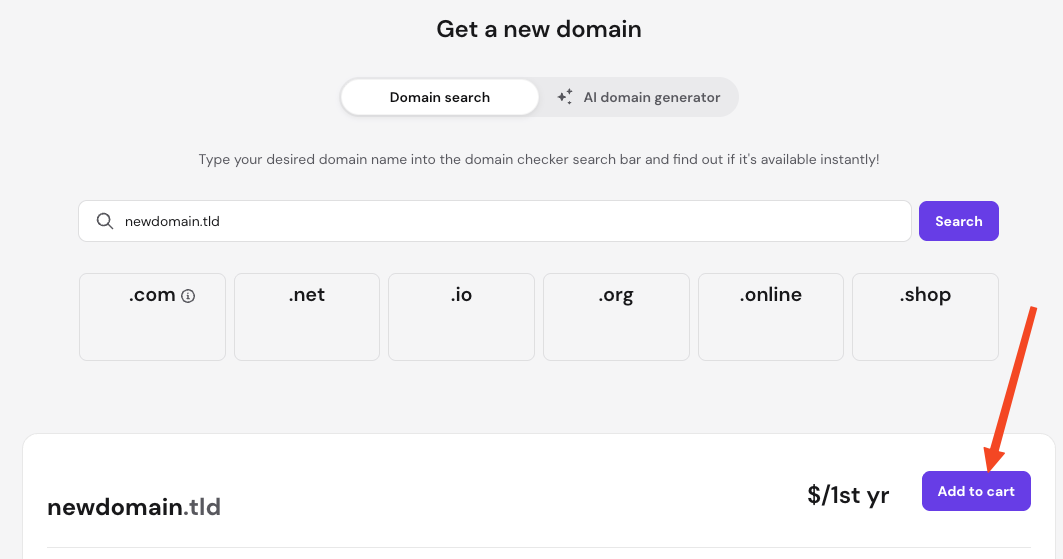
- Navigate to the Domain Checker in hPanel.
- Search for your preferred domain name to ensure it is available.
- Proceed through the checkout steps to complete the registration.
In a few minutes after registration, the new domain will activate, and be ready for use.