If your website is working though you can’t see it from your location after clearing cache, you can check for connectivity issues. Based on which OS you are using on your computer, open Terminal or Command prompt:
|
OS |
What to open and how |
|
Linux |
Click Ctrl + Alt + T or Search → Terminal to run terminal |
|
Mac OS |
In Spotlight search for Terminal |
|
Windows |
Click Win + R, type cmd and press Enter to reach Command prompt |
Next, run the following command in Windows:
tracert your-hosting-ipOn Linux and Mac OS:
traceroute your-hosting-ipReplacing your-hosting-ip with the IP of your hosting plan. You can find it by navigating Websites → Dashboard → Plan details, in the Website details section:
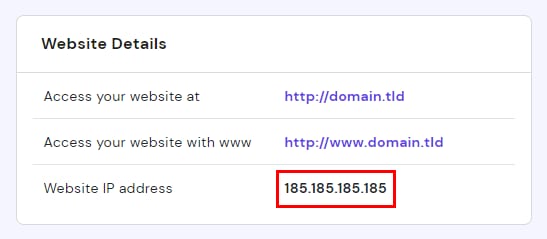
If you get a result like this:
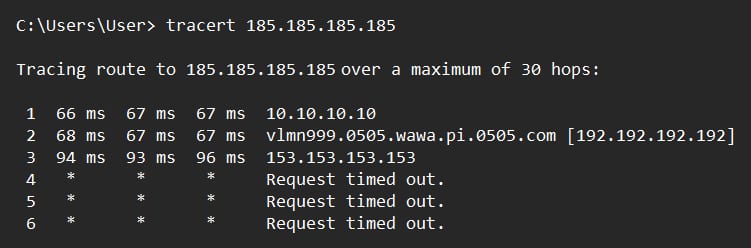
It means that your connection to our server is being lost at the last point before the first line with Request timed out.
To solve this issue, contact your ISP and ask them to change your network routing. If this is not an option or the issue persists, you can try the following:
-
Check again at a later time – it may relate to a wider ISP issue that could resolve by itself.
-
Connect using a VPN. Or, if you’re already using a VPN, try disabling it.
-
Use Namebench to re-route the connection. You can download the required application here: Google Code Archive – Namebench.
-
Use a CDN, such as Hostinger CDN, that will store a cached copy of your website on its servers around the world.
Additional resources