To access any website, typically only the domain name is used, e.g. by entering domain.tld on the browser’s address bar, and the index file loads by default.
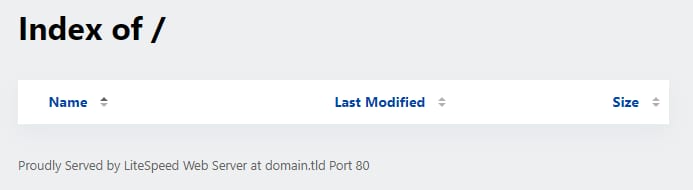
If there is no index.php or index.html in the root folder (/public_html) for the domain, an “Index of /” message will appear, similar to this:
To fix it, the best solution is building a website. If you already have a website or you want to simply hide this message, check the following options:
Option 1 – Disable Directory Listing
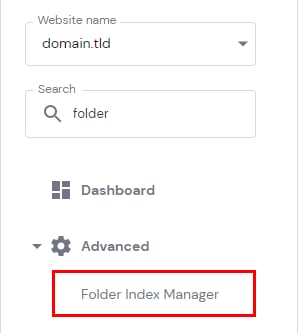
If you don’t want the content of the root folder to be displayed on your website, go to Websites → Manage and search for Folder Index Manager on the left sidebar:
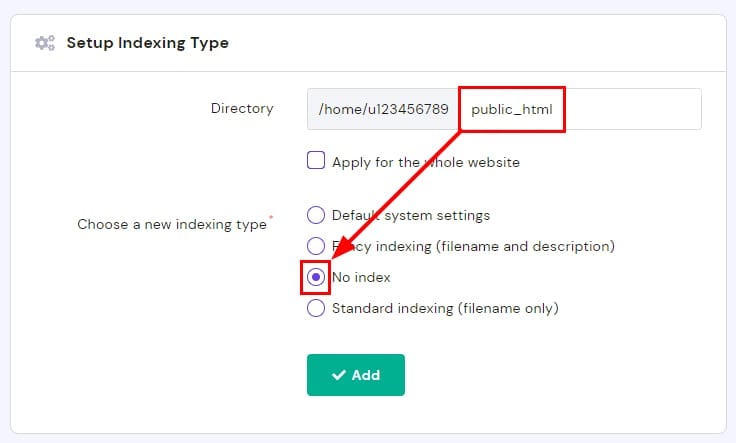
On the directory field, enter the public_html folder. On indexing type, choose No index and click Add:
Option 2 – Check the Index File
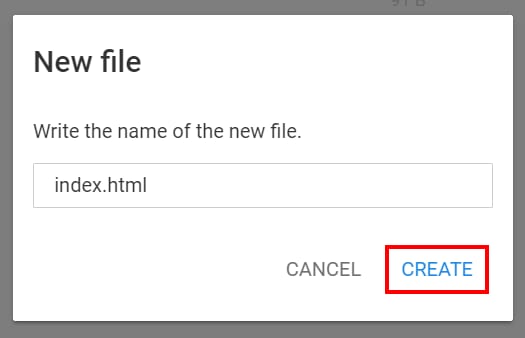
Go to the public_html folder of your domain via File Manager and check that the index file name is written correctly. It can be either index.html, index.htm, or index.php. If none of these files exist, you can create an empty index file: