All Hostinger web, cloud, and agency hosting plans include free, lifetime SSL certificates for every domain and subdomain you host. Once a domain is added to your hosting plan, the SSL is automatically installed and configured. These certificates remain active and renew automatically as long as your website is hosted at Hostinger, ensuring your visitors’ connection is always secure.
For websites created with Hostinger Website Builder, refer to this guide: Website Builder: SSL.
For websites created with Hostinger Horizons, refer to this guide: How to point a domain to Hostinger Horizons.
Click below to try the interactive demo:
Before you start
- The website must be added to your hosting plan.
- The domain must be pointing to Hostinger and propagated.
- Lifetime SSL certificates options can only be managed on websites created with PHP/HTML, WordPress, or other file-based CMS.
- For Hostinger Website Builder and Hostinger Horizons websites, Lifetime SSL certificates are managed automatically in the background and activate only after you Publish your website.
- Manual installation and management of SSL options is not available for Hostinger Website Builder and Hostinger Horizons websites.
How to manually install Lifetime SSL
If an SSL isn’t installed automatically or if you need to reinstall an SSL again after uninstalling it, you can do so by following these steps:
- Go to hPanel → Websites.
- Click Dashboard next to the domain or subdomain.
- In the sidebar, search for Security → SSL to open its settings.
- Click on Install SSL.

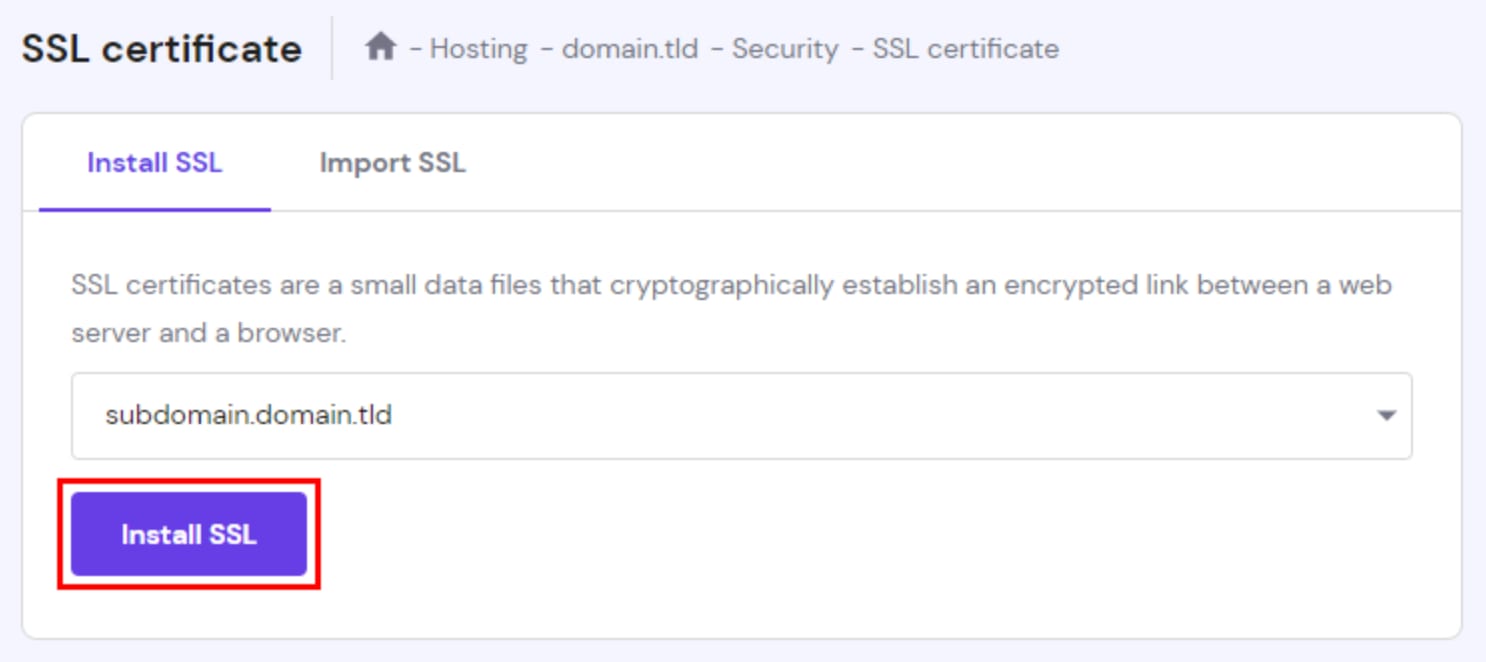
If the Import SSL or Install SSL options are not displayed, most likely, an SSL certificate has already been installed on that domain or subdomain. To install a new certificate, uninstall the existing one first 💡
The SSL certificate will be installed within a few minutes. During this time, the status will appear as Installing. Once it’s done, status will change to Active:

After installing an SSL certificate, you can verify it by visiting your website in an incognito window or by clearing your browser’s cache.
Can SSL certificates be reused?
You get free SSL for all of your domains and subdomains hosted with us, so there’s no need to worry about reusing certificates.
If you no longer need an SSL certificate on a domain, you can uninstall it. The uninstalled certificate will be deleted; if needed, you can install a new one at any later time.
Since these certificates require the website to be hosted on a Hostinger web or cloud hosting, they cannot be downloaded or transferred to a VPS or another hosting provider.