If you are using Hostinger Email, use the following configuration details to set up your email account on an email client or device:
|
IMAP (Incoming) |
POP3 (Incoming) |
SMTP (Outgoing) |
|
Host: imap.hostinger.com Encryption: SSL Port number: 993 |
Host: pop.hostinger.com Encryption: SSL Port number: 995 |
Host: smtp.hostinger.com Encryption: SSL Port number: 465 |
You can always find these details by going to the Emails section on hPanel. Click on Manage next to your domain name, and then choose Connect Apps & Devices from the sidebar:
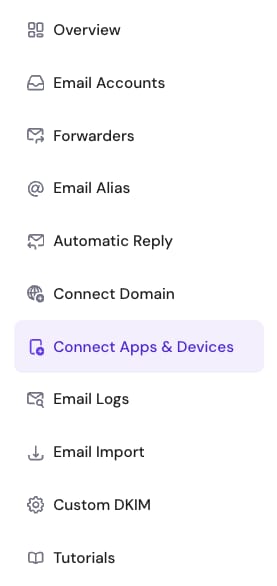
There you will find the details:
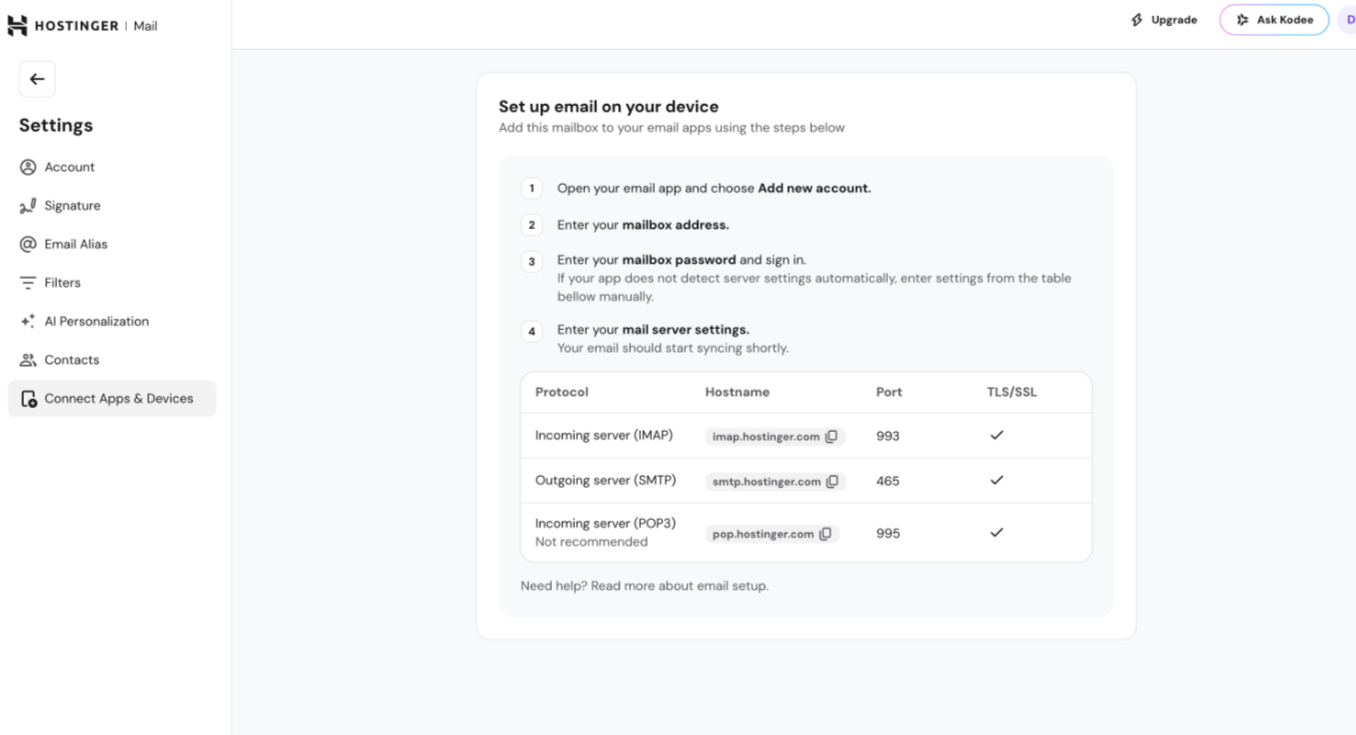
If you face issues with email encryption when adding your account to an email client or device, try these settings for the outgoing server (SMTP):
-
Host: smtp.hostinger.com
-
Encryption: TLS or STARTTLS
-
Port number: 587
You will also need your complete email address, like name@domain.tld, and your email account password when setting this up. If you forget your password, don’t worry, you can easily reset it.