Hostinger Horizons allows you to make manual modifications to your website content during the preview stage. While major changes are generated using AI chat prompts, you can use the visual editing feature to refine specific static elements and replace images. This guide explains how to manage text and photo updates visually in Hostinger Horizons.
Before you start
-
You need an active website project inside the Hostinger Horizons platform.
Modifying website content visually
-
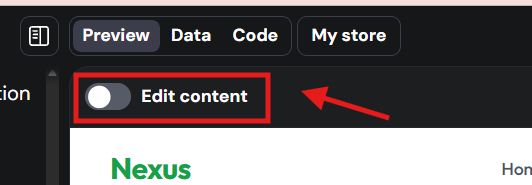
In the preview interface, click the Edit Content toggle to enable the visual edits mode.
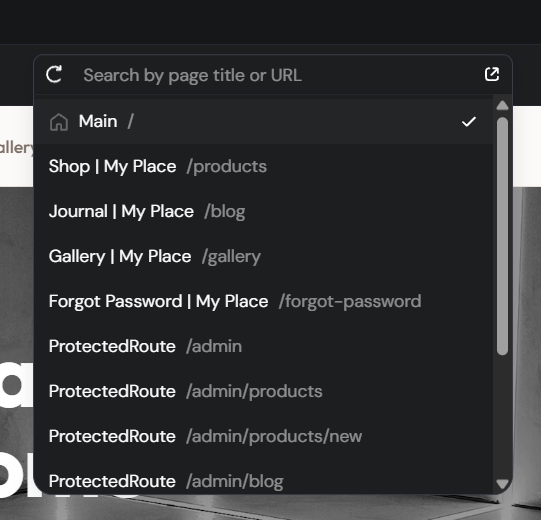
Use the page selector in the editor toolbar to switch between pages of your website without leaving the editor.
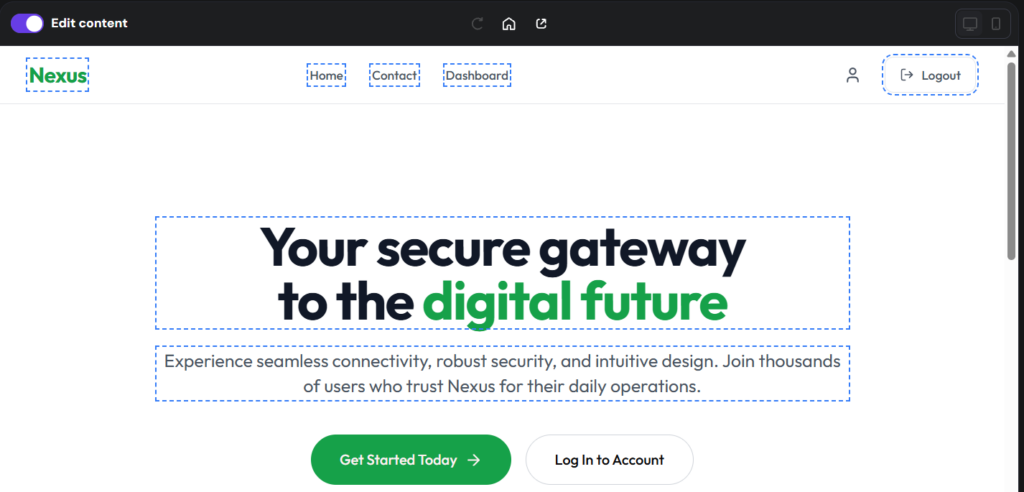
- Click on any editable element marked with a dashed outline.
-
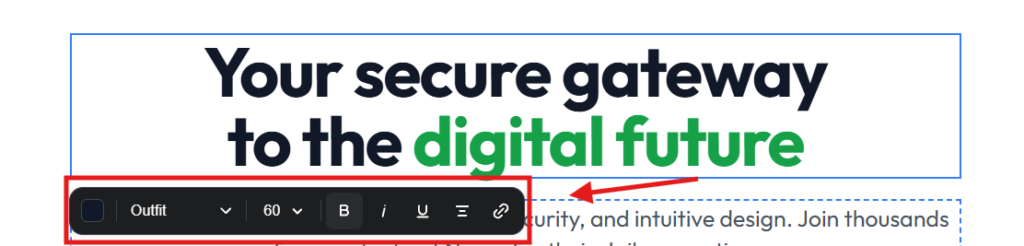
For text elements, use the inline editor to type and adjust rich text formatting options, such as bolding, colors, font sizes, and hyperlinks.
-
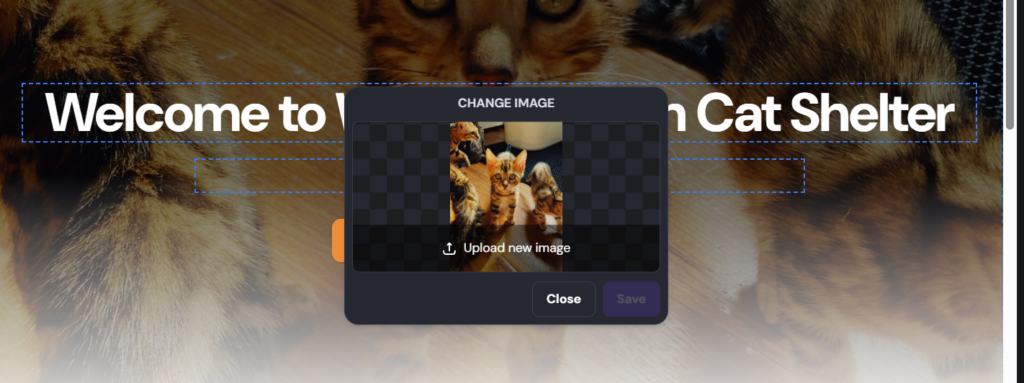
For images, select the photo to open a pop-up window and upload a new image from your device.
-
To return to the standard preview mode, click the Edit Content toggle again to disable it.
Edit Content mode supports editing across multiple pages in a single session. Switch pages using the page selector while Edit Content mode is active to make visual edits on different pages without toggling the mode off and on.
Your website updates are now saved and ready for final review before publishing.