Hostinger Reach is a beginner-friendly, AI-enhanced email marketing platform fully integrated into the Hostinger ecosystem.
To improve deliverability and build trust regarding your email campaigns inside Reach, connect a domain first. You only have to do this once.
Inside Reach, you can use your Hostinger domain or an external domain you already own.
If you still haven’t connected your domain, it will be displayed right once you access the Reach dashboard, you simply need to click on the “Connect Domain” purple button and proceed from there.

On first login, the Welcome screen lets you connect a domain to Reach.

One-click connection automatically:
• Connects your Hostinger domain to Reach
• Configures SPF, DKIM, and DMARC DNS records
• Connects your Hostinger website
• Optionally auto-fills your brand details
If you have an external domain (hosted outside Hostinger), enter it directly on the Welcome screen. Reach will trigger domain ownership verification, attempt to scrape your brand details, and guide you to complete DNS verification.
After the connection completes, a summary modal confirms what was set up. If you skip the welcome screen, you can connect your domain manually via Settings → Domain settings at any time.
Connecting an external domain to Hostinger Reach
Enter your external domain directly on the Welcome screen. Reach will:
- Trigger domain ownership verification.
- Attempt to scrape brand details from the domain.
- Guide you to the domain settings page (via an onboarding toast) to complete DNS verification.
If you skip the Welcome screen, connect your domain later via Settings → Domain settings.
In case you already have your domain connected with Hostinger Reach:
-
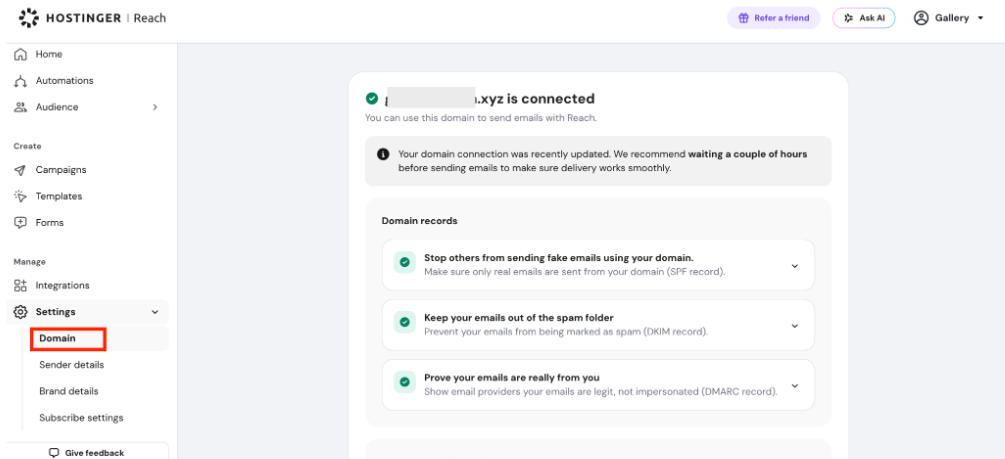
Click on Settings → Domain

- All of your DNS records (SPF, DMARC, DKIM) will be handled automatically if your domain is at Hostinger, and it’s usually pretty fast, 10-15 minutes. In some cases, however, it can take up to 24 hours. We recommend sending your first email campaign only after this time has passed. If your domain is managed at another provider, you’ll get instructions to log into your domain provider and add each DNS record to yourself manually.
- Add a sender name that matches your personal or business brand.
- Update the sender’s email address, if needed.
Note: If you’d like to get replies from your subscribers, use a sender email that has a mailbox. You can get an email plan and set up an email at Hostinger.

- Click Save Changes.

If you do not have a professional mailbox, you can get an email plan and set up an email at Hostinger by following the steps here. Mailbox is completely optional, but it enables your subscribers to reply to your campaigns and strengthens your sender reputation, especially if your domain does not have a website.
You can find all the step-by-step instructions on how to get started with Reach here.