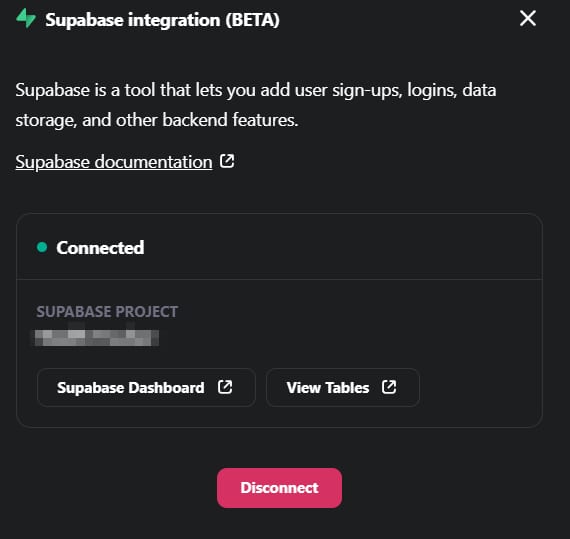
Supabase is a simple and powerful tool that makes it easy for you to manage your app’s backend. With just a click of a button, you can integrate Supabase into your app using our tool.
This integration stores data, helps handling user logins and managing files. It’s a hassle-free way to get started with backend management.
How to integrate Supabase to your Horizons web application
For a quick video guide, check here:
Keep reading for the detailed step-by-step.
1. Click on the Integrations button that you see in the top right corner inside Horizons app:

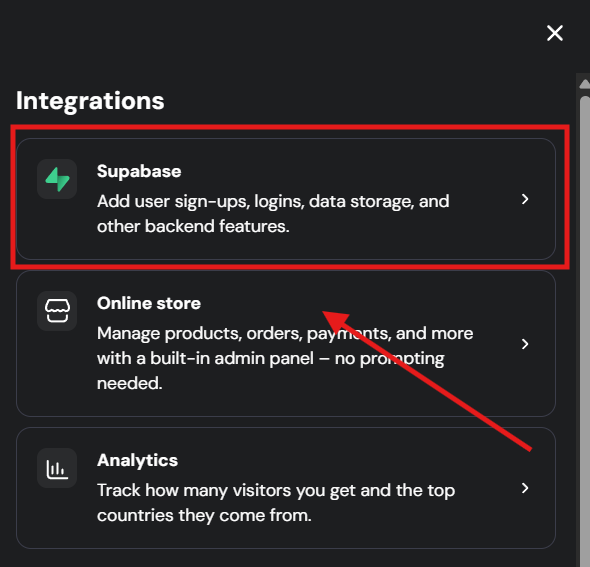
2. You will then see a Supabase which you need to click in order to select the Connect option. Click on it as below:
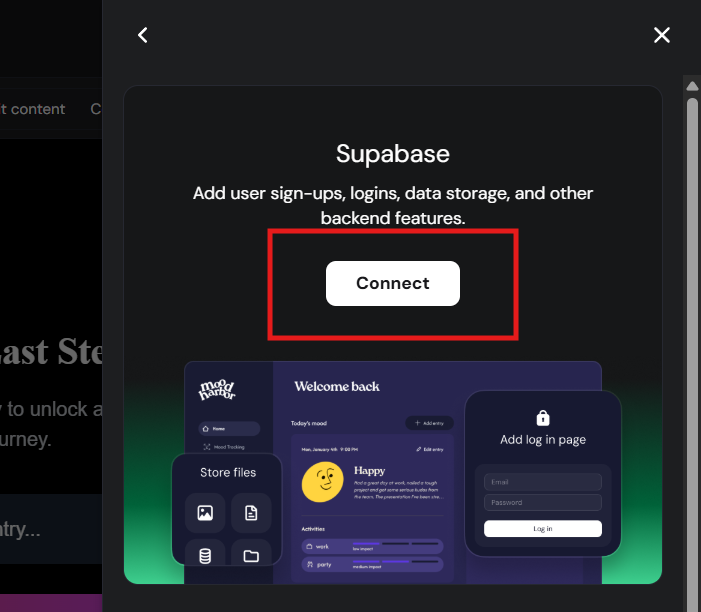
3. You will be presented with different options to connect to your Supabase account:
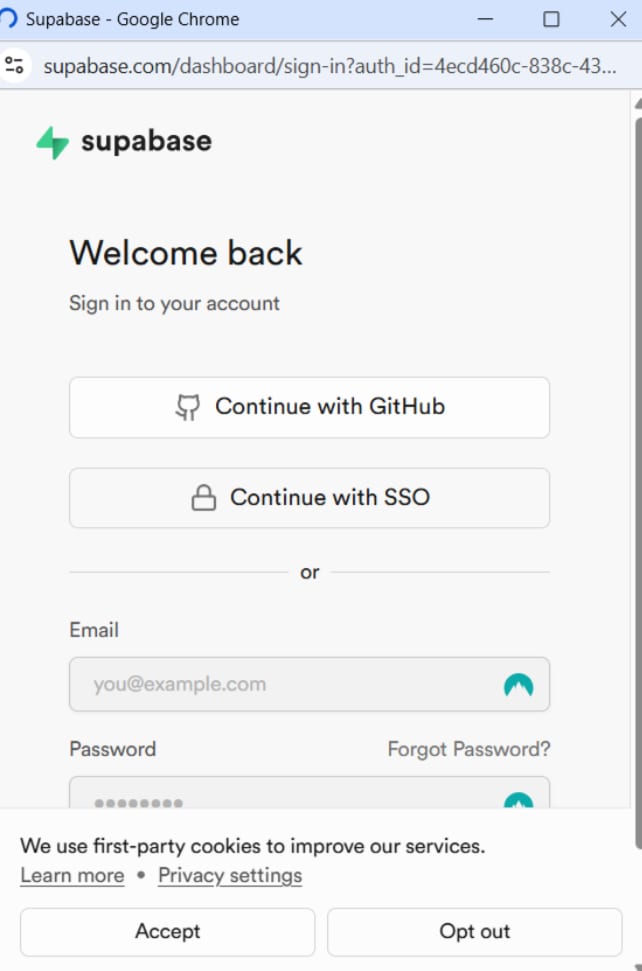
Note: If you do not have a Supabase account already created, you need to create it here.
4. After that, you need to select “Add organization” and authorize Hostinger Horizons to access your Supabase account. Once this is done, refresh the Horizons page and click the Supabase icon again.
5. Select the organization you just authenticated and create a new Supabase project, as below:
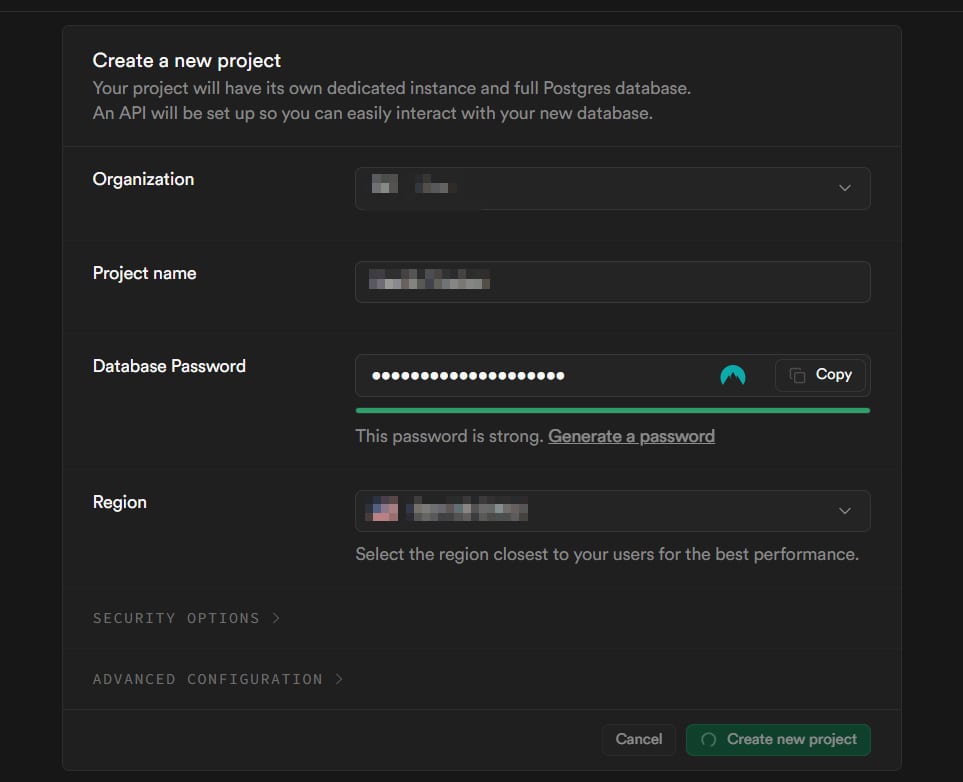
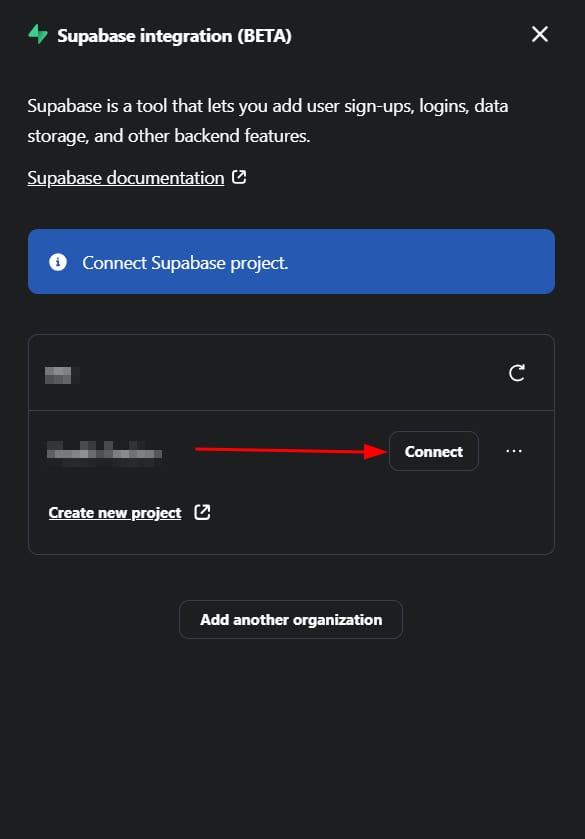
6. After that, refresh Horizons page again and click on Supabase icon. You will see now the option to connect to the project you created. Click on it:
A new window will appear, confirm if the project is correct and click to connect:
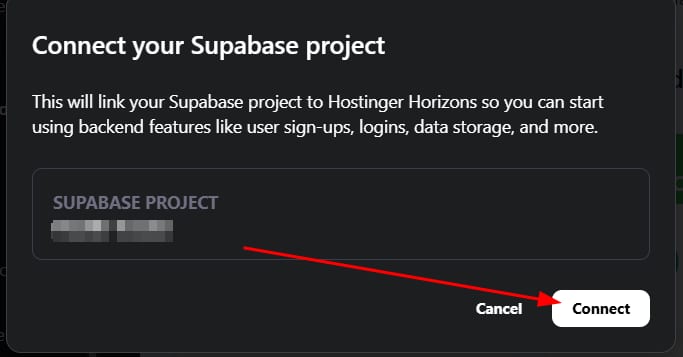
After that, wait a little for the AI to update your web app and you have now connected your project successfully! 🚀