You are able to share access to your hosting plan so an additional editor is able to access and work on Hostinger Horizons.
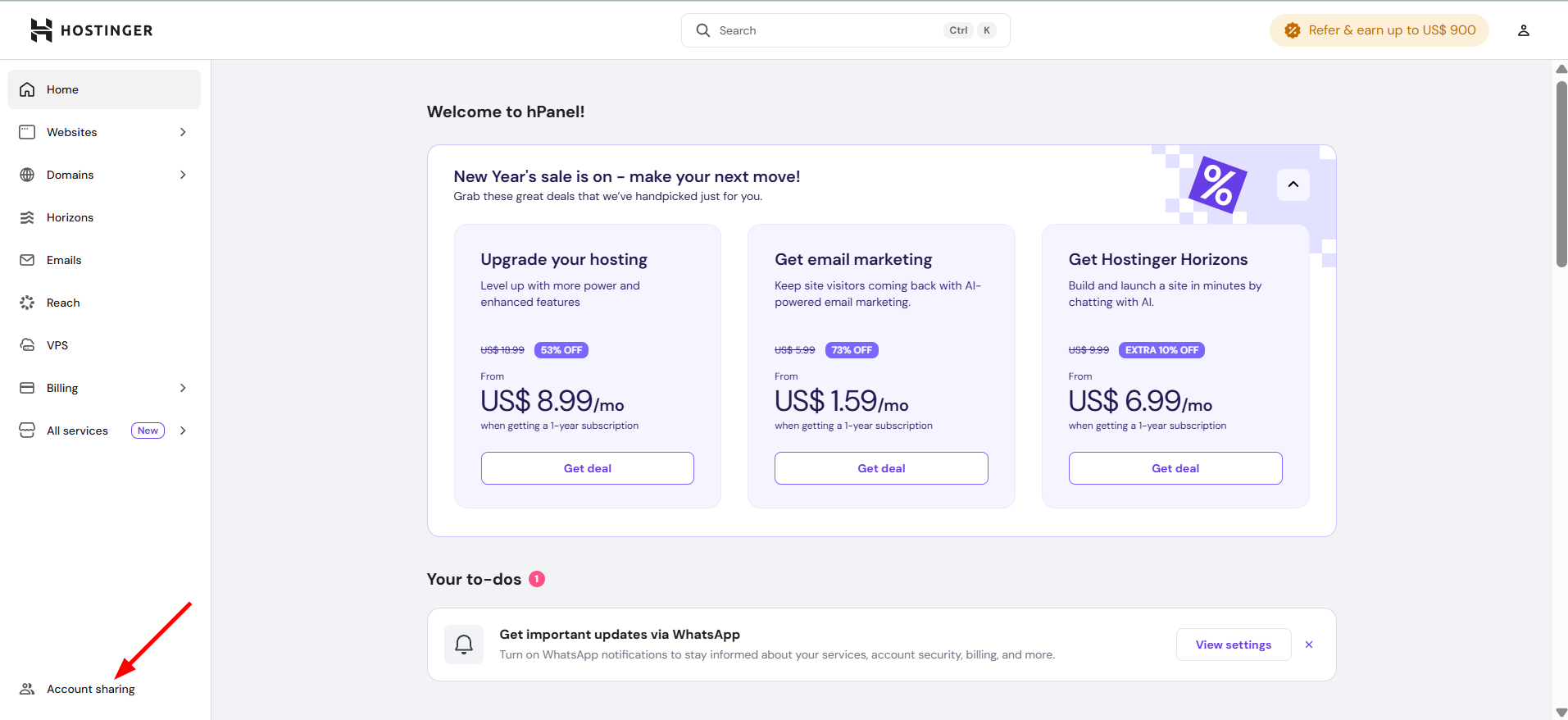
To grant access, click on the Account Sharing in the left-bottom of the home page:
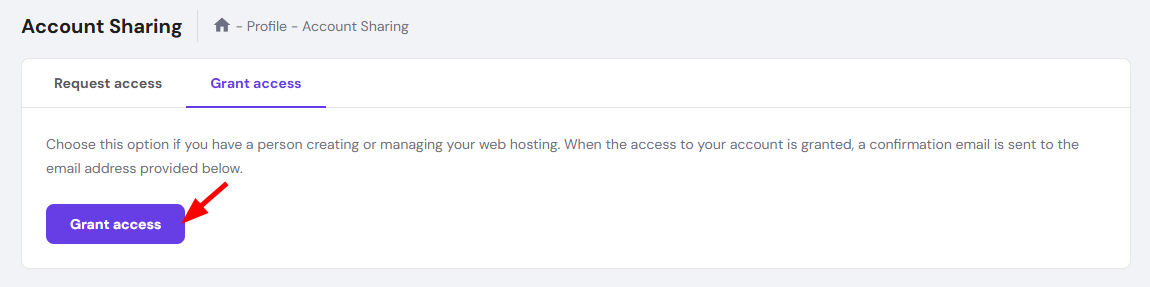
Now, on the Account Sharing page, click on the Grant Access button:
Then, you will be presented with further options:
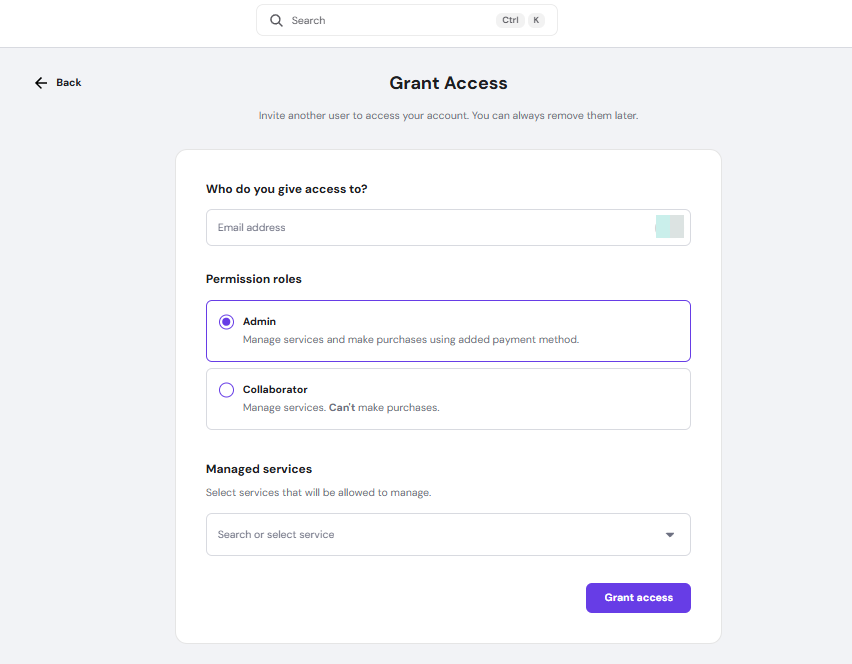
Here, you can determine an access level, select the services you wish to share, and determine if the user can set up pending orders by filling out the form.
When everything is good to go, click on Grant Access. A confirmation message will be sent to the user; they must click on the link to be granted access to your account.
A confirmation email will be sent to the user; they must click on the link to be granted access to your account. More account sharing details can be found here.
If the new user does not have a Hostinger account yet, they will be prompted to create one
How it works
-
Whenever you give your hosting plan access to another user, that user will be able to add or edit Hostinger Horizons inside that account. The user that received the access would see and use Hostinger Horizons credits of the owner of the account and Horizons subscription.
-
Having Hostinger Horizons application with the same project open in multiple tabs simulteneously will give you errors, it’s recommended to open a single specific tab for the project you are editing.
-
If you open different Horizons projects in different tabs, the webapp is expected to work on both projects without worries.