Check how to edit and update your project inside Hostinger Horizons in the video below:
Or keep reading for the full step-by-step.
Edit content using the AI chatbox
-
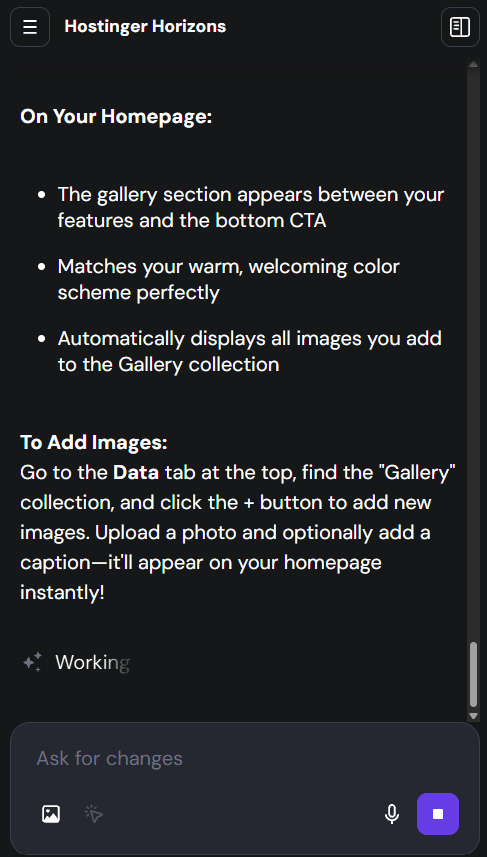
Access your Hostinger Horizons web application interface.
-
Locate the chatbox on the screen.
-
Enter a clear prompt describing what you want to create or change. Provide specific details about your desired layout
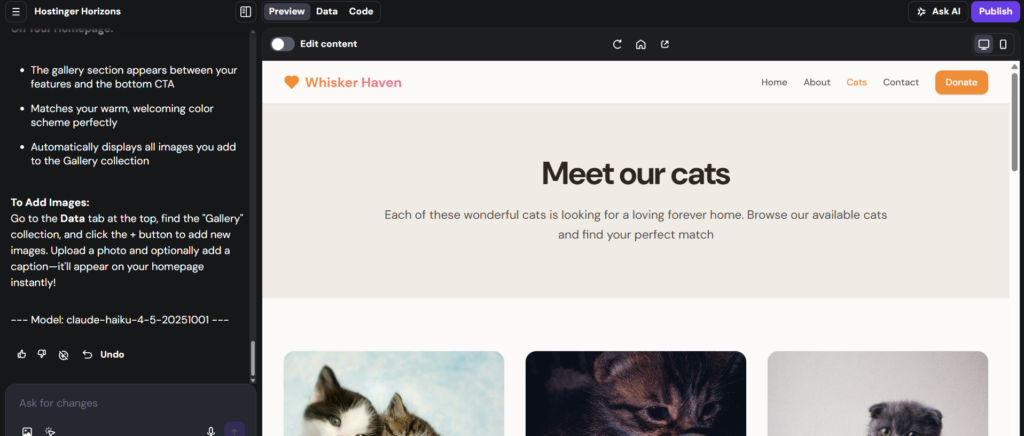
- Optional: Use the voice feature to speak your instructions, or upload an image—such as a layout sketch or a screenshot of an element you want to fix.
Edit content manually
-
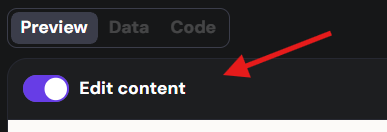
Navigate to the top bar of the Hostinger Horizons interface.
-
Switch the toggle or button to Edit Content mode.
-
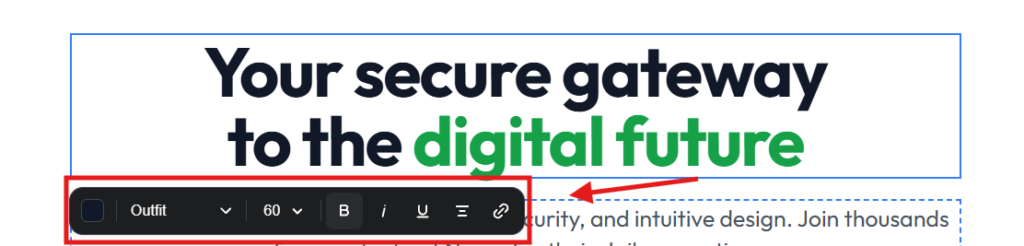
Click directly on any static text or image on the site preview to edit it immediately without generating a prompt.
NOTES
-
Avoid requesting more than five actions within a single chatbox message to ensure the higher accuracy of the results.
-
The platform processes prompts more efficiently when you provide structured, detailed descriptions.
Your modifications will reflect in the builder immediately, allowing you to seamlessly refine your application’s appearance and features.