Account Sharing allows you to securely grant access to your account to another person, for example, a developer or a client.
Granting Access
There are two ways to grant access to a website: via Websites list or via Account Sharing page.
Granting Access via Websites list
To grant access, click on the side menu option “Websites” and click the following button next to the website you want to share access to:
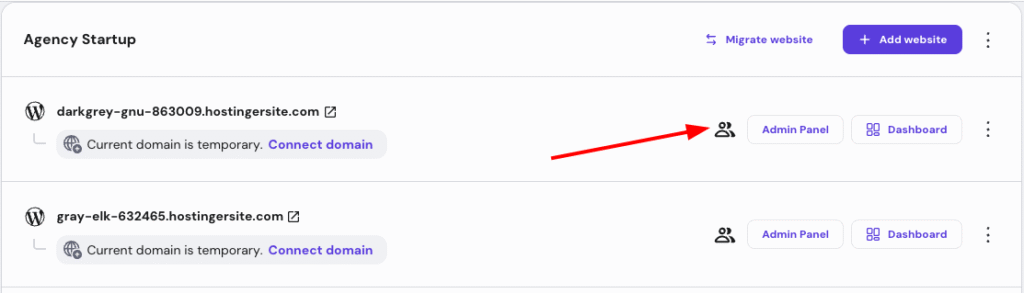
Then, you will be presented with a field where you can insert the email of the person you want to grant access to:
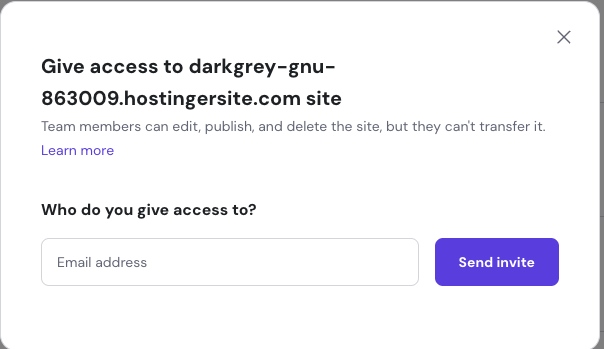
When everything is good to go, click on Send invite.
A confirmation message will be sent to the user; they must click on the link to be granted access to your account.
Granting Access via the Account Sharing page
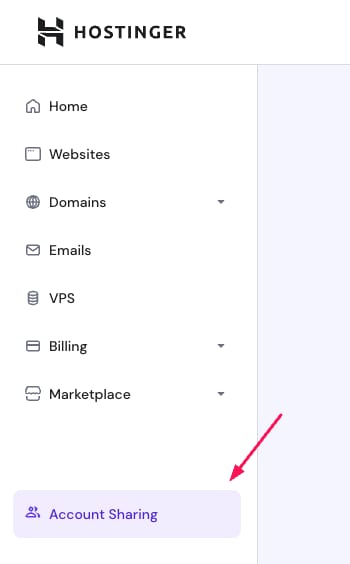
To grant access, click on the side menu option “Account Sharing”:
Now, on the Account Sharing page, click on the Grant Access button:
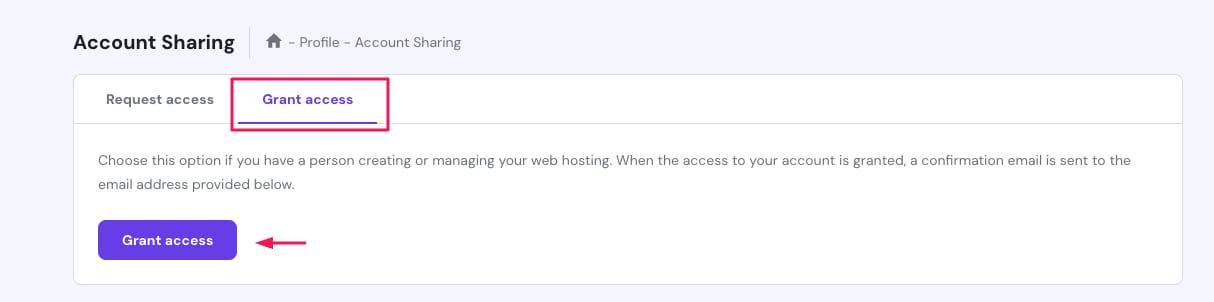
Then, you will be presented with further options:
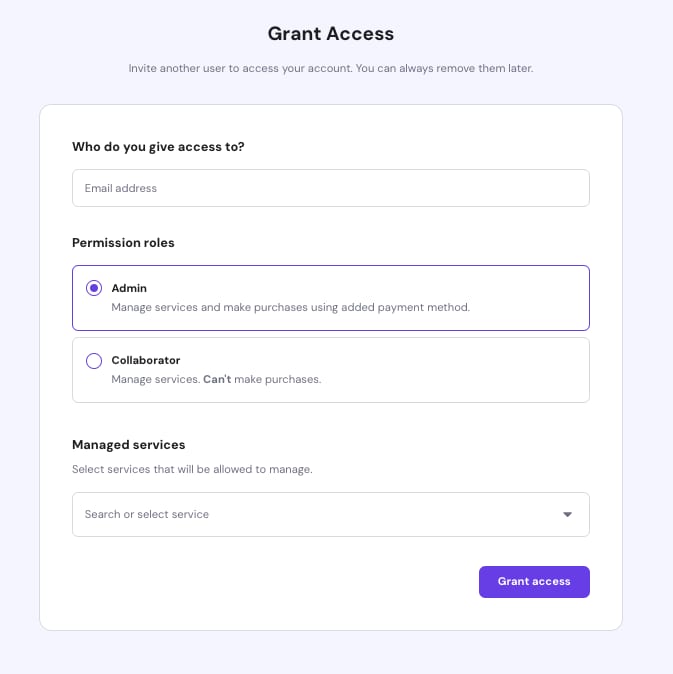
Here, you can determine an access level: select the services or specific websites you wish to share.
When everything is good to go, click on Grant Access.
A confirmation message will be sent to the user; they must click on the link to be granted access to your account.