When creating a migration request, you might run into some common errors. Don’t worry—this guide will walk you through how to fix them step by step.
Domain is pointing to Hostinger’s nameservers
Error Message: “You can only migrate a website hosted on another provider here.”
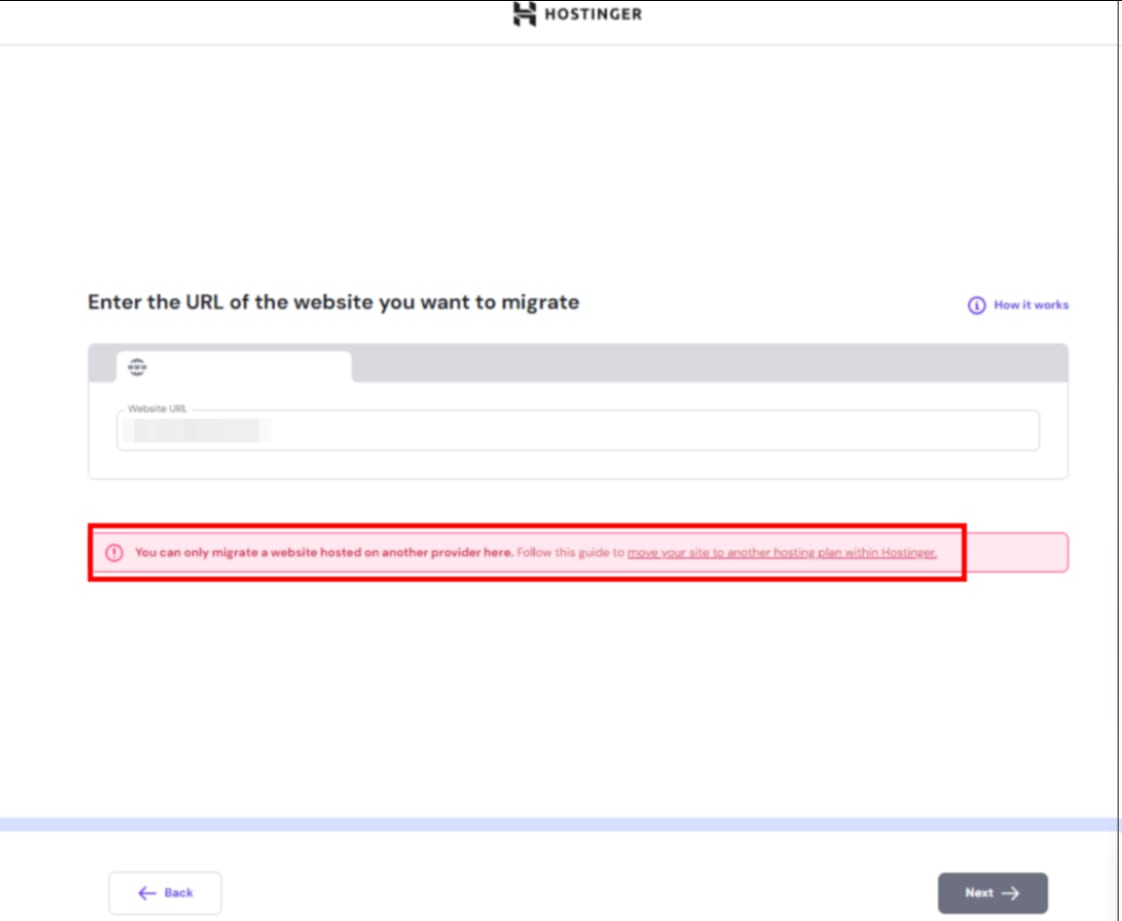
What causes this?
This error happens if the domain is pointing to Hostinger’s nameservers.
How to fix it
You need to change the nameservers back to previous hosting’s nameservers. Keep in mind that propagation takes 24 hours to be completed.
Inaccessible login URL
Error Message: “Login URL to WordPress admin dashboard is incorrect.”
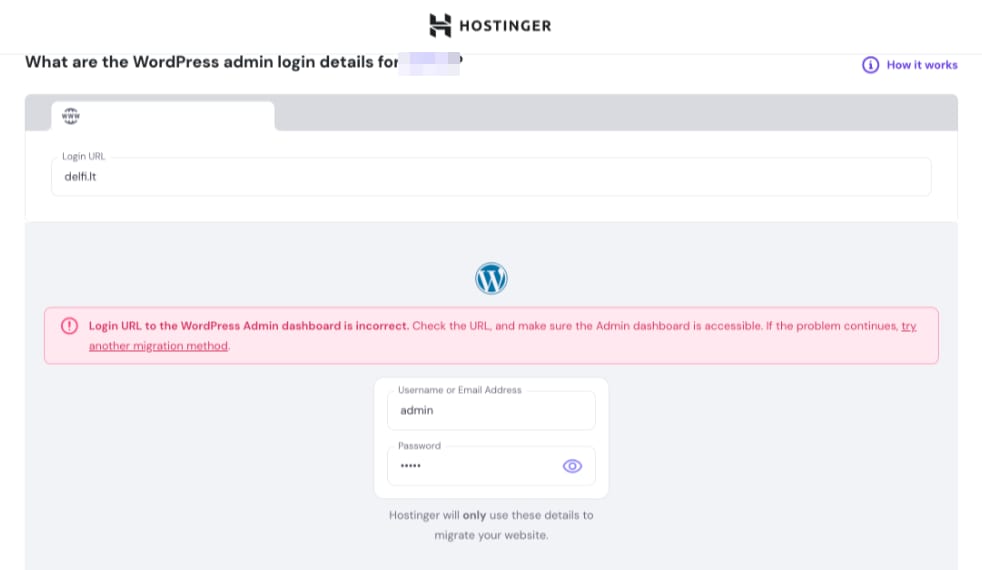
What causes this?
This error happens if the login URL is showing an error (404 error, 503 error, etc).
How to fix it
-
Make sure that your domain is pointing to the previous hosting’s server.
-
Once the domain is pointing to your previous hosting server, check if the login URL is accessible. If it’s still not accessible, contact previous hosting support to troubleshoot the error.
Incorrect login credentials
Error Message: “Your given login credentials to Admin dashboard panel are incorrect.”
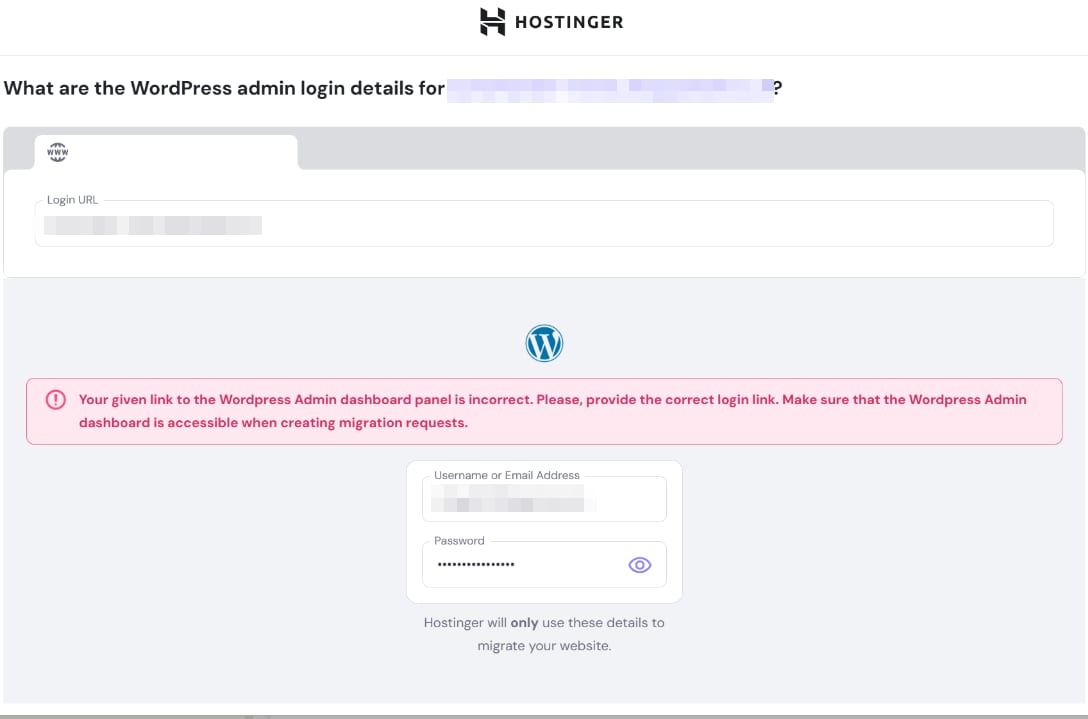
What causes this?
This error happens if:
-
The username or password is incorrect.
-
Two-factor authentication (2FA), CAPTCHA, or verification prompts are enabled, which block the login process.
How to fix it
-
Double-check the username and password to ensure they’re correct.
-
Disable 2FA or CAPTCHA temporarily while creating the migration request.
You can find some guides on how to disable them:
Once everything is verified, try submitting the migration request again.
Special case: Anti-bot or CAPTCHA protection with a custom login URL
If you use a custom login URL (not the default /wp-admin) and has anti-bot or CAPTCHA protection enabled on your current host (e.g. SiteGround), the migration system may fail to verify their WordPress credentials even if the username and password are correct. The protection blocks our server from reaching the login page before authentication can be attempted.
How to fix it
- Temporarily disable anti-bot or CAPTCHA protection on your current host, then resubmit the migration request
- If you’re unable to disable it, you can choose Upload backup option instead
User requires Administrator role
Error Message: “The given user requires Administrator role.”
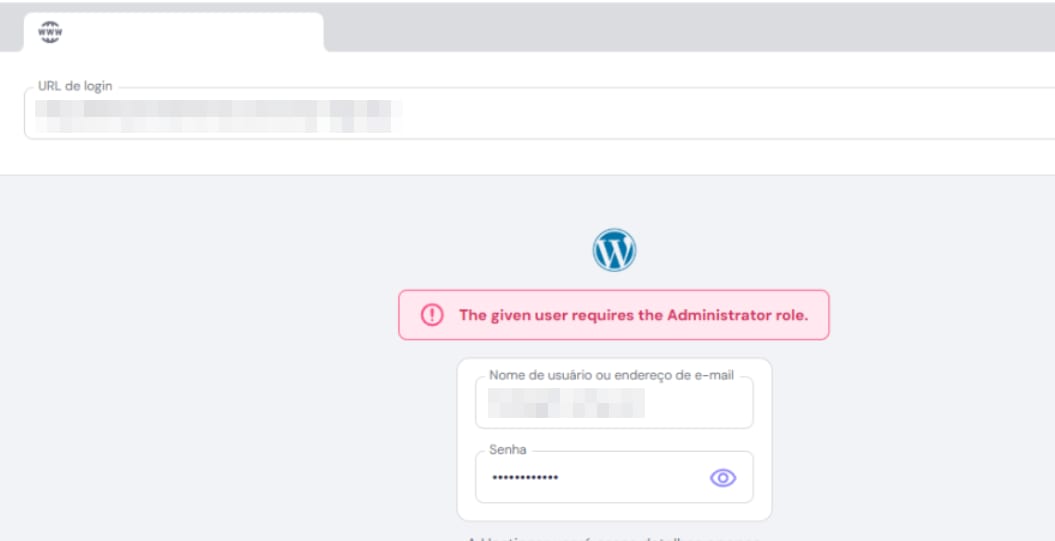
What causes this?
This error appears if the username you’re using doesn’t have an Administrator role, which is required to create a migration request.
How to fix it
-
Go to WordPress Dashboard → Users → All Users.
-
Find the username and click Edit.
-
Scroll down to the “Role” section.
-
Change the role to Administrator and click Save Changes.
-
Now, try submitting the migration request again.
By following these steps, you can easily resolve the most common errors that may appear when creating a migration request. Double-check your login details, ensure the right plugins are installed, and confirm that your user role is set to Administrator to avoid any issues.