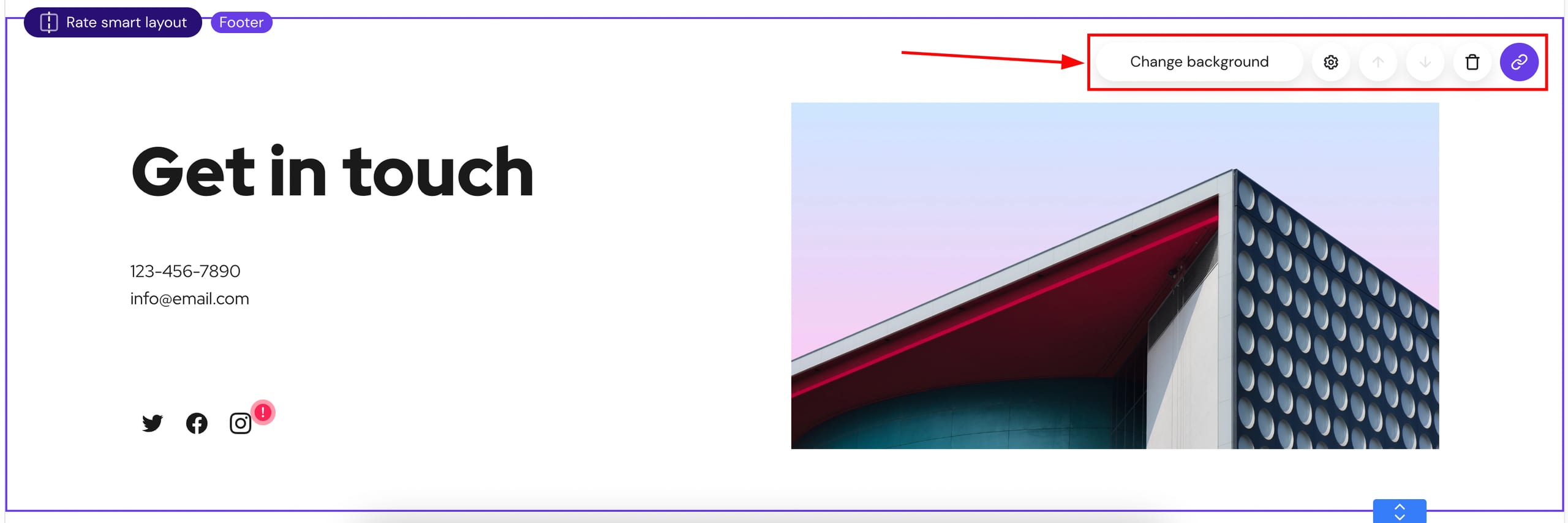
You can edit the footer section itself and each footer’s element individually. Click on the footer to see its settings menu:
Click on any element to edit it individually:
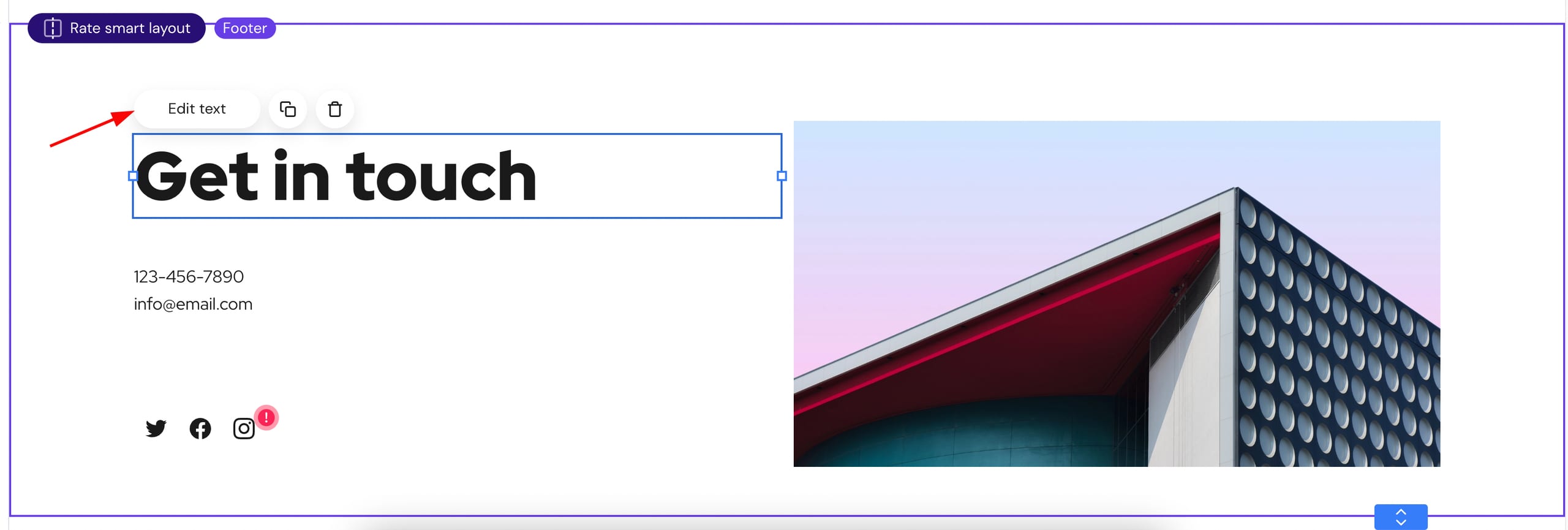
You can easily add or remove elements from your footer.
If your footer is pinned to all website pages, the footer changes made on a particular page will reflect on other pages, too 💡
If you would like to know how to add a footer section to your website, follow the steps here.
If you would like to know more on how to hide the footer section from specific pages, follow the steps here.