Hostinger’s Game Panel makes it easy to host and manage game servers for various popular games. With a simple setup process and an intuitive interface, you can create game instances, configure settings, and monitor performance. This guide will walk you through the steps to get started and provide tips on managing your game server using Hostinger’s Game Panel.
Step 1: Accessing the Game Panel
-
Open the Game Panel:
-
In the hPanel go to the VPS management page, find your Game panel, and click the “Manage” button.
-
Once on the overview page, look for the “Manage panel” button and click it to open the game panel.
-

Step 2: Setting Up Your First Game Server
-
Create a New Instance:
-
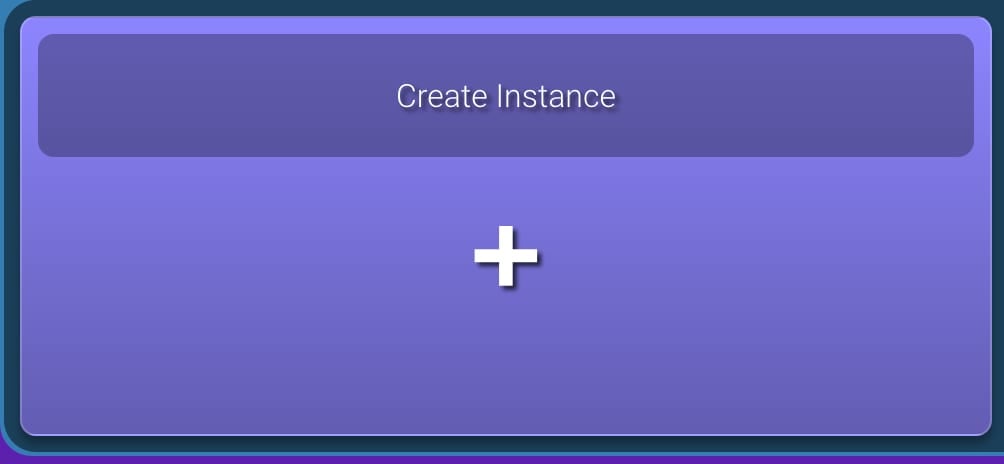
In the Game Panel interface, find the option to “Create Instance.”
-
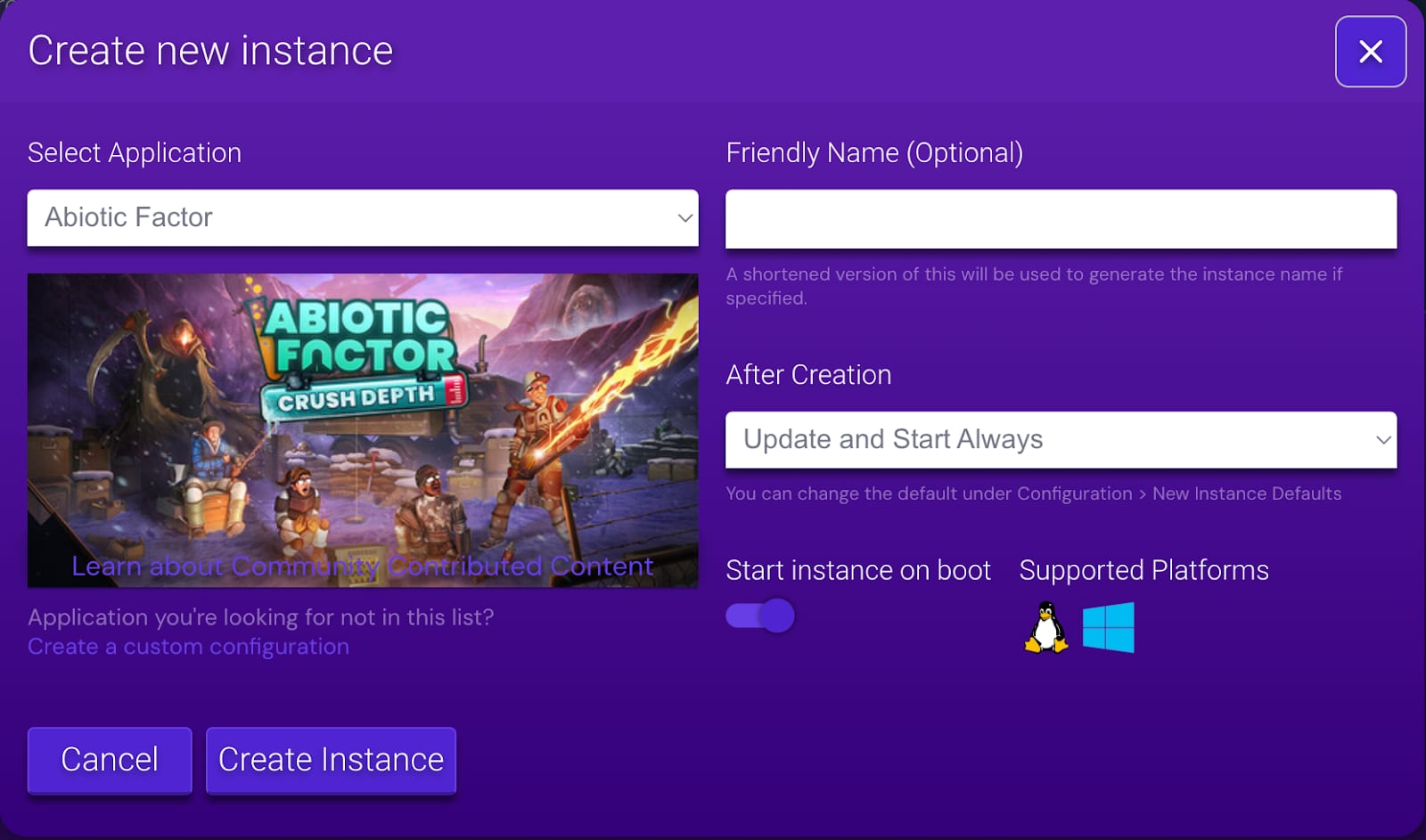
Select the game you want to host from the dropdown list. For a list of supported games, refer to this article.
-
-
Install the Game Server:
-
Choose a server name and boot settings.
-
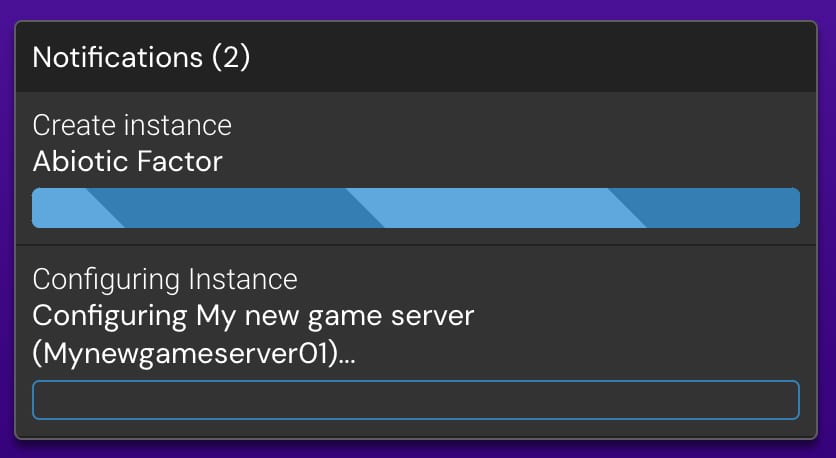
Click the “Create instance” button to set up the game server. The Game Panel will automatically download and configure the necessary files.
-
Monitor the installation process from the Game Panel dashboard.
-
Step 3: Managing Your Game Server
-
Start, Stop, and Restart the Server:
-
Use the controls in the Game Panel dashboard to manage the server state.
-
You can start the server when ready, stop it for maintenance, or restart it after making configuration changes.

-
-
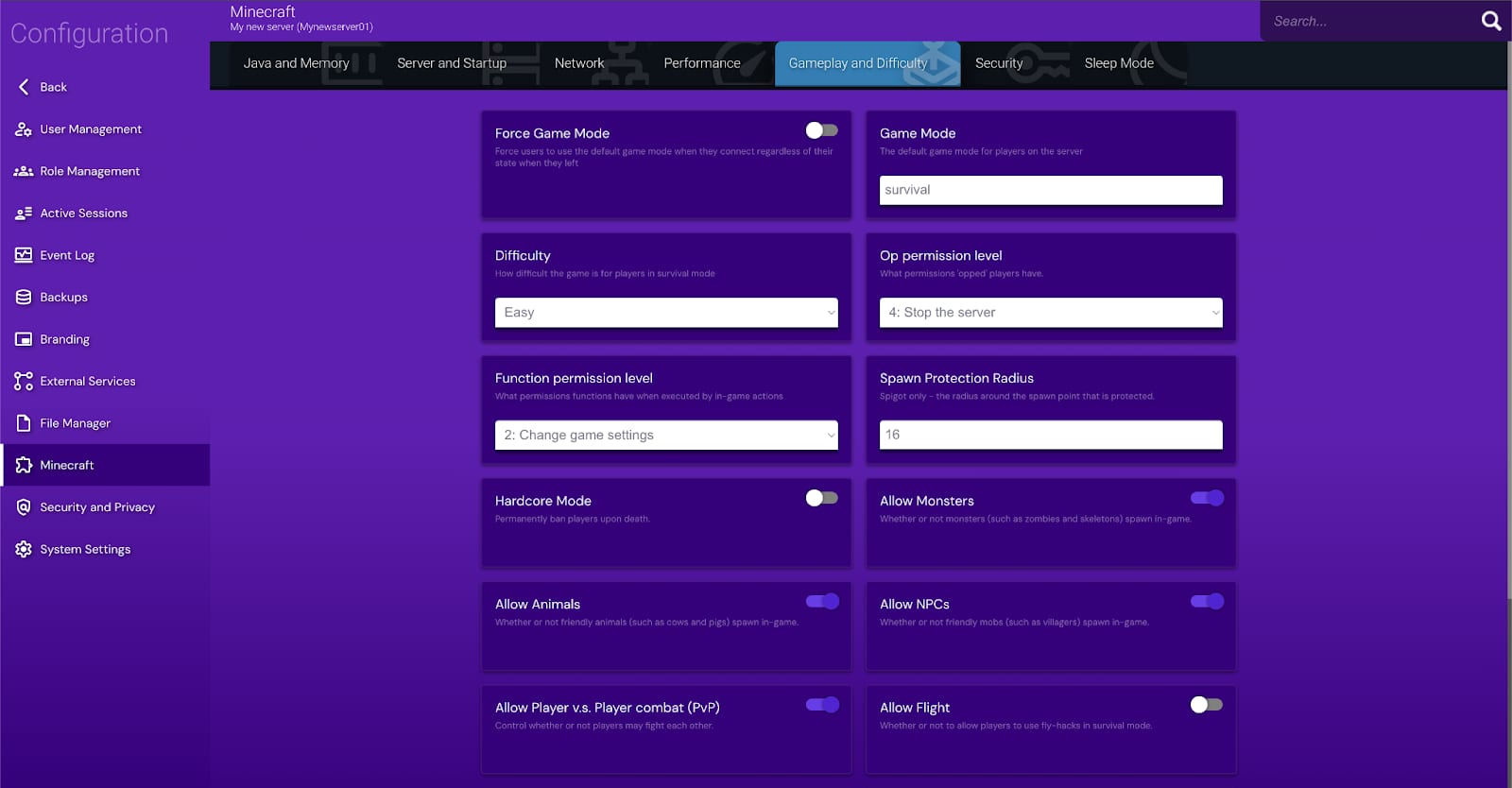
Configuring Game Settings:
-
Each game may have unique settings available. Common configurable options include server name, game mode, map selection, and player limits.
-
-
Accessing Game Files:
-
You can access the game server files directly from the Game Panel’s file manager. This is useful for modifying configurations, adding mods, or uploading custom maps.
-
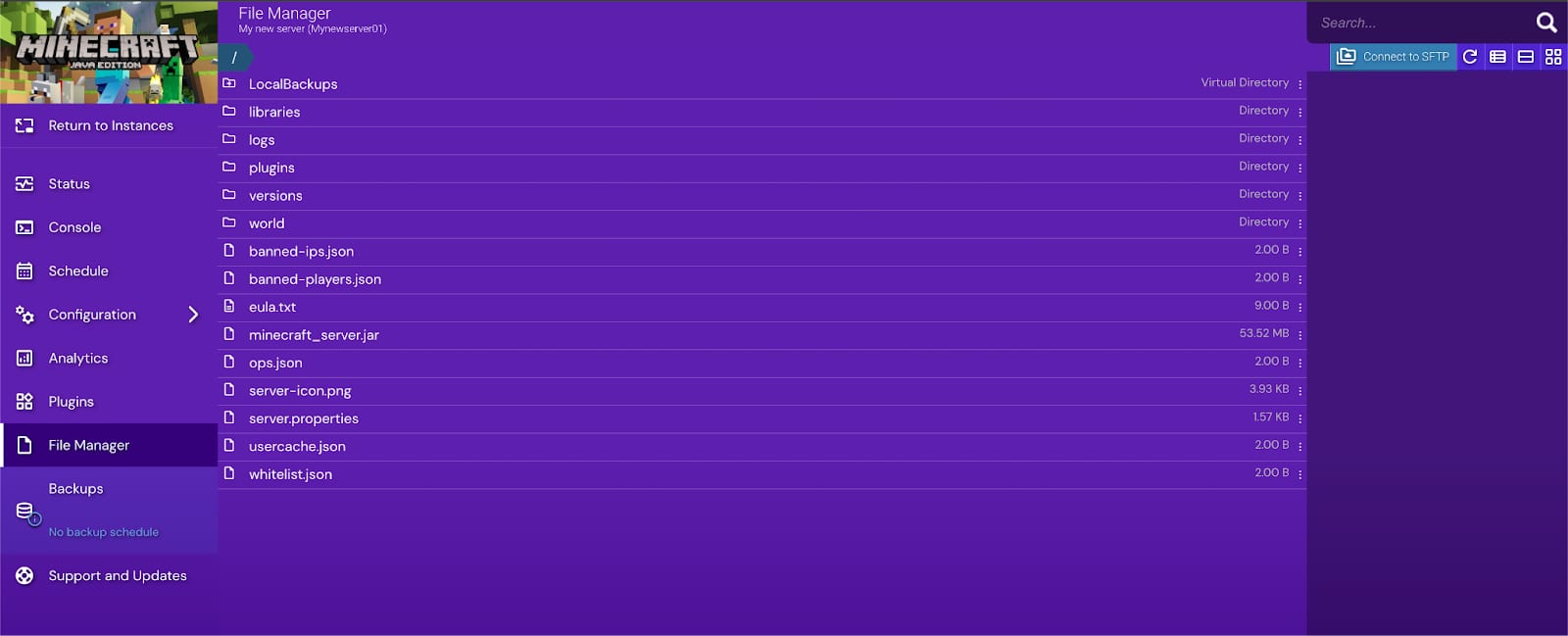
Make changes with caution, especially when adjusting configuration files or scripts!
Step 4: Game-Specific Settings
Different games have varying configurations and settings, which can significantly impact the gameplay experience. The Game Panel provides flexible options for customizing each game to suit the preferences and needs of the server owner and players.
Step 5: Monitoring and Maintenance
-
View Server Performance Metrics:
-
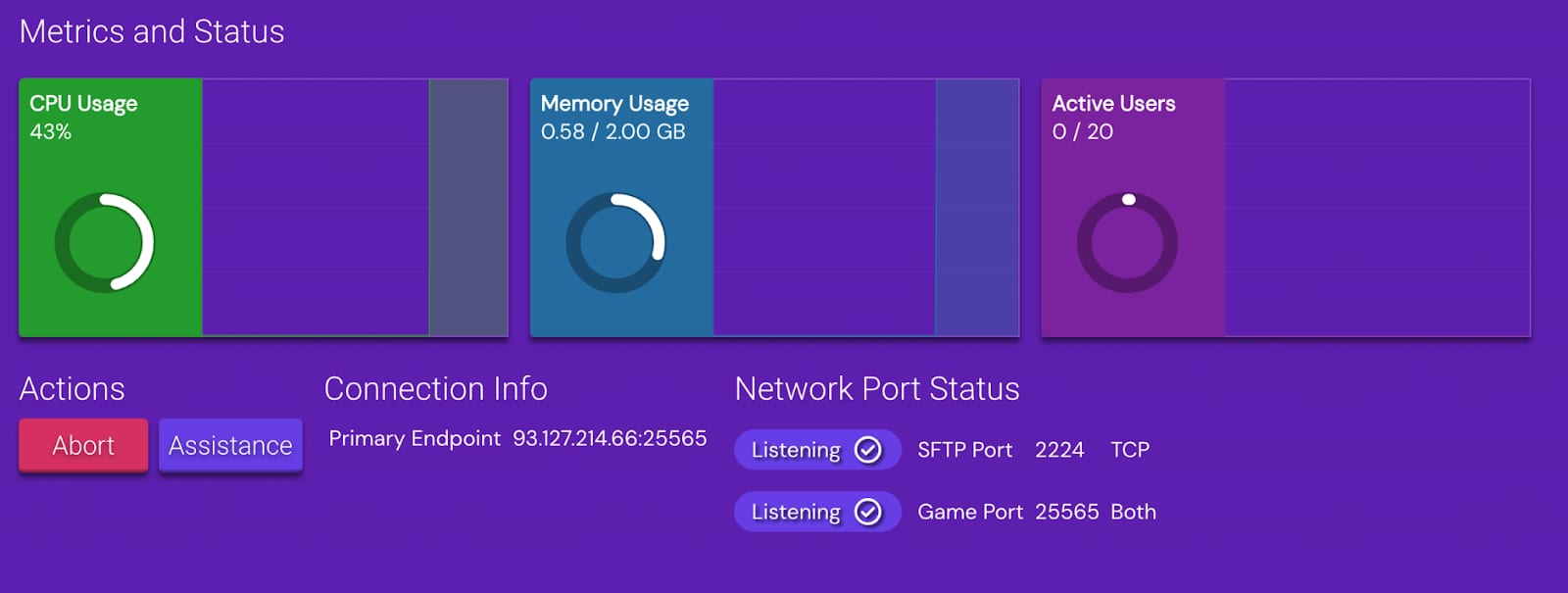
The Game Panel provides performance metrics such as CPU and RAM usage.
-
Monitor server health to ensure smooth gameplay and upgrade resources if needed.
-
-
Update Game Server Software:
-
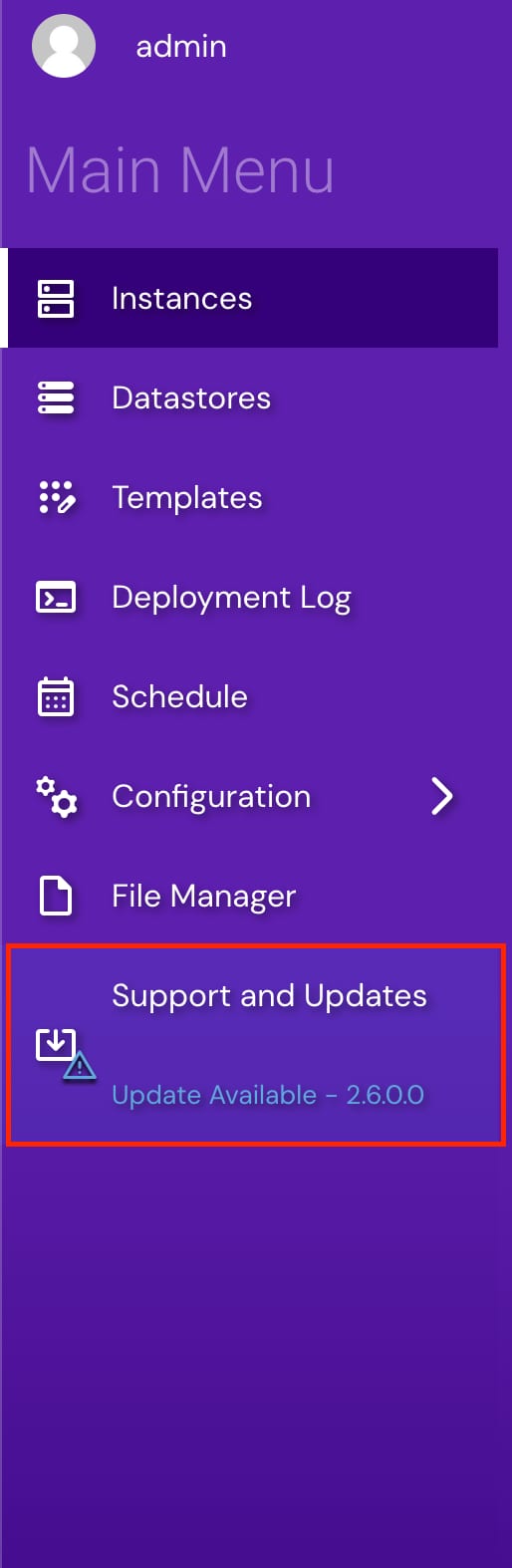
Regularly check for game updates. The Game Panel will notify you if updates are available.
-
Update your server to the latest version to ensure compatibility with clients and mods.
-
Why Use Hostinger’s Game Panel?
-
User-Friendly Interface: The Game Panel provides a straightforward way to manage game servers without needing deep technical knowledge.
-
Automated Setup and Maintenance: With a few clicks, you can install, update, and back up game servers, saving time and effort.
-
Supports Multiple Games: Host multiple game servers under a single VPS plan, managing them all from one interface.
-
Comprehensive Resource Management: Easily monitor CPU, RAM, and disk space allocations.
Using Hostinger’s Game Panel is a great choice for hosting game servers with ease. Whether you’re managing a “Counter-Strike” match, a “Rust” survival experience, or an “ARK” adventure, this article should help you get started and make the most of the Game Panel’s features.
NOTES