How to allocate more RAM to Minecraft
Jul 01, 2026
/
Valentinas C.
/
5 min Read
To allocate more RAM to Minecraft, increase the game’s memory limit in the Minecraft Launcher, adjust the -Xmx value in your Java startup file, or update the memory limit in your server hosting panel. The right method depends on whether you play Minecraft Java Edition, use a third-party launcher, run a self-hosted Minecraft server, or manage a hosted server.
Before changing Minecraft RAM allocation, check how much memory your device or server has and decide how much RAM your setup needs. Vanilla Minecraft usually runs well with less memory, while modded Minecraft, large worlds, plugins, and multiplayer servers require more RAM to reduce lag, crashes, and loading issues.
There are four main steps to allocate more RAM to Minecraft:
- Check your available system or server RAM.
- Choose a safe RAM amount for vanilla, modded, or multiplayer Minecraft.
- Increase the RAM limit in the launcher, hosting panel, or server startup file.
- Restart Minecraft and verify that the new memory limit is active.
Update RAM allocation in your game launcher
Minecraft’s game launcher offers tools for changing RAM values depending on your available resources. Here are the steps:
- Open the Minecraft game launcher.
- Click Installations.
- Select the three dots (
) → Edit next to the Minecraft edition for which you want to allocate more RAM.
- Select MORE OPTIONS.
- In JVM ARGUMENTS, edit the
-XmxJava command. For example:
- If you want to allocate 4 GB RAM, enter:
-Xmx4G - For 1512 MB RAM, add:
-Xmx1512M
- Click Save.
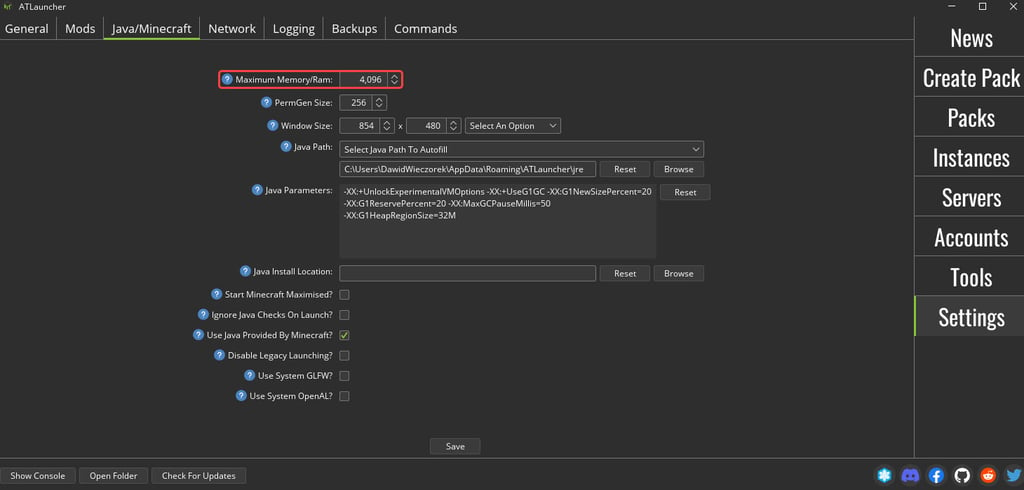
Due to better mod management, third-party launchers are very popular among Minecraft server hosts. Check your third-party launcher documentation to find the equivalent settings to manage Minecraft RAM allocation. Look for Java-related settings, just like the following options for ATLauncher.
Edit your server configuration files
If you run your Minecraft server on local hardware, like a computer, you can modify RAM allocation using Java configuration files. For this, follow the steps below:
- Create a new text file on the machine where you host your Minecraft server.
- In the text file, enter the following command line:
java -Xmx1234M -Xms1234M -jar server.jar nogui PAUSE
Replace 1234 with the required amount of RAM in megabytes. For example, if you want to allocate 3 GB (3072 MB) of RAM, enter:
-Xmx3072M -Xms3072M -jar server.jar nogui PAUSE
- Save the text file as run.bat.
- In the explorer of your Minecraft server, search for server.jar.
- Right-click the server.jar file and edit the filename to delete the .jar extension.
- Navigate to your run.bat file.
- To start the file, double-click run.bat
Note that using the same Xmx and Xms values for the minimum and maximum heap sizes helps avoid performance drops when Java dynamically adjusts the heap size.
Upgrade your VPS plan
As reconfiguring all available RAM for Minecraft alone can crash your server, you need to increase the capacity of your server’s total RAM first. To do so, follow the steps below:
- Open your hPanel, navigate to VPS on the left side menu, and select Manage for the plan you want to upgrade.
- In Overview, scroll down to the VPS details section and select Upgrade.
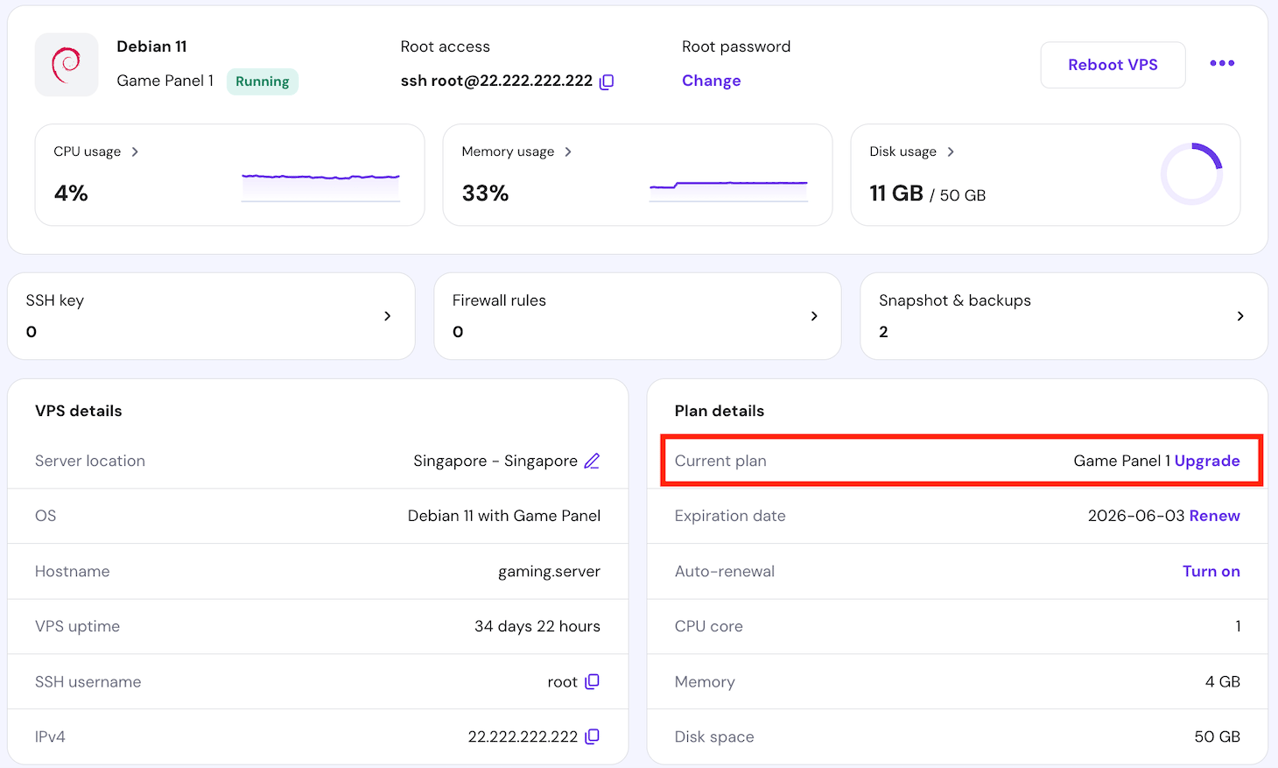
- On the Choose Your VPS Plan page, choose your new plan and select Upgrade.
- Click Continue to confirm the restart process of your VPS service. It will only take a few minutes.
- Choose your preferred billing period.
- Click Choose payment method and select a preferred payment method.
- That’s it – now you just have to pay for your order.
Now, go to your Hostinger account to allocate more RAM to your server. Even after upgrading, the default memory value that VPS allocates is 1028 MB.
- In hPanel, go to VPS → Manage → Overview.
- Click the Manage panel button, and your Game Panel will open in a new tab.
- Log in to Game Panel with your credentials.
- In Instances, select the Minecraft server for which you want to allocate more RAM.
- Select Manage.
- If you need to accept the terms of the server, in the Minecraft Server EULA popup, select Accept.
- In the side panel, select Configuration.
- Select Minecraft.
- Enter a new value in megabytes (MB) in Memory Limit (MB).
Important! Leave at least 512 MB from the total RAM capacity of your Minecraft VPS plan to ensure stable system configuration.
For example, if your VPS has 2 GB of RAM, the maximum value for allocating RAM is 1536 MB.
What is the recommended amount of RAM to allocate for Minecraft?
In most cases, the minimum RAM requirements for a smooth server experience are based on the customization level and the number of players. Check out the following optimal ranges for RAM requirements in Minecraft:
- Server hosting non-modded Minecraft, with few active players –1-4 GB
- Server hosting non-modded Minecraft, with many active players – 4-6 GB
- Lightly-modded server – 6-7 GB
- Heavily-modded server – 8-10 GB
When increasing RAM allocation to your server, do not just throw all available megabytes at Minecraft. Your server still needs at least 512 MB for other systems to operate optimally. Make sure to subtract that from the total RAM capacity that your Minecraft hosting plan or your local computer provides.
Pro Tip
If 512 MB reserved for system usage is not enough for stable gameplay, allocate no more than half of your available memory to Minecraft.
Minecraft performance optimization tips
When optimizing your game server, you need to pay attention to more resources than RAM. Besides doing regular checks, here are some tips to keep your server running efficiently and game without any lags.
Manage all server resources
Analyze and manage CPU usage, disk space, and network bandwidth to ensure you can play Minecraft without interruptions.
For Hostinger game server users, you can check your VPS resource usage through hPanel or by asking Kodee, our AI assistant.
Configure your network
Make sure your network settings allow for stable packet exchange between your server and your players’ computers.
Update software
Stay on top of required updates for the applications you need to run your system optimally. Applying the latest updates improves server performance and boosts security.
Balance player load
Make sure your server can handle the number of online players. If the number is too big, adding more memory or optimizing settings might not help you.
Take care of security
Opt for a VPS hosting provider that offers robust security measures. For example, Hostinger’s Minecraft servers come with a built-in firewall, a malware scanner, DDoS protection, free automatic weekly backups, and a 99.9% uptime guarantee.
Additionally, we recommend enabling two-factor authentication to keep your online community safe.

Run optimization mods
Minecraft offers a variety of game optimization mods. For your inspiration, check out our list of the best Minecraft mods. Be sure to always read the documentation of your mods to avoid compatibility issues and known errors.
What to do after allocating more RAM to Minecraft
After allocating more RAM to Minecraft, restart the game or server and check whether the new memory limit is active. In Minecraft Java Edition, you can press F3 and review the memory usage in the debug screen. For a hosted or self-hosted server, monitor the server panel, console, or resource usage dashboard after players reconnect.
If Minecraft still lags, freezes, or crashes after increasing RAM, check other performance factors. High CPU usage, low disk space, outdated mods, heavy plugins, large worlds, high render distance, and unstable network connections can also affect gameplay. For server owners, reviewing your Minecraft server properties can help you adjust settings like view distance, simulation distance, difficulty, and player limits.
For long-term stability, keep your Minecraft version, mods, plugins, and server software updated. Server owners should also review player load, world size, and hosting resources regularly. If your server keeps reaching its memory limit, upgrading your hosting plan or optimizing your server setup can help maintain smoother gameplay.
All of the tutorial content on this website is subject to Hostinger's rigorous editorial standards and values.


Valentinas Čirba, Hostinger's Head of VPS, is a seasoned product leader specializing in VPS products with over ten years of experience. He's an expert at setting product strategy, leading cross-functional teams, and making smart decisions to deliver innovative solutions. Valentinas is committed to creating products that not only meet business objectives but also truly serve the customer. Follow him on LinkedIn.