OpenClaw use cases: 25 examples for beginners, teams, and developers
Jul 06, 2026
/
Ariffud M.
/
13 min Read
OpenClaw use cases range from automating recurring tasks and managing everyday admin to monitoring systems, creating content, and supporting developer workflows. Whether you want to summarize emails, generate meeting notes, track packages, or run server monitoring, OpenClaw can automate multi-step tasks through natural language.
OpenClaw is an open-source AI agent that connects to tools like your calendar, email, file system, browser, APIs, and terminal. Once connected, it can create files, send messages, run commands, update systems, and complete tasks without requiring manual input at every step.
Some OpenClaw use cases work well on a personal device, such as a desktop or Mac mini. However, always-on workflows like scheduled morning briefs, continuous monitoring, and recurring automations are better suited to a hosted or managed OpenClaw deployment that stays online 24/7.
A self-hosted server gives you full control over your data, integrations, and uptime, while managed OpenClaw is a good option if you want always-on automations without maintaining the server yourself. Regardless of where you run it, an agent with system permissions and API keys should use appropriate guardrails, limited permissions, and approval steps for higher-risk actions.
What is OpenClaw used for?
OpenClaw is used to automate tasks that involve messages, files, websites, APIs, calendars, email, terminal commands, and recurring checks. It works best for workflows where you can describe the goal in natural language and let the agent complete the steps through connected tools.
Common OpenClaw use cases include personal productivity, business operations, content creation, developer tasks, server monitoring, and browser automation. To understand the agent behind these workflows, read our guide on what OpenClaw is.
For high-risk workflows, such as sending emails, editing files, running commands, or changing production systems, use approval steps, limited permissions, and activity logs.
Best OpenClaw use cases for beginners
The best OpenClaw use cases for beginners are low-risk workflows with clear inputs, reviewable outputs, and minimal system permissions. Start with summaries, reminders, lists, and alerts before using OpenClaw for shell commands, browser automation, payments, file deletion, or production changes.
| Use case | Trigger | Output | Why it’s beginner-friendly |
|---|---|---|---|
| Morning briefing | Daily schedule | Weather, calendar events, tasks, and priorities | It runs on a predictable schedule and is easy to review. |
| Inbox summary | Daily email check | Urgent messages, FYIs, and suggested replies | It can start with read-only email access. |
| Shopping list | WhatsApp or Telegram message | Updated shared shopping list | It uses simple chat inputs and creates a clear output. |
| Package tracking | New shipping email | Delivery status alert | It is useful without complex setup or high-risk permissions. |
| Meeting action items | Uploaded recording or transcript | Summary, decisions, and task list | The output is easy to verify before sharing or assigning tasks. |
These beginner workflows help you understand how OpenClaw handles triggers, inputs, and outputs. Once these automations work reliably, you can expand into higher-risk use cases with stronger approval steps and activity logs.
1. Get a 2-minute morning brief
A 2-minute morning brief notifies you of the weather, your first few calendar events, and top headlines before you check your phone. It helps you start the day informed without having to open multiple apps.
You can schedule OpenClaw to send this summary every morning at the same time.
Use a cron job or OpenClaw’s built-in scheduler to trigger the prompt at 6:30 AM each day. This use case works best with managed OpenClaw or a VPS because the agent needs to stay online for scheduled, 24/7 automation.
It can pull data from weather APIs, your calendar integration, and an RSS feed or news API, then format everything into a short message.
Example prompt:
Every morning at 6:30 AM, send me a message with:
- Today’s weather forecast in [your city]
- My first three calendar events
- The top three headlines from BBC News
Keep it under 150 words.
You can adjust the sources, timing, or format to match your routine.
2. Build a shared shopping list from chat messages

A shared shopping list built from chat messages collects grocery items mentioned in WhatsApp or Telegram and keeps them in one place you can open at the store.
When someone in your household texts “we need milk” or “grab more eggs,” OpenClaw adds those items to a shared document or database automatically.
This setup solves a common problem for couples and families: grocery reminders get buried in busy chat threads, and no one remembers what came up a few days ago.
OpenClaw watches for keywords, extracts item names, and removes duplicates as it updates the list.
When you’re at the store, ask OpenClaw for the current list. It returns everything grouped by category, like dairy, produce, and pantry, so you can move through the aisles faster.
This use case is a good fit for managed OpenClaw because it relies on chat access and always-on availability rather than custom server control.
3. Turn voice notes into a daily journal entry
Turning voice notes into a daily journal entry lets you capture quick thoughts throughout the day. These might be reflections during a commute, ideas after a meeting, or observations before bed.
OpenClaw transcribes those recordings and turns them into a clean journal entry each evening.
The workflow starts with speech-to-text to convert your audio. If your recordings aren’t in a supported format, you can install ffmpeg on your server to convert them before transcription.
Next, the agent organizes the raw transcript into clear sections, such as mood, highlights, lessons learned, and tomorrow’s focus. You can review and tweak the entry, or let OpenClaw save it automatically to your notes app.
4. Transcribe meetings and extract action items
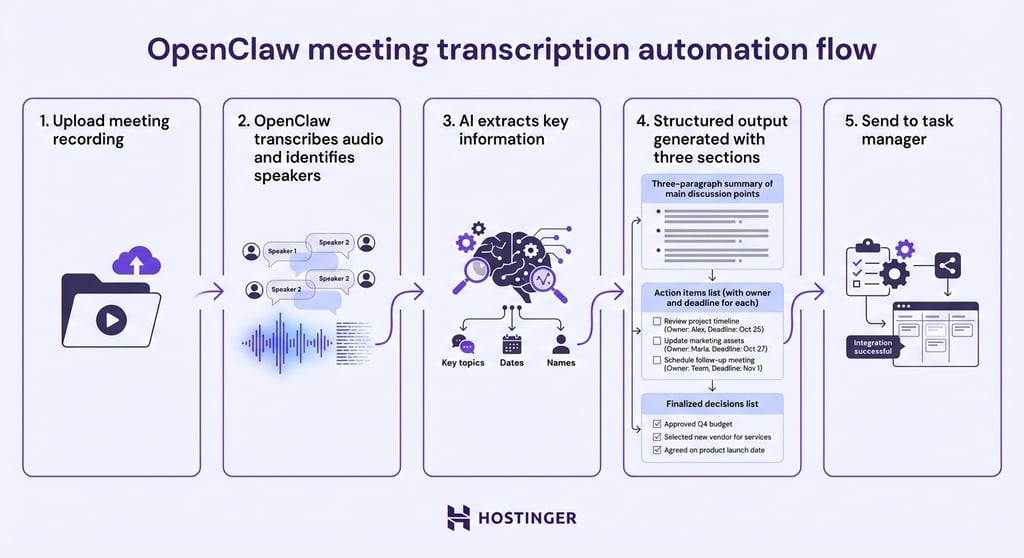
Transcribing meetings and extracting action items gives you a clear summary of what happened. You see decisions, assigned tasks, owners, and deadlines without rewatching recordings or decoding messy notes.
Start by uploading a meeting recording to get structured output within minutes. OpenClaw then transcribes the audio, identifies speakers when possible, and pulls out key details from the conversation.
The output includes a timeline of key moments and a separate action-item list you can send directly to your task manager.
Example prompt:
Transcribe this meeting recording. Then create:
1. A three-paragraph summary of the main discussion points
2. A list of action items with an owner and deadline for each
3. A list of finalized decisions
5. Track packages and delivery status automatically
Automatic package tracking pulls tracking numbers from order confirmation emails or shipping label photos. OpenClaw checks carrier APIs and keeps a simple dashboard with the status of all incoming deliveries.
You can set up alerts for “out for delivery” and “delayed” updates. That way, you know when to expect a package or when it’s time to follow up on an issue.
This works best if you use a dedicated business email that forwards order confirmations and shipping notices. For personal use, you can forward individual emails or set up automatic forwarding rules.
6. Summarize unread emails and reach inbox zero faster
Email summarization gives you a daily digest of unread messages. It highlights what’s urgent, flags messages that need a response, and suggests reply drafts so you can reach inbox zero faster.
OpenClaw scans subject lines, sender patterns, and message content to surface what matters and push aside what doesn’t. A summary might look like this: “Three urgent items that need a response today, seven FYI-only messages, and twelve promotional emails safe to archive.”
This workflow works well with managed OpenClaw or a VPS because the agent can check your inbox on a schedule and send summaries to your preferred channel.
For high-priority messages, the agent can draft a reply, but you should review and send it yourself. Start with read-only access, a single label or folder, and low-stakes messages before granting broader inbox permissions.
7. Monitor brand mentions on X and send a daily report
Brand mention monitoring tracks what people say about your brand, product, or name on X (formerly Twitter). It saves you from manual searches and rolls key conversations into a single report.
OpenClaw searches the platform, filters out noise, and delivers sentiment analysis on a schedule you choose.
The report highlights overall sentiment, calls out influential accounts, and flags posts that need a response. You can schedule it hourly during a product launch or daily for ongoing monitoring.
Example prompt:
Every day at 9 AM, search X for mentions of “[your brand name]” from the past 24 hours. Summarize:
- Total mention count
- Overall sentiment breakdown (positive, neutral, negative)
- The top three most-engaged posts mentioning us
- Any complaints or support requests that need attention
8. Automate new client onboarding tasks
Automated client onboarding kicks off a full workflow when a new client signs on. It creates a project folder, drafts a welcome email with next steps, schedules a kickoff call, and adds follow-up reminders to your task list.
Each client gets the same consistent experience without manual template copying or relying on human memory.
You define the workflow once, then trigger it by giving OpenClaw the client’s name, email address, project type, and preferred kickoff time.
The agent can create folders in Google Drive or Dropbox, prepare the welcome email, and add calendar events or tasks based on your timeline. This workflow fits managed OpenClaw or a VPS because it benefits from connected apps, scheduled follow-ups, and always-on availability.
Keep approval enabled before sending client-facing emails or creating external calendar invites.
9. Turn receipts into an expense spreadsheet entry
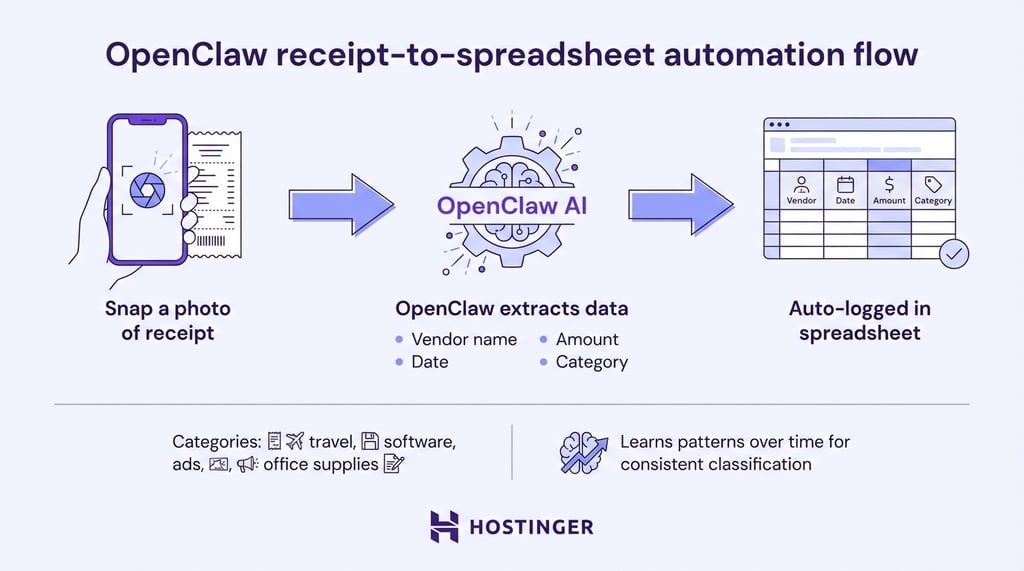
Receipt-to-spreadsheet automation pulls the vendor name, date, amount, and category from a receipt photo. It then logs each entry in a spreadsheet that matches your expense report format.
You can snap a photo of a receipt, send it to OpenClaw, and the data will automatically appear in the right columns.
When you set this up, standardize your categories in advance, such as travel, software, ads, and office supplies. That helps the agent classify expenses consistently.
Over time, it picks up your patterns, so receipts from the same vendors always land in the correct category.
10. Send KPI snapshots to Slack or Discord on a schedule
Scheduled KPI snapshots capture key metrics from a dashboard and post them to a team channel every Monday morning.
This gives you lightweight reporting without building a custom dashboard or giving everyone access to your analytics tools.
OpenClaw uses browser automation to log in, open the right view, take a screenshot, and post it to Slack or Discord with a summary.
It integrates with tools such as Google Analytics, Stripe, and internal dashboards. If a tool has a web interface and allows automated access, OpenClaw can usually capture the data.
11. Brainstorm content ideas to beat writer’s block
Content brainstorming helps you generate topic ideas, outlines, hooks, and angles based on a goal, audience, or content gap you want to fill.
Instead of staring at a blank page, you get raw material you can react to and refine. When you’re stuck, OpenClaw gives you solid starting points.
Example prompt:
I write for small business owners learning about web hosting. Give me:
- 10 blog post ideas they’d find useful
- The best headline from that list and why it works
- A five-point outline for that top pick
Once you’ve chosen a direction, check our guide on how to write a blog post. It walks through structuring the whole piece from start to finish.
12. Generate a first draft from a simple outline
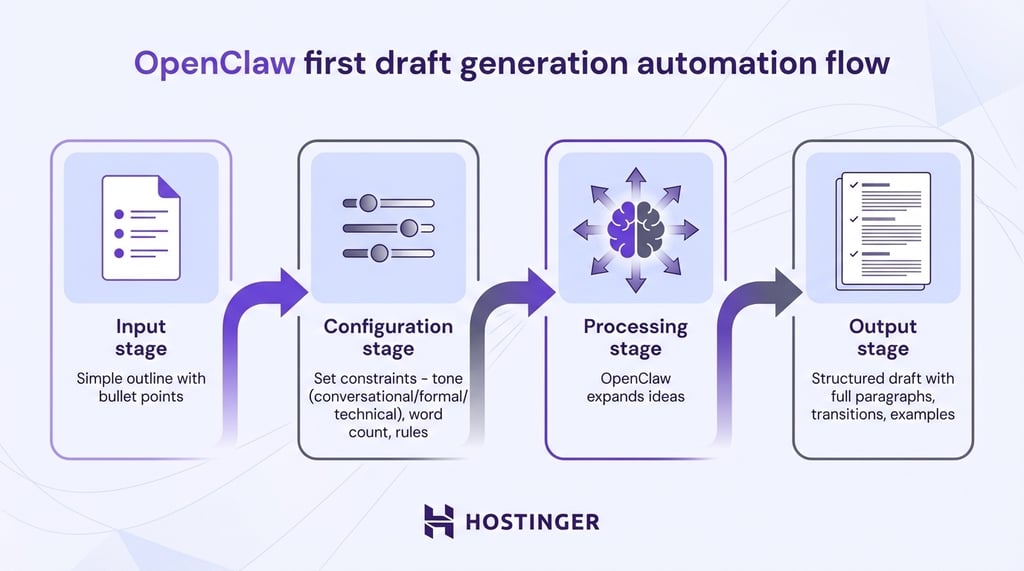
First draft generation turns bullet points into a structured draft for an article, email, or landing page. It expands key ideas into full paragraphs with transitions, examples, and a clear flow.
Start by sharing your outline, then let OpenClaw handle the expansion.
Add a few constraints to improve the output quality. For example, specify the tone (conversational, formal, or technical), a target word count, and rules like “include specific examples” or “avoid marketing fluff.”
The result is a draft you can edit and improve, rather than starting from a blank page.
13. Generate on-brand images without opening design tools
On-brand image generation lets you create social media visuals with clear style instructions, such as color palette, layout, and mood. OpenClaw generates images through skills that connect to external image APIs.
The bundled nano-banana-pro skill uses Google’s Gemini image models, while openai-image-gen connects to OpenAI’s image API, including DALL·E. Community skills add more options, such as Fal.ai and Replicate.
To get consistent results, you need to understand how to use AI image generators. Explicit constraints and concrete details help produce images that match your brand and reduce manual edits.
Example prompt:
Create a social media image (1200 × 630 px) with:
- A dark blue gradient background
- White text that says “5 server security tips every VPS owner needs”
- Minimalist tech or security iconography
- A clean, modern style suitable for LinkedIn
Save to /images/social/
14. Repurpose one post into multi-platform content
Content repurposing turns a single blog post into an X thread, a LinkedIn post, an Instagram caption, and an email newsletter snippet. It adapts the core message to each platform’s format, length limits, and audience expectations.
Each version changes the delivery while keeping the message consistent.
To get started, share the original post or a URL for OpenClaw to fetch. The agent then automatically creates platform-specific versions.
For example, the X thread breaks key points into short posts with strong hooks. LinkedIn adds professional context. Instagram’s caption is shorter and punchier. A TikTok script focuses on quick takeaways you can deliver on camera.
15. Draft fast replies as a community manager helper
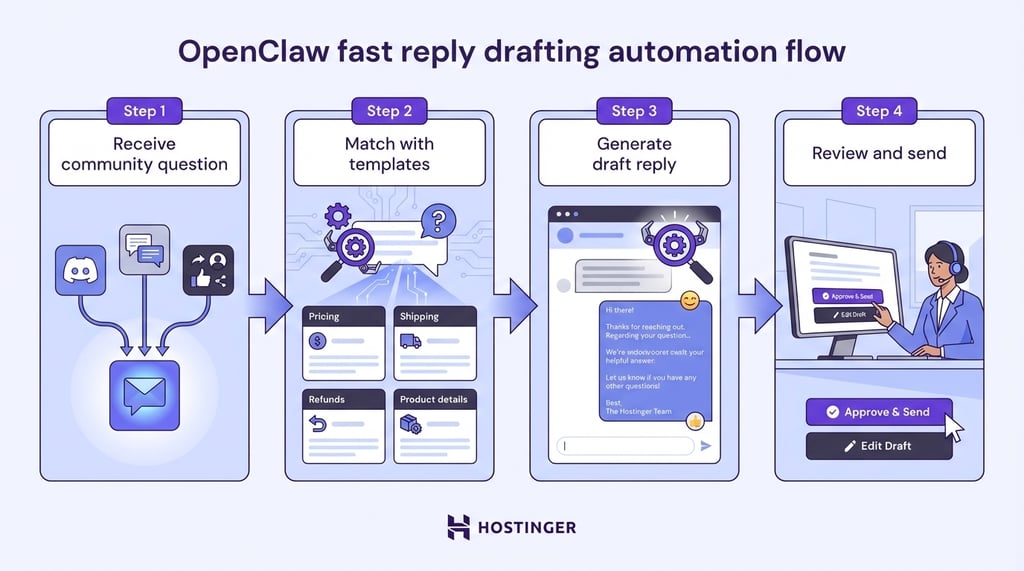
Fast reply drafting helps you respond quickly to common questions in Discord servers, forum threads, or social media comments.
It covers pricing questions, shipping inquiries, refund policies, and basic product details, all in friendly, on-brand language.
When you set this up, OpenClaw creates draft replies for you to review before sending.
Start by preparing templates for common scenarios. Then point the agent at a new message and get a draft reply. You stay in control of the final response.
16. Run safe shell commands from chat for quick fixes
Running safe shell commands from chat lets you handle common server tasks without opening a terminal. You can check disk usage, restart a service, view recent logs, or clear a cache right from the chat interface.
Type what you want in natural language. OpenClaw translates it into a shell command, runs it, and confirms the execution in chat.
This works best for Linux commands you run often, such as checking server load or viewing recent logs. For quick, repetitive tasks, typing a request in chat is faster than opening an SSH client like PuTTY.
When you set this up, focus on safety and limits:
- Keep an allowlist of permitted commands.
- Run the agent as a non-root user with restricted permissions.
- Log all executed commands for auditing.
- Never store root credentials in the agent’s configuration.
17. Monitor server health and get alerts when something breaks
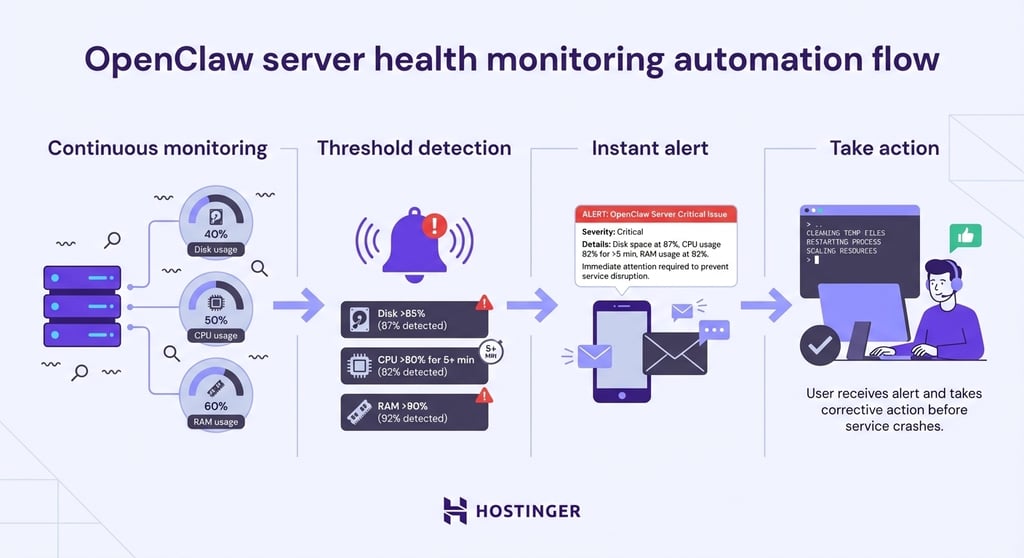
Server health monitoring with threshold alerts lets you know when something goes wrong.
For example, you can get alerts when disk usage exceeds 85%, CPU usage stays above 80% for more than five minutes, or RAM usage exceeds 90%. That gives you time to fix issues before services crash.
You can set different thresholds based on your workload. Production systems usually need tighter limits, while development environments can be more flexible.
This matters for VPS users running long-lived automations, databases, or web applications. A full disk or a memory leak can take services down without warning.
Instead of checking Linux disk space or system load at random times, OpenClaw monitors these metrics for you and alerts you only when action is needed.

18. Watch CI/CD pipelines and notify on failures
CI/CD pipeline monitoring alerts you when builds fail, tests error out, or deployments finish. It surfaces important status changes from GitHub Actions, GitLab CI, or Jenkins, so you don’t have to watch dashboards all day.
You can get notified about failures and completions in your preferred chat channel.
Example prompt:
Watch my GitHub Actions workflows. Notify me when:
- Any workflow fails
- A production deployment completes, whether it succeeds or fails
- A test suite takes longer than 10 minutes
Include the commit message and a link to the failed run.
If your CI/CD pipeline also builds and pushes container images, using a private Docker registry helps keep those artifacts organized and secure.
19. Summarize pull requests and suggest review comments
Pull request summarization gives you a clear overview of what changed in a code update.
It includes a high-level summary, a list of files with the largest additions or deletions, and draft feedback on potential issues. That can significantly speed up code reviews.
OpenClaw reads the diff, flags risky patterns, and suggests questions you might want to ask the author. You can use this to quickly triage pull requests and decide which need a deeper review and which are likely safe to approve.
While the agent speeds things up, it doesn’t replace human judgment on code quality or architecture decisions.
If you’re new to pull requests or version control, it helps to understand what GitHub is and how it fits into modern development workflows. From there, learn how to install Git on your server to make reviewing pull requests much easier.
20. Spot outdated dependencies and plan safe upgrades
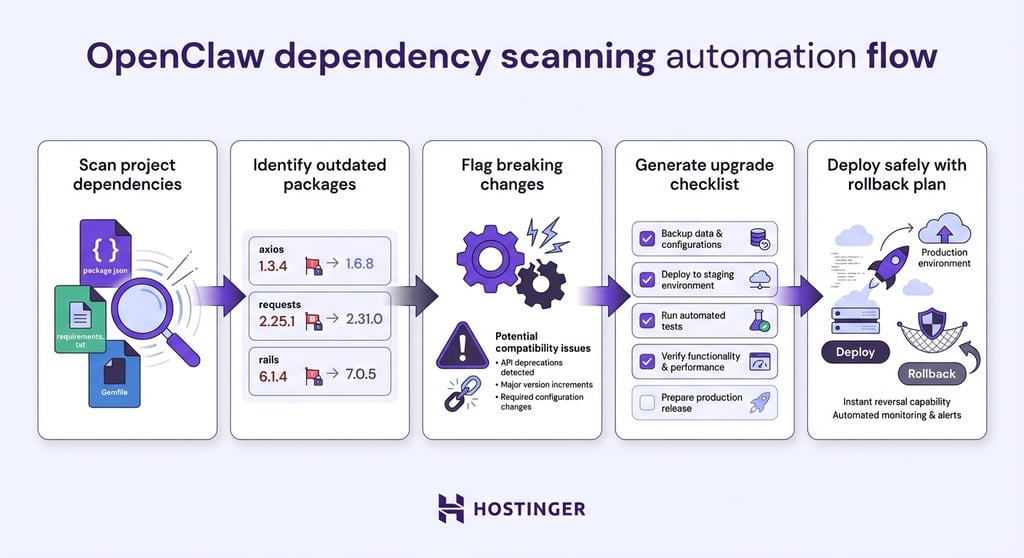
Dependency scanning with OpenClaw checks your project for outdated packages, highlights security-related updates, and flags potential breaking changes.
Point the agent at your package.json, requirements.txt, or Gemfile, and it returns a prioritized list of upgrade recommendations.
OpenClaw can also generate a step-by-step upgrade checklist.
This includes backing up the current state, applying updates in staging first, verifying that nothing breaks, and deploying to production with a rollback plan ready.
That process helps you avoid the risky “update and pray” approach that often leads to outages.
Note that dependency management is only one part of the picture. Our VPS security tips cover server hardening practices that help protect the rest of your infrastructure.
21. Research products and compile short comparison reports
Product research gathers web search results, compares options against your criteria, and returns a structured summary. It handles the initial research so you can focus on the final decision.
When you’re evaluating tools, services, or products, OpenClaw presents findings in a consistent format.
Example output format:
Best option: [product name]
Price: [cost and billing model]
Key strengths: [two to three main advantages]
Tradeoffs: [limitations to consider]
Best for: [ideal user or use case]
22. Control smart home devices from a single chat command
Smart home control lets you trigger lights, smart plugs, or routines through webhooks, IFTTT, or Home Assistant integrations using a single chat command.
You can send a message like “turn on the office lights” or “switch off the heater,” and OpenClaw sends the appropriate API call.
This works best for simple “do this now” commands and scheduled routines, rather than complex conditional logic like “if X happens, do Y instead of Z.”
For more advanced home automation, connect OpenClaw to a local Home Assistant instance. Setting up a VPS and running both there gives you a dedicated environment you control.
23. Get recipe ideas and build a weekly meal plan
Recipe and meal planning with OpenClaw suggests meals based on the ingredients you have, dietary restrictions, or cuisine preferences. It then builds a weekly plan and creates a combined grocery list.
You can ask OpenClaw for ideas, pick your favorites, and export the shopping list.
This works well with use case #2: meal planning outputs can feed straight into your shared grocery list, so nothing gets missed between planning and shopping.
24. Run a private document assistant with Ollama
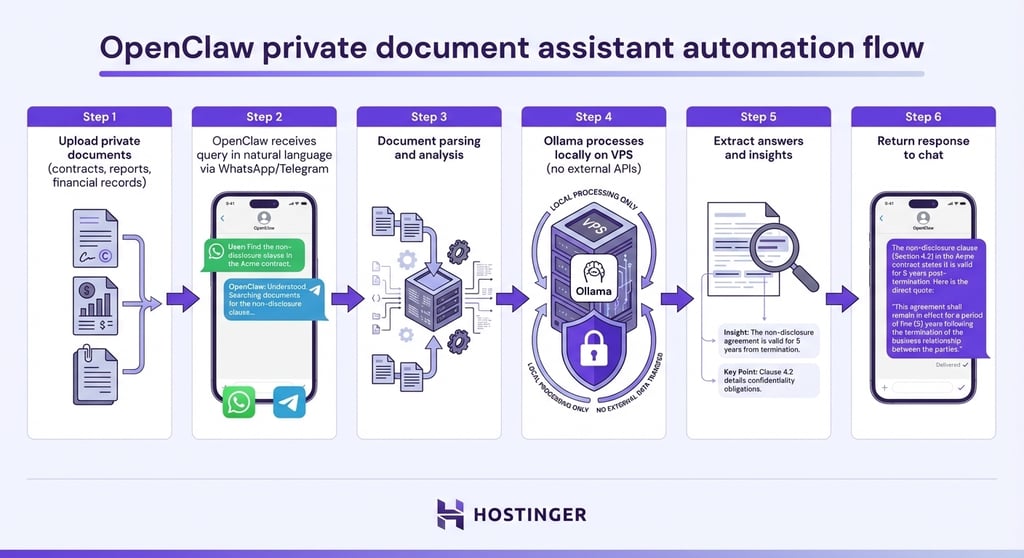
A private document assistant using OpenClaw and Ollama lets you summarize, search, and extract answers from local documents without sending content to external APIs.
You can upload contracts, reports, or reference materials to OpenClaw, ask questions in natural language, and get answers in chat, while keeping all files on hardware you control.
This setup matters when privacy is non-negotiable: legal documents, financial records, and proprietary research that shouldn’t leave your server.
OpenClaw handles the chat interface and document parsing, while Ollama runs the language model locally.
Start by setting up Ollama on your VPS. Then, configure OpenClaw to use it as the model provider and point the agent at your documents folder.
From there, you can query files directly from WhatsApp, Telegram, or any connected chat.
Example prompts:
Summarize this contract and list any risks or unusual clauses.
Find all mentions of renewal terms and automatic price increases.
Extract the key dates and deadlines from this agreement.
25. Automate browser tasks like form filling and admin work
Browser automation lets you log in to web tools, copy data between pages, and submit repetitive forms without manual clicks. It’s useful for admin tasks when no API is available.
OpenClaw controls a headless browser to navigate interfaces, fill in fields, and trigger actions automatically.
This works well for tasks like updating product information across platforms, submitting the same form to multiple services, or extracting data from web apps that offer only a user interface.
That said, browser automation is one of the riskier capabilities to enable. Web pages can include hidden instructions that exploit prompt injection.
A malicious or compromised site could trick OpenClaw into leaking data or taking unintended actions. Limit this feature to internal tools you control, such as admin dashboards or intranet apps, rather than public websites.
For anything involving payments, account changes, or sensitive data, we strongly recommend avoiding browser automation altogether.
Even with trusted tools, expect a few practical limitations:
- CAPTCHAs can block automated access.
- Sessions can expire and require re-authentication.
- Rate limits may slow repeated requests.
If you’re running multiple internal tools on the same server, configuring NGINX as a reverse proxy helps route traffic between services and keeps automation targets organized.
How do you run OpenClaw safely for these use cases?
To run OpenClaw safely, start with least-privilege access, limited integrations, approval steps, and detailed logging. This applies whether you use managed OpenClaw, run OpenClaw on a VPS, or test it on a local device.
A tool like OpenClaw can access messages, files, APIs, browser sessions, and terminal commands. If it’s misconfigured, it can cause real issues, so these basics matter:
- Least privilege. Give OpenClaw only the permissions it needs for the workflow. If you only need calendar access, don’t grant shell access.
- Limited integrations. Start with one or two integrations, confirm they behave safely, then expand. Don’t connect email, calendar, file system, and shell access all at once.
- Approval steps. Require manual review before OpenClaw sends emails, edits files, deletes data, runs commands, or changes production systems.
- Detailed logging. Enable logs for agent actions so you can review what happened and when.
- Untrusted inputs. Treat external emails, messages, websites, and uploaded files as untrusted inputs because they may contain misleading or malicious instructions.
For OpenClaw on a VPS, add stricter server-level guardrails. Run the agent as a non-root user, create a dedicated system account with minimal group memberships, keep an explicit allowlist of approved shell commands, and block destructive operations like rm -rf, dd, or anything that touches system files. Store API keys and credentials in environment variables or a secrets manager, isolate the agent in a container or virtual environment, and harden SSH with key-based access only.
For managed OpenClaw, focus on account security and connected app permissions. Use strong Hostinger login security, grant only the channels or apps each workflow needs, add integrations gradually, and review activity logs for automations that send messages or access private data. Managed OpenClaw reduces server maintenance, but it doesn’t remove the need for permission control and human review.
For deeper guidance, read our OpenClaw security guide. It covers threat models, prompt injection risks, and advanced hardening techniques for production deployments.
All of the tutorial content on this website is subject to Hostinger's rigorous editorial standards and values.


Ariffud is a Technical Content Writer with an educational background in Informatics. He has extensive expertise in Linux and VPS, authoring over 200 articles on server management and web development. Follow him on LinkedIn.


