How to clone a website
Jul 02, 2026
/
Ariffud M. & Aris S.
/
12 min Read
To clone a website, copy its design and content to a new location using an AI cloner, browser developer tools, a download utility, a content management system (CMS) plugin, or a manual file and database transfer.
Cloning a website can mean copying a front-end design, downloading a static site, recreating a layout with AI, duplicating a CMS site you own, or moving files and a database by hand.
A full, working website clone goes beyond duplicating the visible design. You also need to copy the site’s files, database, hosting settings, and configuration files.
Here are five website cloning methods, ordered from the quickest design copy to a full site move:
- AI website cloners. Recreate a page’s frontend from a URL or screenshot. This is the fastest option for copying a design.
- Browser developer tools. Copy a single page’s code by hand. This works best for studying or reusing one layout.
- Command-line and offline tools. Download a static site’s public files with wget or HTTrack. This works best for offline viewing or local edits.
- CMS plugins and hosting tools. Bundle a site’s files and database. This is ideal for staging or moving a site you own.
- Manual file and database migration. Copy everything yourself. This is the most involved but flexible option.
Note that website cloning has legal implications. You can freely clone a site you own or recreate a layout for practice, but copying someone else’s protected content without permission may violate copyright law.
Which website cloning method should you use?
The right website cloning method depends on whether you own the site and which parts you need to copy. Use the following table to match your goal with the best method before you start.
| Method | Best for | Copies | Doesn’t copy |
| AI website cloner | No-code design recreation, mockups | Front-end layout, design | Backend, database, accounts |
| Browser developer tools | Learning, copying a single page | HTML, CSS, JavaScript references | Server logic, database, protected assets |
| wget / HTTrack | Static sites, offline viewing | Public static files | Database, admin area, backend, forms |
| CMS plugin / hosting tool | Owned CMS sites, staging, migration | Files and database | Email, FTP, SSH, varies by tool |
| Manual file and database migration | Owned sites with server access | Everything, by hand | Nothing, if done fully |
What does it mean to clone a website?
Cloning a website means copying some or all of it. The methods below fall into two groups: copying how a site looks and copying how it works.
A front-end clone copies the visible layer: HTML, CSS, JavaScript, and images that load in the browser. It captures how a page looks, not how it works behind the scenes.
You save those same files to disk for offline viewing or local edits to create a static clone. This works best for simple sites that don’t rely on a server to build each page.
Reproducing how a site works requires a full clone, which includes the database, server settings, and configuration files. This is what you need to move a working CMS site or store to a new home.
Is it legal to clone a website?
Cloning a website is legal when you own the site or recreate a layout for private practice. It crosses a line when you copy someone else’s protected content without permission.
In general, a site’s overall layout or concept is treated differently from its specific code, text, graphics, and logos, which are protected by copyright.
Acceptable website cloning uses include:
- Cloning a website you own for staging, migration, or backups.
- Building a private practice project that you don’t publish.
- Using a layout as inspiration, then rebuilding it with your own design and content.
Avoid these practices when cloning a website:
- Copying logos, brand assets, written content, or copyrighted images.
- Publishing another site’s design and passing it off as your own.
- Bypassing passwords, paywalls, or private areas.
Only use public cloning tools on public pages you have the right to copy. Laws differ by country, so check your local rules if you’re unsure.
How to clone a website
To clone a website, use an AI cloner, browser developer tools, wget or HTTrack, a CMS plugin or hosting feature, or manually copy the site’s files and database.
Choose the method that matches your goal, since each one copies a different layer of the site.
Use an AI website cloner
An AI website cloner recreates a website’s frontend from a URL, screenshot, or prompt. It reads the rendered page and generates fresh HTML, CSS, and JavaScript, so the new code rarely matches the original structure or class names.
URL-first tools like Open Lovable and 10Web work best for this because they read an existing page and rebuild it.
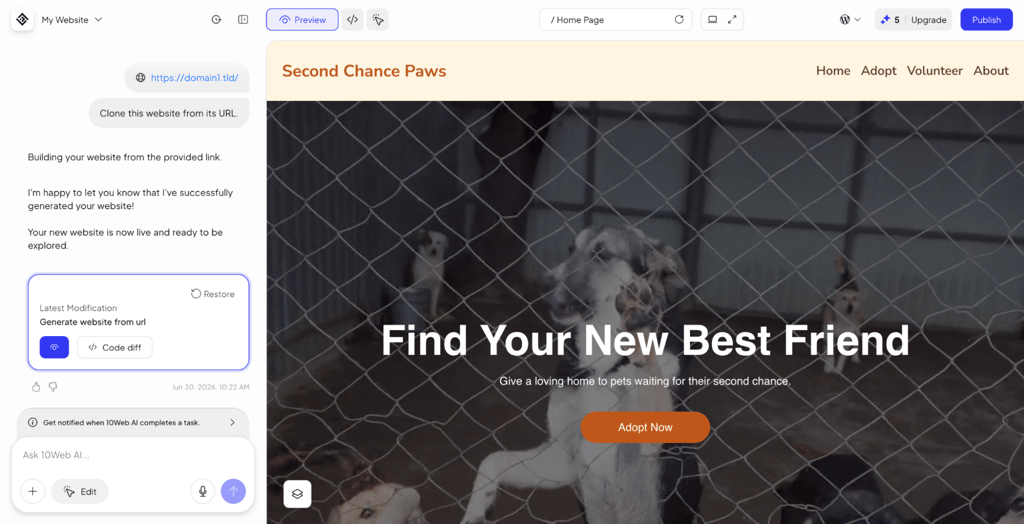
General AI builders like Bolt.new can clone from a URL, too, but they’re built to generate new sites from prompts. They often struggle to accurately copy a specific site.
Using an AI cloner suits no-code users who want to recreate a design, build a mockup, or create an editable starting layout. The visual match is usually close on simple pages, while complex pages need manual cleanup.
The look transfers, but the logic doesn’t. AI cloners skip back-end code, databases, private dashboards, checkout systems, and user accounts. They also struggle with lazy-loaded content, login-gated pages, and heavy animations.
Accuracy can vary by tool and source website. The same site can look nearly perfect from one cloner and unrecognizable from another, so test two or three tools before choosing one.
These tools usually charge for each use, so cloning a large, detailed site costs more than copying a simple page. Whichever tool you pick, expect some manual work afterward. Forms, menus, and mobile layouts often need hand-fixing once the copy is ready.
Before publishing anything an AI tool generates, replace any copied branding, text, images, logos, and colors with your own. Reusing another brand’s assets can turn a design recreation into copyright violation.
For a fresh website rather than a copy, use a prompt-first builder like Hostinger Website Builder. For code-heavy builds, use an AI coding tool.
Copy a page with browser developer tools
Browser developer tools let you clone a single web page by exposing its HTML, CSS, and JavaScript, letting you copy them by hand. They work best for studying a layout or reusing a single page, not for capturing an entire site.
To copy a page with developer tools:
- Open the page in Chrome or Firefox.
- Right-click the page or an element and select Inspect to open developer tools.
- Read the markup in the Elements panel and the matching rules in the Styles tab.
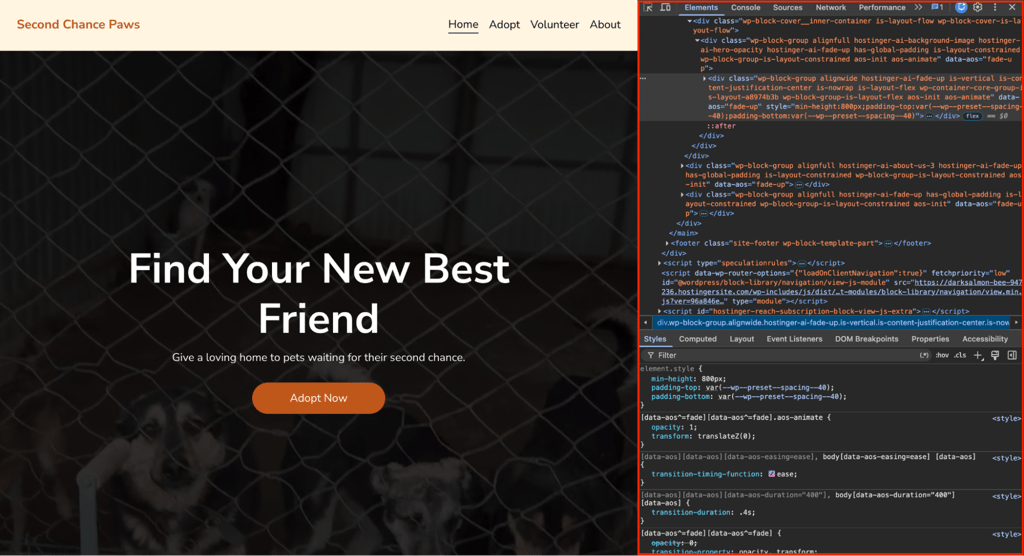
- Open the Sources and Network panels to find linked CSS, JavaScript, images, and their real URLs.
- Copy the code into a local editor and save it as an .html file.
Once you have the markup and styles, link your CSS to the HTML in your local copy. Add JavaScript to your HTML as well if the target page uses it.
What you see in the Elements panel can differ from the page’s source code, so the copy you create may not match it exactly.
Copied CSS often points to assets in their original locations, so some styles or images may break after you move the files to another server or your local machine.
For a faster single-page copy, use your browser’s Save page as → Webpage, Complete option to download the HTML and assets in one step.
Download a static website with wget or HTTrack
Wget and HTTrack clone a static website by downloading its public files for offline viewing or local editing. Neither tool copies the interactive parts of a site, including:
- Databases and admin panels.
- Back-end code and form processing.
- Checkout and login systems.
- Private or password-protected files.
On Linux and macOS, you can copy a public site with a single wget command:
wget --mirror --convert-links --adjust-extension --page-requisites --no-parent https://domain.tld
The –mirror flag follows the site’s internal links and downloads each page, –page-requisites grabs the CSS, JavaScript, and images each page needs, and –convert-links fixes the links so the copy works offline.
You can add more flags to limit crawl depth, skip certain file types, or sign in to protected pages.
Consider slowing down the download so the site doesn’t block your IP. The –wait and –limit-rate flags space out requests, and wget follows the site’s robots.txt rules by default.
Wget can’t run JavaScript, so single-page apps and sites built with frameworks often return almost empty responses. URLs with extra parameters, like style.css?ver=2, can also break filenames. The –restrict-file-names=windows flag helps prevent this.
HTTrack is a free alternative that works on Windows, macOS, and Linux through a simple interface, so it’s the easier pick if you’d rather click than type commands.
The download saves as a folder of HTML, CSS, JavaScript, and image files, with index.html as the home page. Open that file in any browser to view the site offline, edit it in a code editor, or upload the folder to a web host to publish your version.
Clone a CMS website with a plugin or hosting tool
Cloning a CMS website means copying its files and database together, then reconnecting them at the destination. A plugin or host-level tool usually handles the whole process for you.
A migration or cloning plugin bundles the files and database into one archive, then rebuilds them on the new site. This suits users who prefer working inside the CMS dashboard.
More advanced plugins also handle the step that breaks most manual clones: updating the site’s web address everywhere the database has stored it, without corrupting any settings along the way.
A host-level tool does the same job from your hosting control panel, often as a 1-click clone or staging option.
It’s usually the fastest approach when your host offers it, since it copies the files and database on the server and points the clone to itself, so you skip downloading and re-uploading anything.
Both methods share one limit: they only work on sites you own and can install a plugin on or access the control panel for.
They also clone the website itself, not the extras tied to the account. You’ll still need to move email accounts, FTP users, and external integrations separately.
Clone website files and database manually
The manual cloning method is for site owners with server and database access who want full control. It works on almost any platform, but you’ll handle every step yourself.
To clone a website manually:
- Create a complete backup of the site first.
- Download the files through FTP, SFTP, SSH, or a file manager.
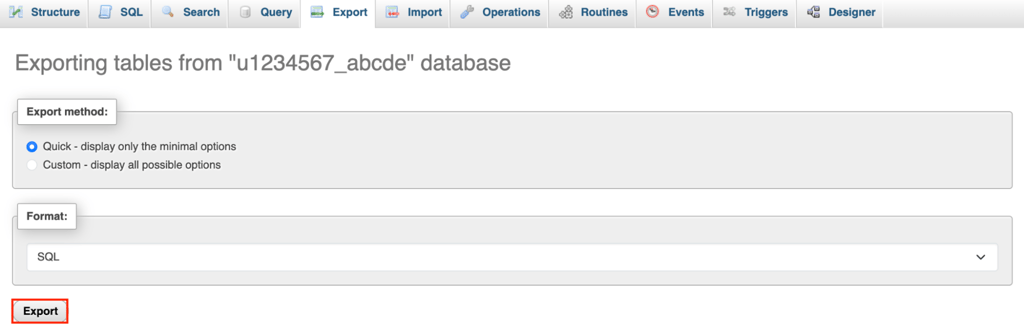
- Export the database from phpMyAdmin as an SQL file.
- Upload the files to the new location.
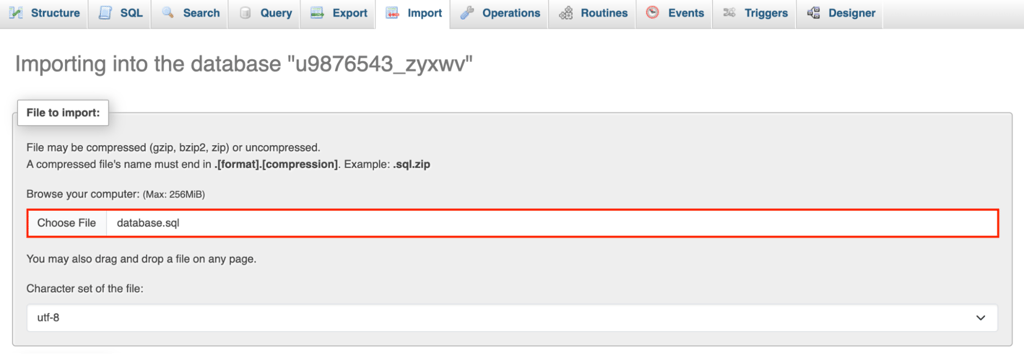
- Create a new database and import the SQL file.
- Update the configuration file with the new database details.
- Replace the old URLs with the new domain.
- Test every page and feature on the copy.
The configuration file tells the site how to reach its database. Its name depends on the platform: WordPress uses wp-config.php, and Laravel uses .env. Open it and enter the new database name, user, and password.
URLs are where clones most often break. Don’t swap the old address for the new one with a plain find-and-replace in the database.
WordPress saves some settings in a format that records each value’s length. A plain swap changes the text but not the recorded length, which can break widgets, theme options, and plugin data.
Use a tool that fixes those lengths while swapping the addresses. WP-CLI does it in one command, which you should dry-run first to preview the changes:
cd domains/new-domain.tld/public_html
wp search-replace 'https://old-domain.tld' 'https://new-domain.tld' --skip-columns=guid --dry-run
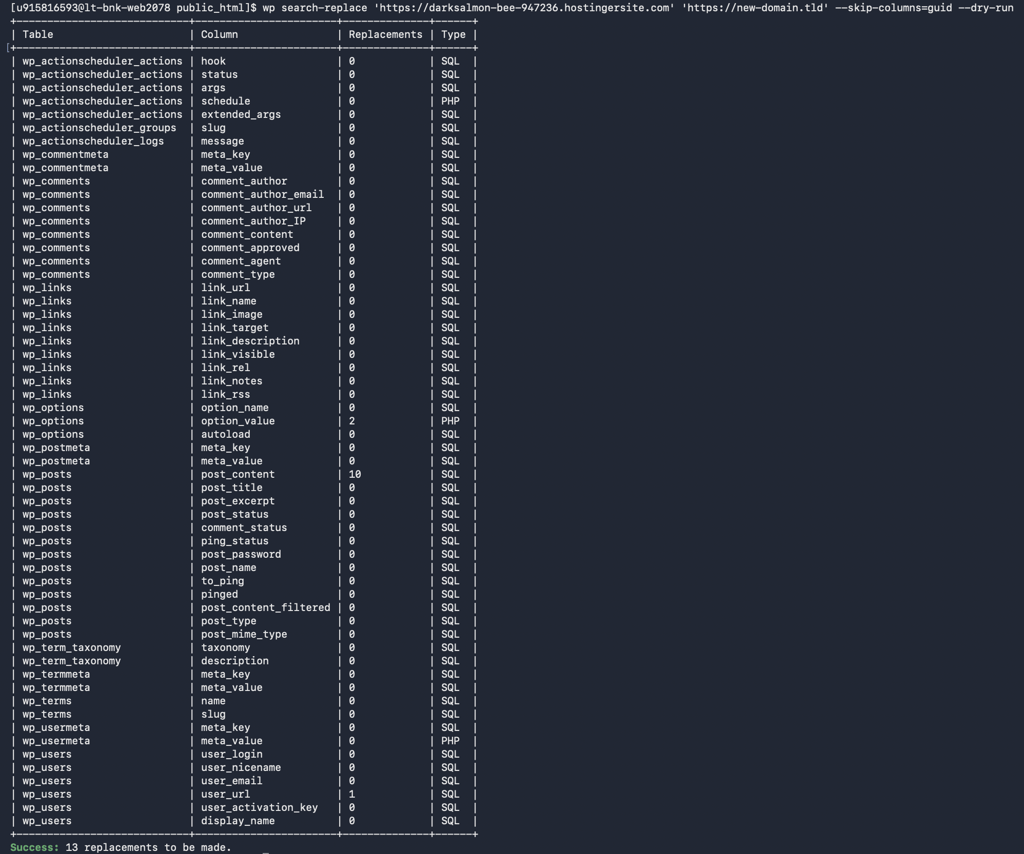
Swap new-domain.tld for the actual folder name of your new domain, and put your real old and new URLs in the quotes.
Skip the guid column, since those are fixed IDs, not real URLs. Run it once for each address version, because http, https, www, and non-www each count separately.
After the preview looks right, remove –dry-run to apply it. If you’d rather not use the command line, a plugin like Better Search Replace does the same thing from the dashboard.
Finally, test the clone before going live, ideally on a local server on your own computer. If the site won’t load there, you’ll often see the “localhost refused to connect” error, which means the local server isn’t running. It doesn’t mean the clone failed.
Static vs. dynamic website cloning
The difference between static and dynamic website cloning comes down to whether the site needs a server to build its pages.
A static website serves fixed files, so cloning it means copying only the HTML, CSS, JavaScript, images, and fonts. A dynamic website builds each page on request, so a working clone needs the files, database, server settings, and application configuration.
That’s why wget, HTTrack, and developer tools can’t fully clone most CMS or ecommerce sites. They capture the output of a single visit, not the system that regenerates each page, so the copy shows frozen data and lacks a working backend.
| Aspect | Static website | Dynamic website |
| Built from | HTML, CSS, JavaScript, images, fonts | Files, database, and server-side code |
| To clone, you need | Page files and assets | Files, database, server settings, and app configuration |
| Method | Wget, HTTrack, developer tools | Backups, migration plugins, manual transfer |
| Example | Landing page, portfolio | WordPress site, ecommerce store |
How to clone a WordPress website
Cloning a WordPress website means copying both its files and database. You can do this with a plugin, a host-level tool, or manually.
Cloning and migrating a WordPress site work the same way: you copy the files and database to a new location. The steps below can also help you move a site to a new host or domain. The three methods go from easiest to most technical.
Use a WordPress cloning plugin
A WordPress cloning plugin bundles your files and database into a downloadable copy, then rebuilds them on the new site. Duplicator and All-in-One WP Migration are two popular free options, so you don’t have to edit the database or configuration files by hand.
All-in-One WP Migration exports your site as a single file, which you import into the new site’s dashboard.
Duplicator gives you more control. Its steps look like this:
- Install and activate Duplicator on the original site.
- Build a copy, which Duplicator saves as two downloads: an archive of your site and a small installer file.
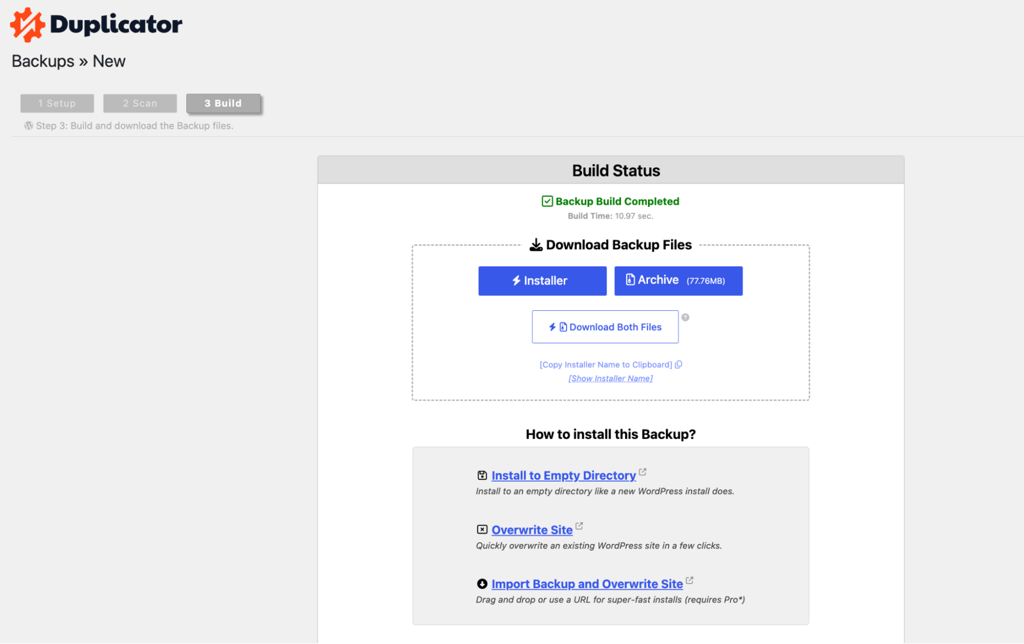
- Upload both files to the new site’s public_html with a file manager or FTP client.
- Create an empty database on the new site for the clone.
- Open the installer by visiting your new domain followed by /installer.php in your browser. This loads a setup page.
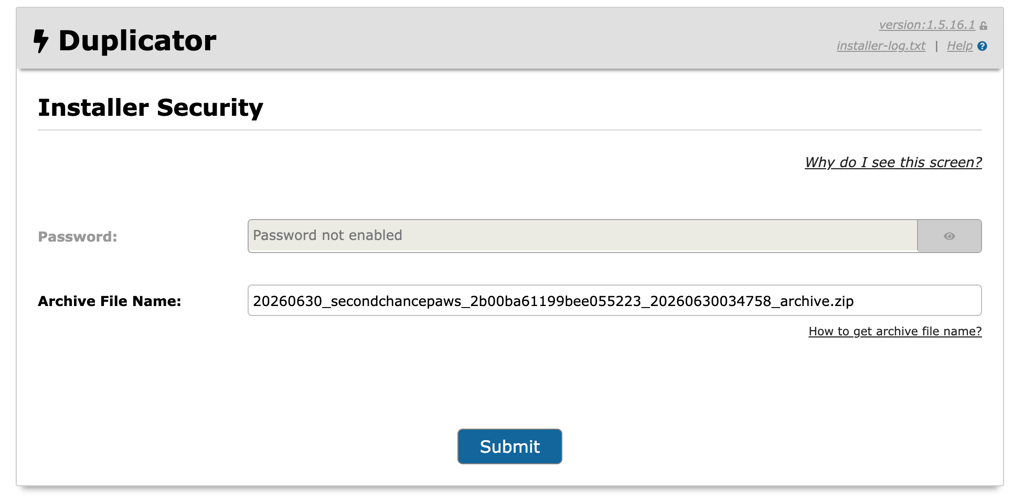
- Enter the new database details when prompted, then let it unpack the site.
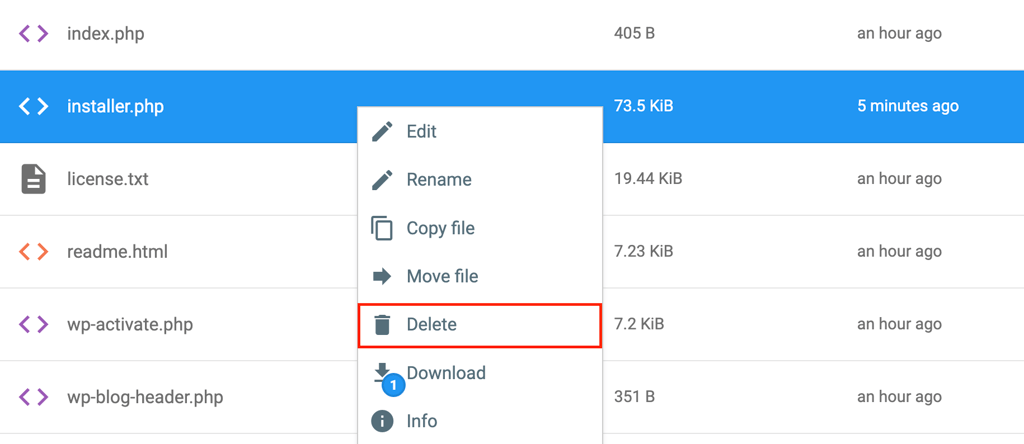
- Check that the clone works, then delete the installer file.
As it runs, the installer replaces the old web address with the new one everywhere the database stores it. This helps you avoid the manual URL fix that often breaks hand-done clones.
Delete the installer file after confirming the clone works. It remains accessible at a public URL (domain.tld/installer.php), so anyone who finds it could rerun the installer and overwrite or modify your site.
Use a hosting control panel tool
Many hosts let you clone a WordPress site you own straight from the control panel without a plugin or manual steps. This is the simplest option when your provider includes it.
On Hostinger, the Copy Website tool duplicates a WordPress site’s files and database to another domain or subdomain on the same plan. It’s available on the Premium managed hosting for WordPress plan and higher.
To copy a WordPress site in hPanel:
- Go to hPanel → Websites and open the site’s dashboard.
- In the left sidebar, select WordPress → Copy Website.
- Choose the destination domain or subdomain.
- Start the copy and confirm.
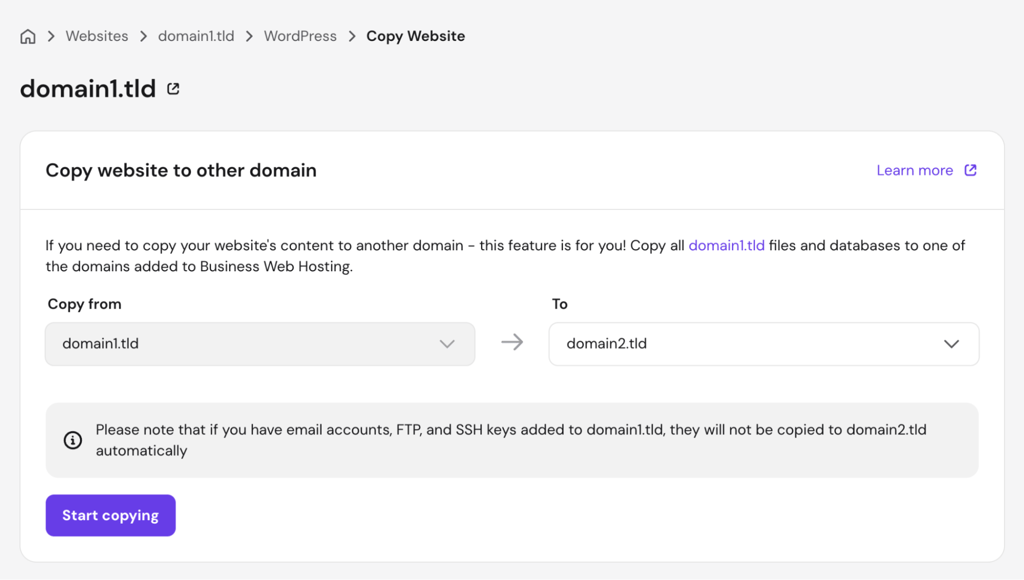
The tool automatically rewrites internal links and database references, so the clone works on its new URL right away. It copies only to a root domain or subdomain, handles one site at a time, and processes subdomains individually.
Note that copying overwrites everything on the target domain, so the destination must be empty or ready to replace. It also only moves files and databases, so you’ll need to recreate email accounts, FTP accounts, and SSH keys for the new domain yourself.

Clone WordPress manually
Manual WordPress cloning means moving the files and database yourself. It suits developers wanting full control or cases where other methods can’t do the job.
To clone WordPress manually:
- Back up the full WordPress site before you start, so you can roll back if something goes wrong.
- Download the WordPress files via a file manager or an FTP client such as FileZilla.
- Upload the files to the new location.
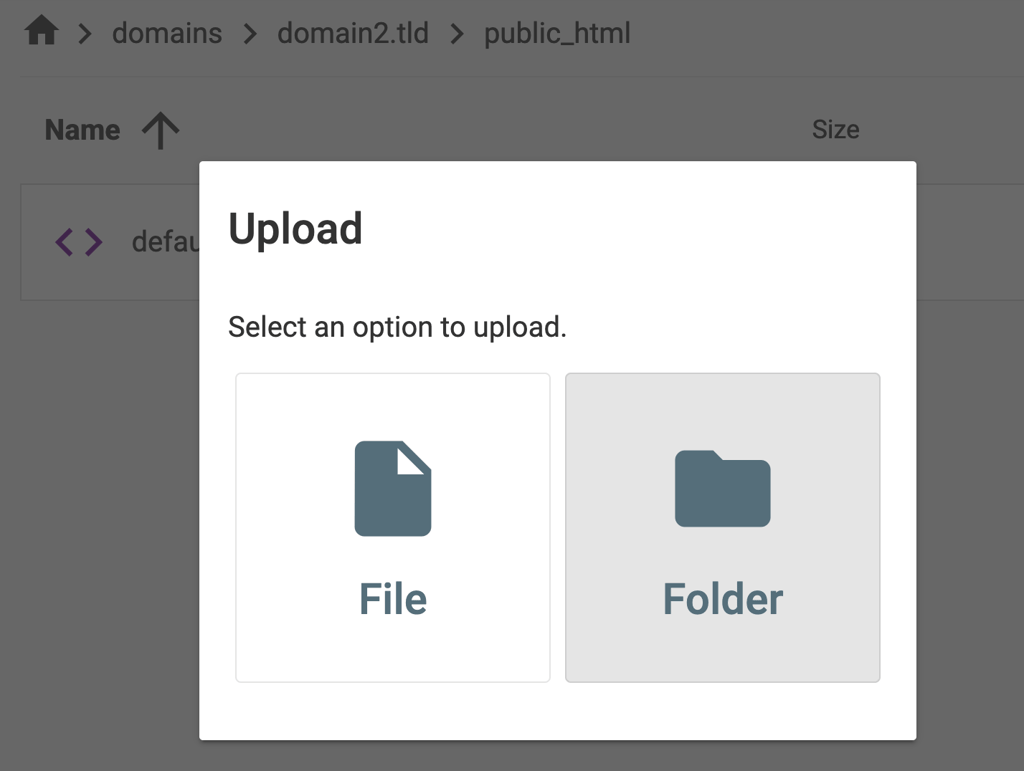
- Export the database from phpMyAdmin, then import it at the destination.
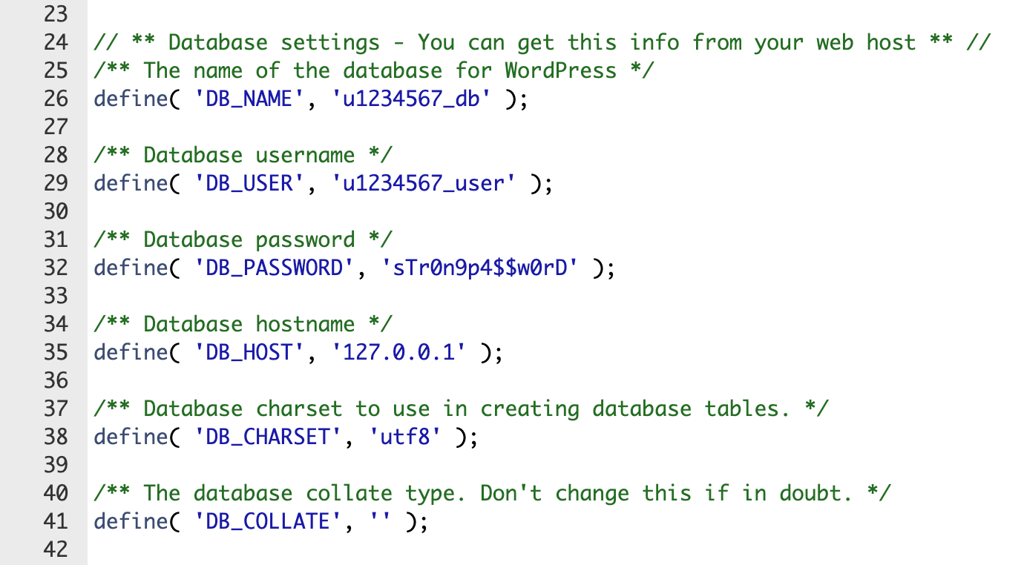
- Update wp-config.php with the new database name, user, and password.
- Update the old web address to the new one using a tool that does it safely, such as WP-CLI.
- Test the clone from end to end.
You’ll find wp-config.php in the WordPress root, usually the public_html folder. If you’ve changed hosts, check DB_HOST there too, since it’s often 127.0.0.1 or an address your host gives you, not localhost.
For the web address, let the tool make the change instead of editing the database by hand. WordPress stores that address in several spots, and one good tool updates all of them at once.
Finally, test the clone. If some pages show a 404 error, open Settings → Permalinks and click Save Changes, which usually fixes it.
How to duplicate a website builder site
Duplicating a website builder site depends on the platform, since each builder controls how much file access you get.
Many builders don’t give direct access to files or a database, so the manual approach won’t work. The builder’s built-in duplicate feature is usually the only method.
Some builders include a one-step duplicate option, while others direct the request through their support team.
On Hostinger Website Builder, you can duplicate a site from hPanel in a few clicks:
- Open hPanel → Websites.
- Find the site, click the three-dot icon, and select Duplicate website.
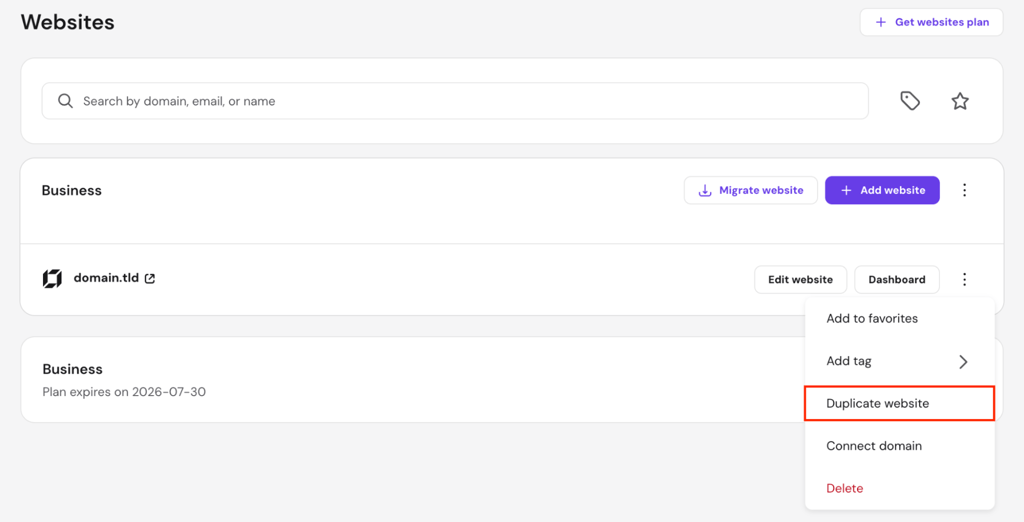
- Choose a plan to host the copy, then confirm.
The builder creates the copy on a temporary domain you can preview and publish. Check that all pages and images are carried over before going live.
Duplicating a Hostinger Website Builder site doesn’t copy your online store products and settings, so you’ll need to set those up again on the copy.
The copy also carries over any API keys and credentials from the original site. Remove those keys from the clone, so the two sites don’t share connections to the same external accounts.
When should you clone a website?
Clone a website when you need a safe copy to work on, move, or restore. The most common reasons are:
- Migration. Move a site to a new host or domain with little downtime.
- Redesign. Experiment on a duplicate before launching the new version.
- Local development. Run a copy on your own machine to build offline.
- Learning. Study how a layout is built by recreating its frontend.
- Recovery. Rebuild quickly after a cyber attack or data loss.
Clone, backup, and staging aren’t the same. A clone is a full copy you manage, a backup is a restore point you keep in reserve, and a staging site is a test copy you publish once the changes work.
For small, routine changes, you usually don’t need a clone. Back up the site first, then make the edit.
Many WordPress hosts, like Hostinger, let you create a staging environment for your site. Here, you can test changes safely, then apply them to the live version once everything works, without risking the version visitors see.
What to do after cloning your website?
After cloning a website, test it thoroughly and secure it before it goes live or stays online. Use this checklist to catch broken features and other issues early:
- Test every form, button, and interactive feature.
- Check that internal and external links point to the right places.
- Confirm that images, videos, and other media load from the correct URLs.
- Update any old-domain URLs left in the database with a safe tool like WP-CLI or a search-and-replace plugin.
- Reissue an SSL certificate and fix mixed-content warnings.
- Point canonical tags to the correct version of the site.
- Set robots.txt and search visibility settings to match the copy’s purpose.
- Update the sitemap so search engines find the right URLs.
- Hide any staging or development copy from search results to avoid duplicate content.
- Update or remove tracking IDs and API keys to prevent conflicts.
- Delete leftover backup archives and installer files.
- Reset passwords and database keys if the copy sits in a shared or team-accessible environment.
- Switch payment gateways to test mode on a development copy so you don’t process real orders.
- Flush permalinks if pages return 404 errors.
- Allow 24 to 48 hours for DNS to propagate if you also moved the domain.
If you copied a single page locally to study it, rebuild the layout using your own HTML, CSS, JavaScript, copy, and branding, just as you would when building a website with HTML from scratch.


Ariffud is a Technical Content Writer with an educational background in Informatics. He has extensive expertise in Linux and VPS, authoring over 200 articles on server management and web development. Follow him on LinkedIn.

Aris is a Content Writer specializing in Linux and WordPress development. He has a passion for networking, front-end web development, and server administration. By combining his IT and writing experience, Aris creates content that helps people easily understand complex technical topics to start their online journey. Follow him on LinkedIn.