How to perform a WordPress search and replace in the database
May 22, 2026
/
Domantas G.
/
6 min Read
Updating your database records can be time-consuming if you do it manually. Luckily, there’s a way to update your WordPress database records in bulk.
In this WordPress tutorial, we’ll cover how to perform a search and replace in a WordPress database using a plugin, WP-CLI via SSH, and a MySQL query.
Download all-in-one WordPress cheat sheet
Reasons to use search and replace on a WordPress database
As your website depends heavily on its WordPress database, it’s essential to optimize your collection of data periodically.
Here are several reasons why you need to modify your WordPress database:
- Renaming keywords – WordPress SEO is ever-changing, and keywords that worked for your site a few months ago might not anymore. Performing search and replace can easily solve this problem for you.
- Misspelling and typos – this applies to data that contains typos and grammatical errors. They happen, and searching endlessly is never fun.
- Deleting characters – in some cases, WordPress updates can mess up your database by randomly adding weird characters or symbols to your data.
Regardless of the reason, the process of updating your database usually involves a large number of data tables. Imagine how tedious it would be to go through each table and modify the outdated data manually.
This is where the WordPress search and replace action comes in handy. It helps you find flawed data across database tables and modify them in no time.
Important! Keep in mind that any changes made cannot be undone! You should consider backing up your WordPress site before making any changes in your database to prevent possible data loss.
How to perform search and replace on a WordPress database?
There are three ways to perform a search and replace on a WordPress database — using a plugin, WP-CLI via SSH, or a MySQL query.
The plugin method is ideal if you prefer a visual interface. WP-CLI works well if you have SSH access and want a single command that covers the entire database. The MySQL query gives you the most control, letting you target specific tables and fields.
Using a plugin
This method is ideal for users with no programming experience. With a plugin, you get to run a search and replace operation as many times as needed without dealing with a single line of code.
In this tutorial, we’re going to use Better Search Replace, one of the best WordPress plugins for this purpose.
Better Search Replace has plenty of useful features for managing your WordPress database. Its features besides search and replace include but are not limited to a backup creator, and database import features.
If you only need the search and replace function, the free version will do just fine. Should you need the rest of the features, you can upgrade to the Pro version at a starting price of $59 per year.
- From your WordPress admin dashboard, navigate to the Plugins → Add New section.
- Search for the Better Search Replace plugin, then select Install Now.
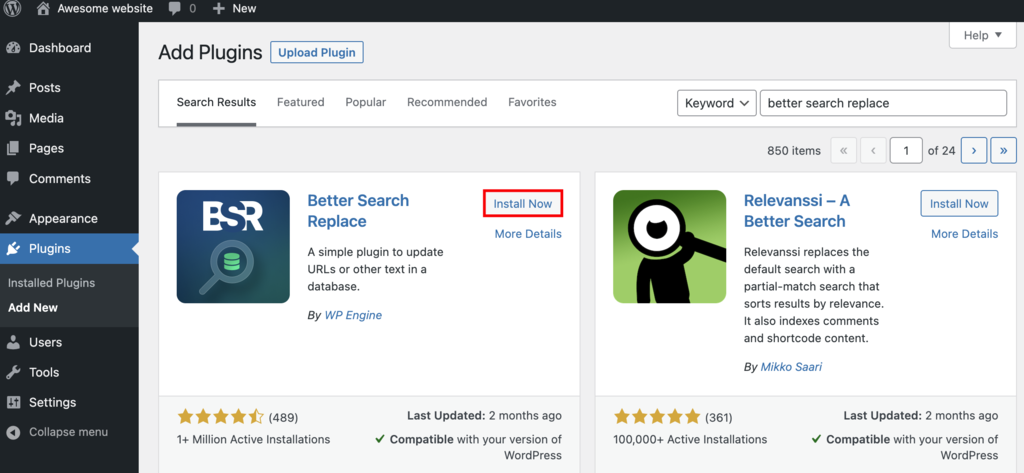
- Click on the Activate button to activate the plugin.
- From your WordPress admin dashboard, navigate to the Tools -> Better Search Replace section.
In the Search/Replace section, you will need to enter all of the following:
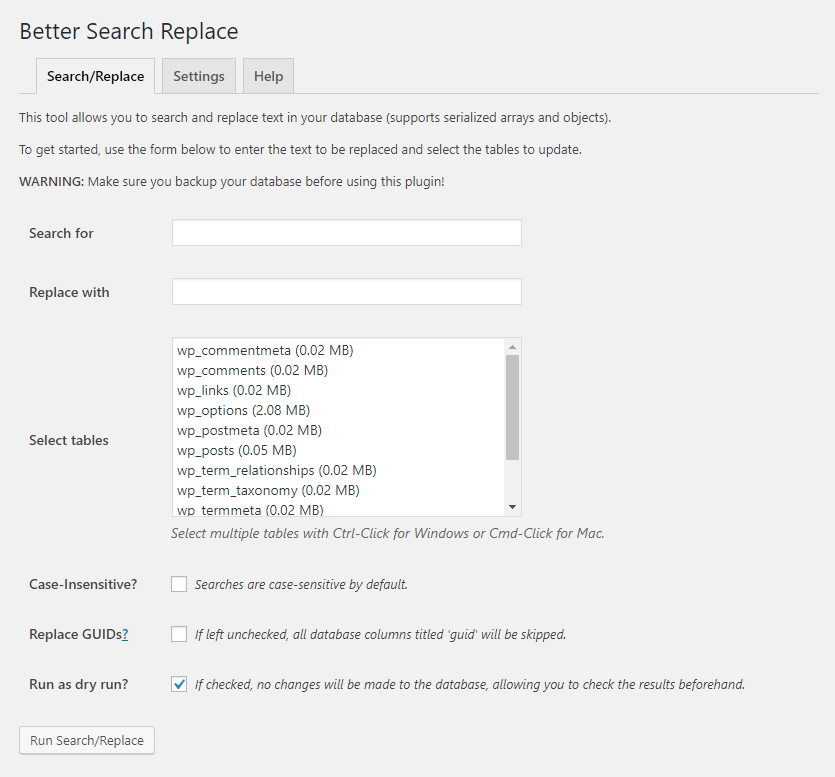
- Search for should have the word or phrase that you want to change.
- Replace with should hold the word or phrase that will replace the original.
- Select tables function lets you choose which tables of your database you want to modify.
- Replace GUIDs? lets you replace the modified data’s global unique identifier (GUID) number. If your site is already live, we advise against checking this box.
- Tick the Run as dry run? box if you want to review the changes first before executing them.
Pro Tip
If you want to select all the tables in the column, you can press CTRL+A. You can also select individual tables by holding CTRL and clicking one table at a time. If you want to perform a case-insensitive data search, make sure to tick the Case-Insensitive? box.
Once you’re done, click Run Search/Replace.
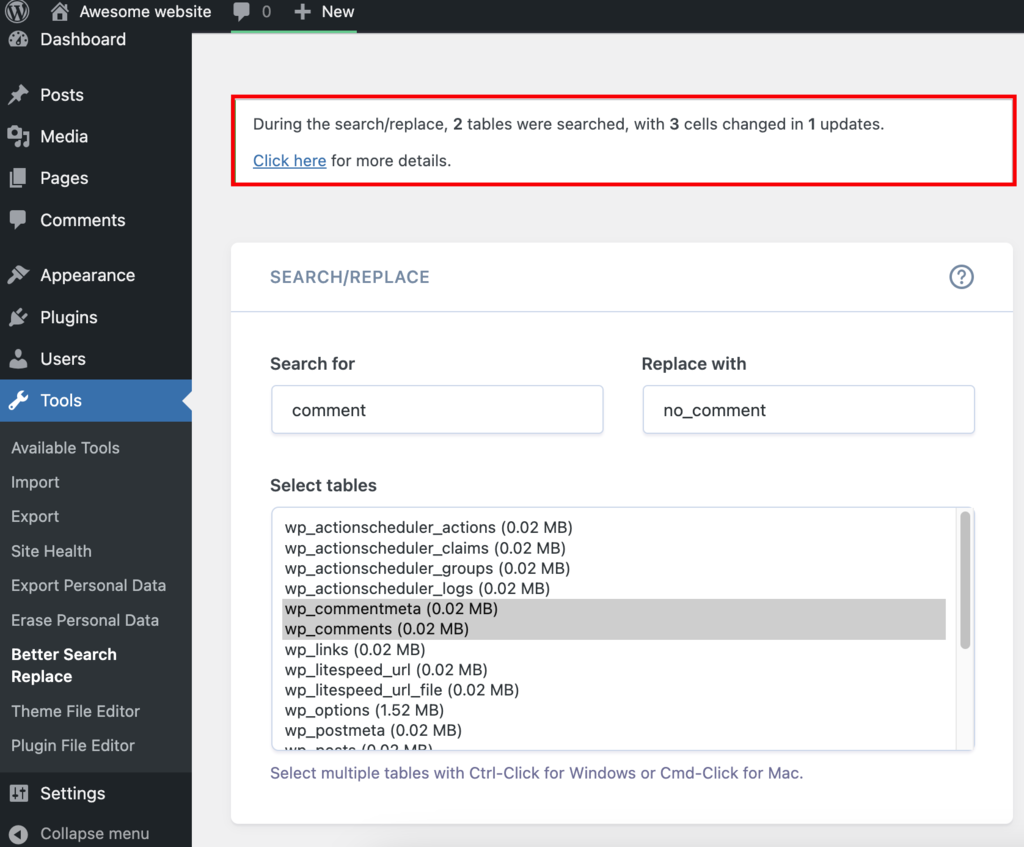
If you run the plugin without the dry run option, it will immediately make changes to your database.
Using WP-CLI via SSH
WP-CLI is a command-line tool for managing WordPress installations. Its search-replace command scans every database table at once, so you don’t need to know specific table or field names.
This method requires SSH access and WP-CLI installed on your server. Hostinger managed WordPress hosting plans include both by default.
Follow these steps to run a search and replace with WP-CLI:
- In hPanel, navigate to Websites → Dashboard (next to the site you want to modify) → Advanced → SSH Access.
- If the SSH status shows INACTIVE, click Enable to activate SSH access for your account.
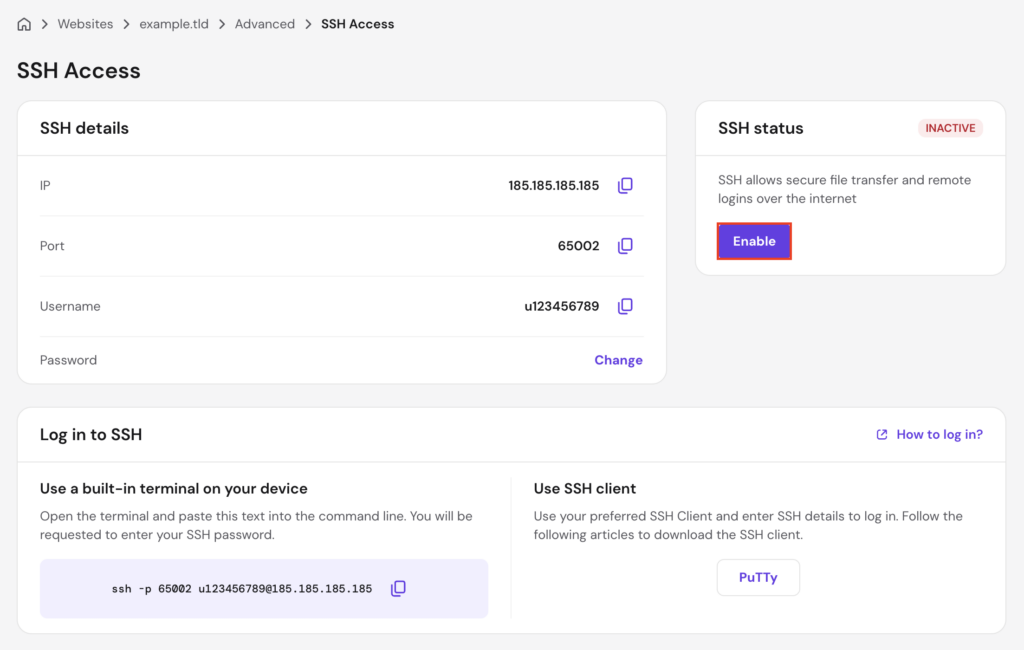
- Under the Log in to SSH section, hPanel provides two options:
- Use a built-in terminal on your device — open Terminal (macOS/Linux) or Command Prompt/PowerShell (Windows) and paste the ready-made command shown in hPanel. It looks something like this:
ssh -p 65002 u123456789@185.185.185.185
- Use SSH client — click PuTTY to download the client. Open PuTTY, enter the server IP in the Host Name field, the port in the Port field, select SSH as the connection type, and click Open. Enter your username and password when the terminal window appears.
Enter your SSH password when prompted.
- Navigate to your WordPress root directory. On Hostinger, the path follows the domains folder structure:
cd domains/domain.tld/public_html
Replace domain.tld with your actual domain name.
- Run a dry run first to preview the changes without modifying the database:
wp search-replace 'old-text' 'new-text' --dry-run
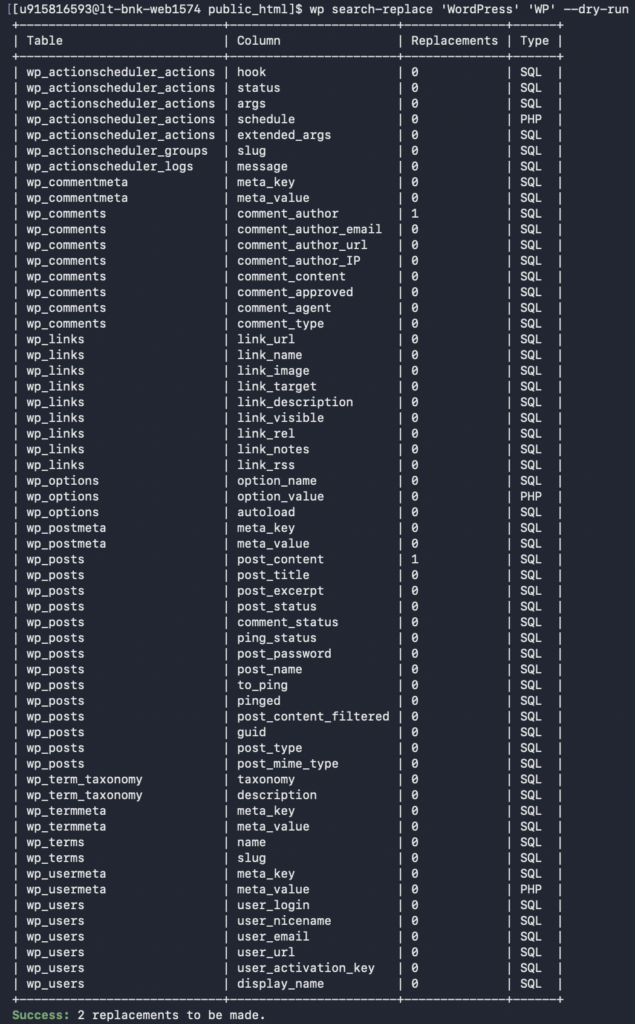
Replace old-text with the word or phrase you want to find, and new-text with its replacement. The –dry-run flag shows how many replacements would be made in each table without executing them.
- Review the output. WP-CLI displays a table listing every affected database table and the number of replacements found.
- Once you’re satisfied with the results, run the command without the –dry-run flag:
wp search-replace 'old-text' 'new-text'
WP-CLI processes all WordPress database tables by default. To include non-WordPress tables (such as those created by plugins), add the –all-tables flag:
wp search-replace 'old-text' 'new-text' --all-tables
Pro tip
WP-CLI also handles serialized data correctly, which is common in WordPress options and widget settings. The plugin and MySQL methods can break serialized data if not handled carefully, making WP-CLI the safer choice for site-wide replacements like domain changes.

Using MySQL query
It’s also possible to perform a search and replace in WordPress database using MySQL query via phpMyAdmin.
First, we’ll discuss how to identify your WordPress database name, which is worth reading if you have more than one database under your account. Then, we will uncover how to perform a search and replace in the database.
Here are the steps to locate your WordPress database name:
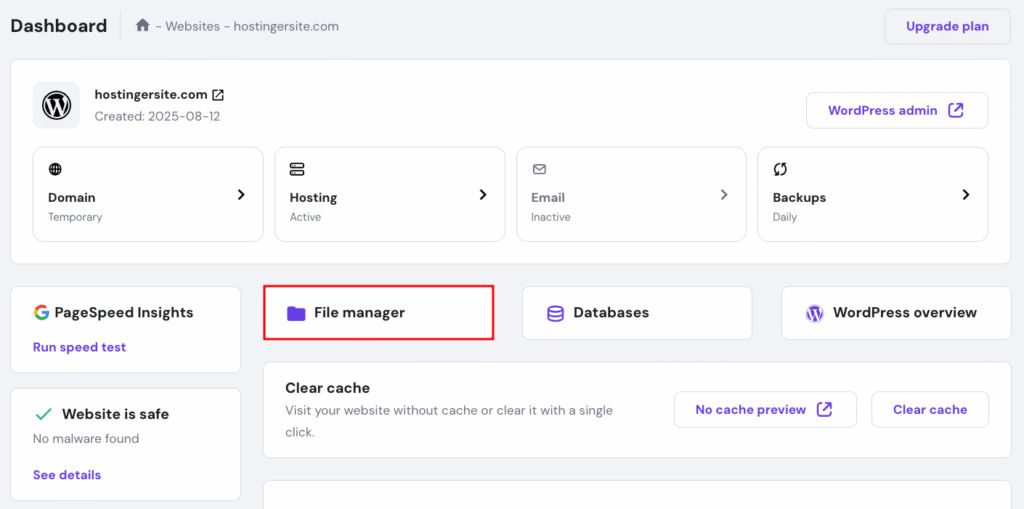
- Navigate to the File Manager section from your hPanel dashboard.
- Access the public_html folder and double-click the wp-config.php file to open it.
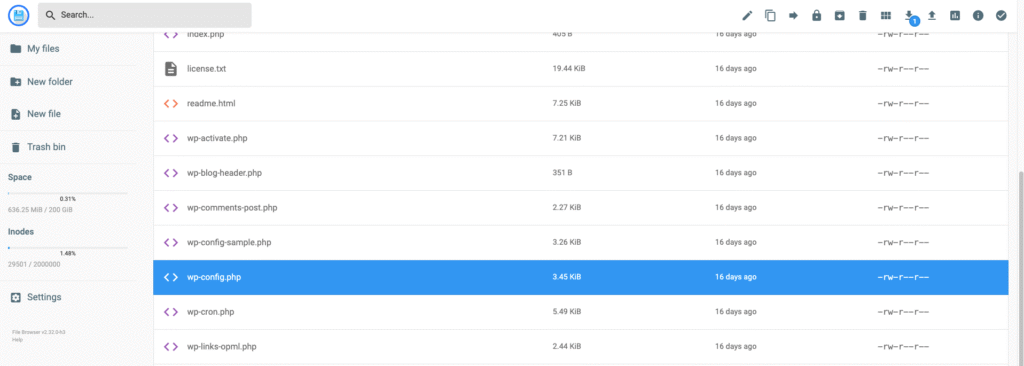
- Locate the DB_NAME value. Your WordPress database name is the value that appears next to it. In this example, the name is “database-name-example.”
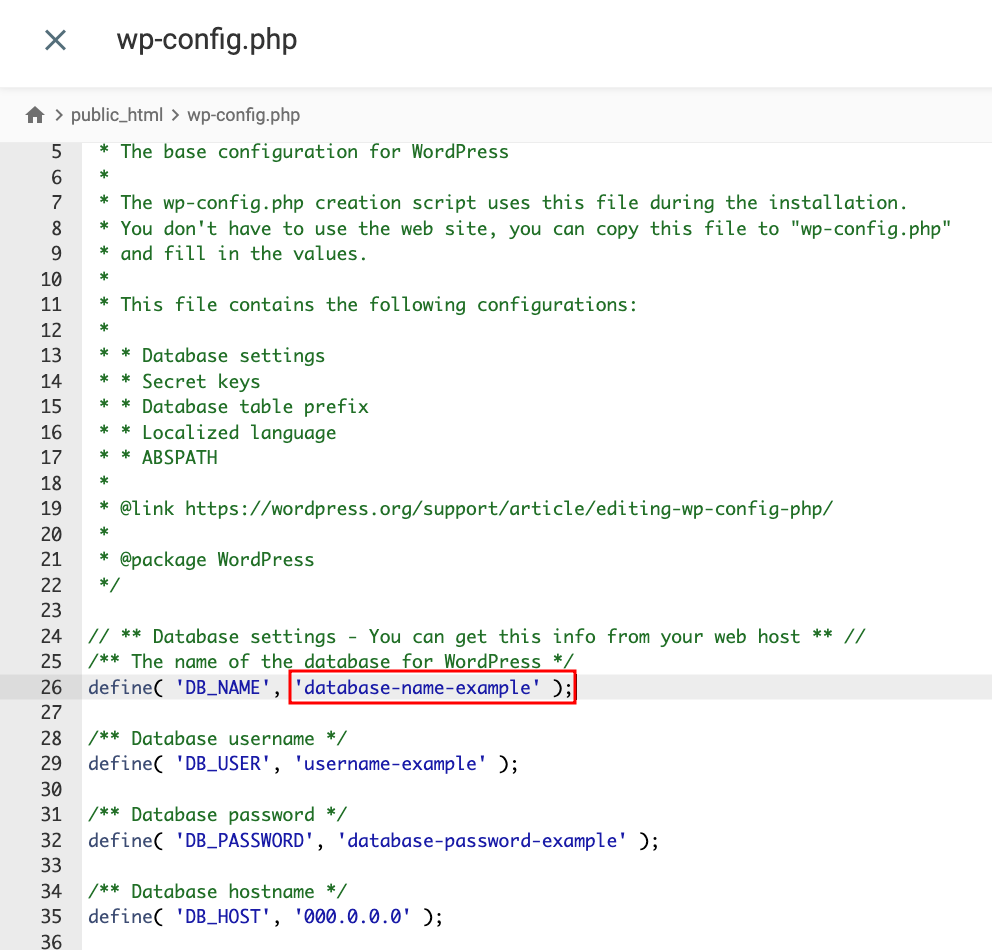
Our tutorial on finding WordPress database name offers more information and shows the steps using an FTP client.
After locating the database name, follow these steps to perform a search and replace in the database:
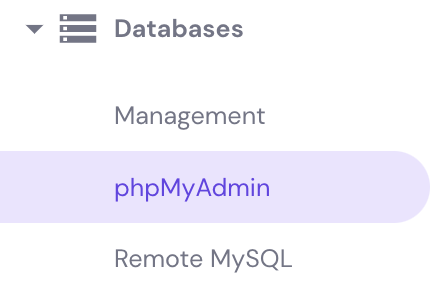
- From your hPanel dashboard, navigate to the Databases → phpMyAdmin section.
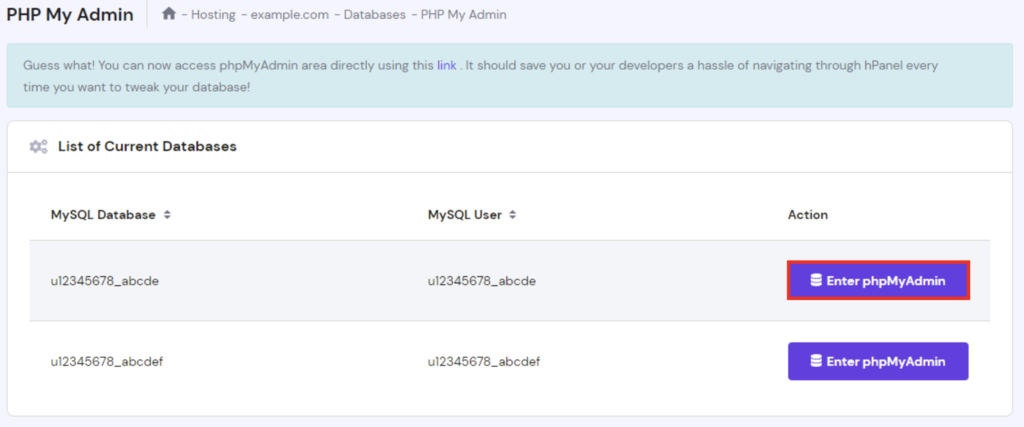
- Locate your WordPress database, then select Enter phpMyAdmin.
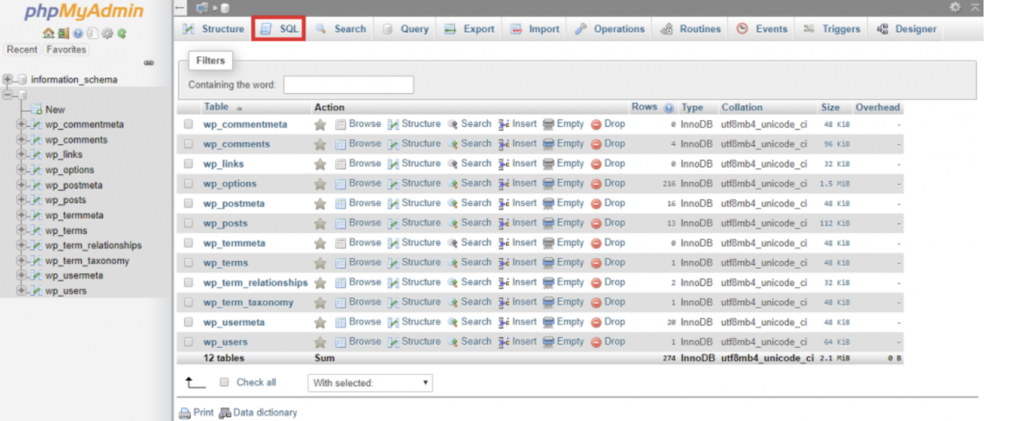
- In the phpMyAdmin page, navigate to the SQL tab at the top menu bar.
- Add the following code snippet to the available space
update TABLE_NAME set FIELD_NAME = replace(FIELD_NAME, 'Text to search, 'Text to replace it with');
Be sure to replace the placeholder texts with the correct information:
- TABLE_NAME represents the name of the table you want to modify.
- FIELD_NAME represents the name of the field/column where the targeted data resides.
- ‘Text to search’ contains the word or phrase that you wish to change.
- ‘Text to replace it with’ contains the word or phrase that will replace the previous text.
Once you are done writing the query, click on the Go button to execute it.
Conclusion
To keep your WordPress website functional and up to date, you need to maintain its database periodically. The maintenance includes replacing outdated data. It’s much easier to tackle the job in bulk with the help of a WordPress search and replace operation.
There are three methods to perform a search and replace in the WordPress database:
- Using the Better Search Replace plugin – suitable for users with no programming experience.
- Using WP-CLI via SSH – a single command that covers all database tables without requiring you to know specific table names.
- Using a MySQL query – ideal for users with moderate to advanced technical knowledge who need to target specific tables.
Which method would you prefer? Let us know in the comment section down below!
Learn Other Expert WordPress Techniques
How to Speed Up WordPress
How to Become a WordPress Developer
How to Use WordPress WP_Query
How to Use XAMPP to Set Up a Local WordPress Site
How to Add Custom CSS to WordPress
All About WordPress Multisite
WordPress search and replace FAQ
Here are the most common questions about WordPress search and replace.
How do I search and replace content in WordPress?
To search and replace content in WordPress, you can use the Better Search Replace plugin, which allows you to find and replace specific text in your WordPress site’s database. You can also use WP-CLI via SSH, which processes all database tables with a single command. Alternatively, you can run a MySQL query through phpMyAdmin to target specific tables and fields.
How often should I search and replace outdated data in WordPress?
We recommend searching and replacing outdated data in WordPress as often as necessary, such as when updating your site’s design, changing your domain name, or migrating your site to a new server. In addition, you can also periodically review your site’s database to remove unnecessary data.

Domantas leads the content and SEO teams forward with fresh ideas and out of the box approaches. Armed with extensive SEO and marketing knowledge, he aims to spread the word of Hostinger to every corner of the world. During his free time, Domantas likes to hone his web development skills and travel to exotic places.